


Requirements
Before you set up the credential, make sure you have an active Dappier account and an API access token from your account settings ready.[3]
Get your Dappier credentials
Connect Dappier in WEXTL
- Log in to your WEXTL account, add the Dappier node module to your workflow, and click Create new credential.
- Optional: In the Credential name field, enter a name for the credential.
- Enter the authentication credentials you copied from your Dappier account, or follow the on-screen instructions to create the credential.
- If prompted, authenticate your account and confirm access.
- If you want to make changes to your credential in the future, follow the steps in Manage credentials →
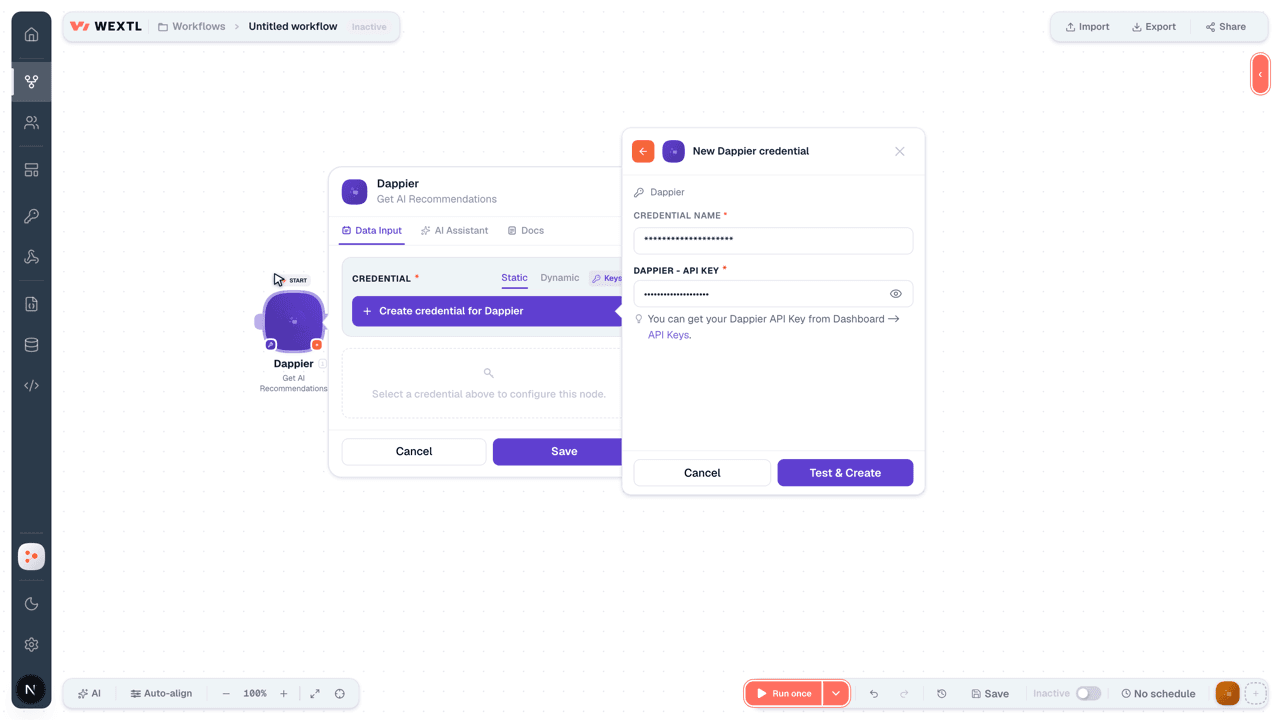

Notes
Credentials are org-scoped; share them with teammates from the Credentials picker on any of its nodes.For detailed information on connecting an application, see Connect an application →
Dappier node modules
The list below is a reference of every Dappier node module the integration supports. You will be able to pick any of them on the workflow canvas while building automations.
Each Dappier node module below opens to reveal its input parameters, outputs, and connection requirements.
Get AI RecommendationsAction
Get Real-Time DataAction
Templates
Look for Dappier templates in the WEXTL template library.
Browse templates →Explore alternative apps
- Bigjpg[2]AI image upscaling service that enlarges and enhances photos while preserving detail.
- AltText AIAI-generated image alt text for accessibility and SEO.
- AWS TextractExtract text, forms, tables, and expense data from documents with Amazon Textract.
- AWS RekognitionDetect faces, labels, text, and moderation content in images with Amazon Rekognition.
- AirtopRun cloud browser sessions and extract or interact with web pages using Airtop.


References
- WEXTL® Dappier Source Code connector implementation.
- Our users use cases and automations.
- Official API Documentation for Dappier.
- WEXTL® visual workflow builder data.
Last updated: Jul 23, 2026 22:39