


STEP 1
Select Perplexity in workflow
Pick Perplexity app in the workflow builder [4] - just one click to select the app.


Triggers can detect changes in Perplexity and run actions that can create, search or modify data inside Perplexity automatically [3] — exactly how you set them.

3 simple steps to make your Perplexity connected with other apps in automation workflows on WEXTL. Up to 10 minutes integration set up.
Pick Perplexity app in the workflow builder [4] - just one click to select the app.
When prompted, authorize access to Perplexity in WEXTL once. Perplexity credentials are encrypted and never shared with WEXTL. Authorization will be reused in any future API calls [3].

WEXTL wants to integrate with your Perplexity account. Approve?
Build your workflow with Perplexity yourself or with WEXTL® AI Builder. Connect Perplexity to any available integrations [5], or use HTTP node to go beyond them.


Save and approve your credentials once — WEXTL® stores authorization information encrypted and reuses the authentication whenever Perplexity app is called in workflows. That allows your ai automations to run without your attention, per defined schedule [7]. Explore documentation [6] for a detailed list of fields that Perplexity supports.
The following table illustrates what fields Perplexity integration require during authorization flow inside our workflow builder [4].
Demonstration of Perplexity connection step inside WEXTL Workflow Builder [4].
| Field | Type | Help |
|---|---|---|
Access TokenRequired | password | Your API key. To obtain one, log in to your account, navigate to Settings → API, and generate a new API key. It will start with 'pplx-'. |
Enter a name of the other app you want to sync with Perplexity below. Click on selected app to explore integration options with Perplexity. If the app you search for is not available in WEXTL yet, you can use HTTP node [10] instead to integrate it directly.
Select Watch Sonar Request trigger from Perplexity - this will be a starting point in your automation. Whenever event happens in Perplexity, workflow will start [7] from Watch Sonar Request node.
Search for Create Async Sonar Request, connect it as the next step of integration sequence. You can use filters between Watch Sonar Request and Create Async Sonar Request, so only important data pass from Watch Sonar Request to the next step. WEXTL gives you full control over the process of Perplexity automation. All parts of workflow are visible on the canvas [4].
Perplexity on WEXTL has 14 modules for combining ai automations. Explore Perplexity documentation for more.
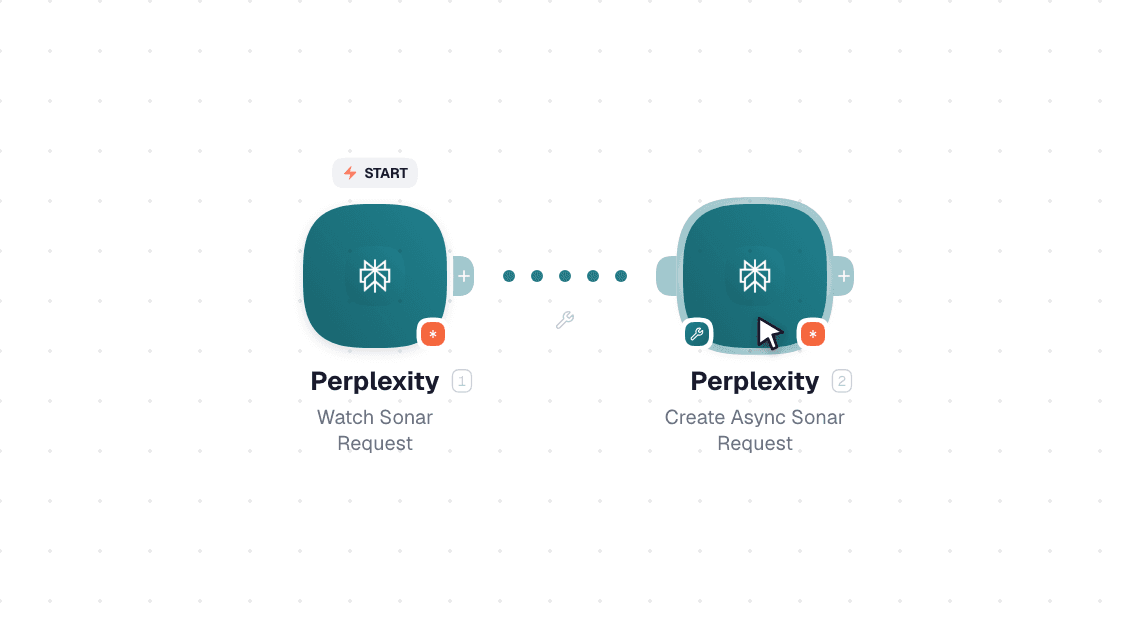
Video slide demonstrates how Watch Sonar Request and Create Async Sonar Request [6] nodes are used in Perplexity workflow.
Common questions about automating Perplexity in your workflows.
List of sources used to gather information about the Perplexity integration.


