


Requirements
To use Microsoft Education on WEXTL you need an active account and OAuth client credentials, granted by signing in with your account.[3]
Get your Microsoft Education credentials
Microsoft Education - Secondary
You’ll be redirected to sign in and approve access — your password is never shared with WEXTL.
- Microsoft - TenantselectRequired
Go to
[1]https://entra.microsoft.comand copy your tennat ID or select any of the following` - Microsoft - Client IDtextRequired
Go to the Microsoft Entra admin center → Entra ID → App registrations and select New registration. → enter a description and expiration → Add, then immediately copy your Client ID
[1] - Microsoft - Client SecretpasswordRequired
Copy you client Secret from the previously created app
[1]
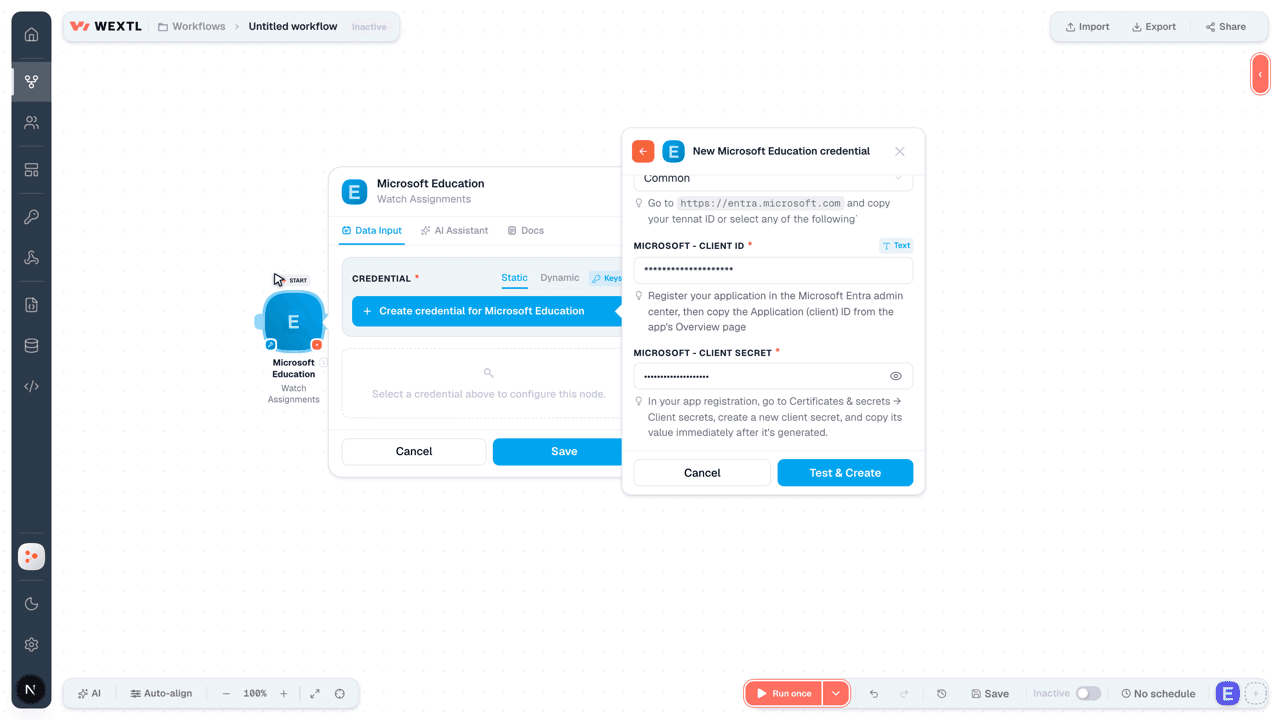
Microsoft Education - Primary
You’ll be redirected to sign in and approve access — your password is never shared with WEXTL.
- Microsoft - TenantselectRequired
Go to
[1]https://entra.microsoft.comand copy your tennat ID or select any of the following` - Microsoft - Client IDtextRequired
Register your application in the Microsoft Entra admin center, then copy the Application (client) ID from the app's Overview page
[1] - Microsoft - Client SecretpasswordRequired
In your app registration, go to Certificates & secrets → Client secrets, create a new client secret, and copy its value immediately after it's generated.
[1]
Connect Microsoft Education in WEXTL
- Log in to your WEXTL account, add the Microsoft Education node module to your workflow, and click Create new credential.
- Optional: In the Credential name field, enter a name for the credential.
- Enter the authentication credentials you copied from your Microsoft Education account, or follow the on-screen instructions to create the credential.
- If prompted, authenticate your account and confirm access.
- If you want to make changes to your credential in the future, follow the steps in Manage credentials →

Notes
Credentials are org-scoped; share them with teammates from the Credentials picker on any of its nodes.For detailed information on connecting an application, see Connect an application →
Microsoft Education node modules
The list below is a reference of every Microsoft Education node module the integration supports. You will be able to pick any of them on the workflow canvas while building automations.
Open any Microsoft Education node module below to inspect its input parameters, outputs, and connection requirements.
Watch AssignmentsTrigger
| Field | Type |
|---|---|
| @odata type | text |
| Class ID | text |
| Display name | text |
| Close date time | date |
| Due date time | date |
| Assign date time | date |
| Assigned date time | date |
| Allow late submissions | boolean |
| Resources folder URL | url |
| Created date time | date |
| Last modified date time | date |
| Allow students to add resources to submission | boolean |
| Status | text |
| Notification channel URL | url |
| Web URL | url |
| Add to calendar action | text |
| Added student action | text |
| Language tag | text |
| Grading | text |
| ID | text |
Watch ModulesTrigger
| Field | Type |
|---|---|
| Display name | text |
| Description | text |
| Resources folder URL | text |
| Is pinned | boolean |
| Status | text |
| Created date time | date |
| Last modified date time | date |
| ID | text |
| Created by | object |
| Application | text |
| Device | text |
| User | object |
| Last modified by | object |
| Application | text |
| Device | text |
| User | object |
Watch RubricsTrigger
| Field | Type |
|---|---|
| Display name | text |
| Created date time | date |
| Last modified date time | date |
| ID | text |
| Description | object |
| Content | text |
| Content type | text |
| Qualities | array |
| Levels | array |
| Grading | object |
| @odata type | text |
| Max points | number |
| Created by | object |
| Application | text |
| Device | text |
| User | object |
| Last modified by | object |
| Application | text |
| Device | text |
| User | object |
List Assignment CategoriesSearch
List Assignment ResourcesSearch
List Assignment SubmissionsSearch
| Field | Type |
|---|---|
Education Class IDRequired | choice |
| Limit | number |
| Field | Type |
|---|---|
| Status | text |
| Submitted date time | date |
| Unsubmitted date time | date |
| Returned date time | date |
| Reassigned date time | date |
| Resources folder URL | url |
| Web URL | url |
| ID | text |
| Recipient | object |
| @odata type | text |
| User ID | text |
| Submitted by | object |
| Application | text |
| Device | text |
| User | object |
| Unsubmitted by | object |
| Application | text |
| Device | text |
| User | object |
| Returned by | object |
| Application | text |
| Device | text |
| User | object |
| Reassigned by | object |
| Application | text |
| Device | text |
| User | object |
List AssignmentsSearch
| Field | Type |
|---|---|
Education Class IDRequired | choice |
| Limit | number |
| Field | Type |
|---|---|
| @odata type | text |
| Class ID | text |
| Display name | text |
| Close date time | date |
| Due date time | date |
| Assign date time | date |
| Assigned date time | date |
| Allow late submissions | boolean |
| Resources folder URL | url |
| Created date time | date |
| Last modified date time | date |
| Allow students to add resources to submission | boolean |
| Status | text |
| Notification channel URL | url |
| Web URL | url |
| Add to calendar action | text |
| Added student action | text |
| Language tag | text |
| Grading | text |
| ID | text |
List CategoriesSearch
List ClassesSearch
List Module ResourcesSearch
List ModulesSearch
| Field | Type |
|---|---|
Education Class IDRequired | choice |
| Limit | number |
| Field | Type |
|---|---|
| Display name | text |
| Description | text |
| Resources folder URL | text |
| Is pinned | boolean |
| Status | text |
| Created date time | date |
| Last modified date time | date |
| ID | text |
| Created by | object |
| Application | text |
| Device | text |
| User | object |
| Last modified by | object |
| Application | text |
| Device | text |
| User | object |
List RubricSearch
| Field | Type |
|---|---|
| Limit | number |
| Field | Type |
|---|---|
| Display name | text |
| Created date time | date |
| Last modified date time | date |
| ID | text |
| Description | object |
| Content | text |
| Content type | text |
| Qualities | array |
| Levels | array |
| Grading | object |
| @odata type | text |
| Max points | number |
| Created by | object |
| Application | text |
| Device | text |
| User | object |
| Last modified by | object |
| Application | text |
| Device | text |
| User | object |
List SchoolsSearch
| Field | Type |
|---|---|
| Limit | number |
| Field | Type |
|---|---|
| @odata type | text |
| ID | text |
| Display name | text |
| Description | text |
| External source | text |
| External source detail | text |
| Principal email | |
| Principal name | text |
| External principal ID | text |
| Lowest grade | text |
| Highest grade | text |
| School number | text |
| External ID | text |
| Phone | text |
| Fax | text |
| Created by | object |
| @odata type | text |
| Address | object |
| @odata type | text |
List UsersSearch
| Field | Type |
|---|---|
| Limit | number |
| Field | Type |
|---|---|
| @odata type | text |
| ID | text |
| Primary role | text |
| Middle name | text |
| External source | text |
| External source detail | text |
| Residence address | object |
| @odata type | text |
| Mailing address | object |
| @odata type | text |
| Student | object |
| @odata type | text |
| Teacher | object |
| @odata type | text |
| Created by | object |
| @odata type | text |
| Account enabled | text |
| Assigned licenses | array |
| Assigned plans | array |
| Business phones | array |
| Department | text |
| Display name | text |
| Given name | text |
| Mail nickname | text |
Retrieve a CategoryAction
Retrieve a ClassAction
Retrieve a ModuleAction
| Field | Type |
|---|---|
Education Class IDRequired | choice |
| Field | Type |
|---|---|
| Display name | text |
| Description | text |
| Resources folder URL | text |
| Is pinned | boolean |
| Status | text |
| Created date time | date |
| Last modified date time | date |
| ID | text |
| Created by | object |
| Application | text |
| Device | text |
| User | object |
| Last modified by | object |
| Application | text |
| Device | text |
| User | object |
Retrieve a Module ResourceAction
Retrieve a RubricAction
| Field | Type |
|---|---|
Rubric IDRequired | choice |
| Field | Type |
|---|---|
| Display name | text |
| Created date time | date |
| Last modified date time | date |
| ID | text |
| Description | object |
| Content | text |
| Content type | text |
| Qualities | array |
| Levels | array |
| Grading | object |
| @odata type | text |
| Max points | number |
| Created by | object |
| Application | text |
| Device | text |
| User | object |
| Last modified by | object |
| Application | text |
| Device | text |
| User | object |
Retrieve a SchoolAction
| Field | Type |
|---|---|
School IDRequired | choice |
| Field | Type |
|---|---|
| @odata type | text |
| ID | text |
| Display name | text |
| Description | text |
| External source | text |
| External source detail | text |
| Principal email | |
| Principal name | text |
| External principal ID | text |
| Lowest grade | text |
| Highest grade | text |
| School number | text |
| External ID | text |
| Phone | text |
| Fax | text |
| Created by | object |
| @odata type | text |
| Address | object |
| @odata type | text |
Retrieve a UserAction
| Field | Type |
|---|---|
User IDRequired | choice |
| Field | Type |
|---|---|
| @odata type | text |
| ID | text |
| Primary role | text |
| Middle name | text |
| External source | text |
| External source detail | text |
| Residence address | object |
| @odata type | text |
| Mailing address | object |
| @odata type | text |
| Student | object |
| @odata type | text |
| Teacher | object |
| @odata type | text |
| Created by | object |
| @odata type | text |
| Account enabled | text |
| Assigned licenses | array |
| Assigned plans | array |
| Business phones | array |
| Department | text |
| Display name | text |
| Given name | text |
| Mail nickname | text |
Retrieve an AssignmentAction
| Field | Type |
|---|---|
Education Class IDRequired | choice |
| Field | Type |
|---|---|
| @odata type | text |
| Class ID | text |
| Display name | text |
| Close date time | date |
| Due date time | date |
| Assign date time | date |
| Assigned date time | date |
| Allow late submissions | boolean |
| Resources folder URL | url |
| Created date time | date |
| Last modified date time | date |
| Allow students to add resources to submission | boolean |
| Status | text |
| Notification channel URL | url |
| Web URL | url |
| Add to calendar action | text |
| Added student action | text |
| Language tag | text |
| Grading | text |
| ID | text |
Retrieve an Assignment ResourceAction
Activate an AssignmentAction
| Field | Type |
|---|---|
Education Class IDRequired | choice |
| Field | Type |
|---|---|
| @odata type | text |
| Class ID | text |
| Display name | text |
| Close date time | date |
| Due date time | date |
| Assign date time | date |
| Assigned date time | date |
| Allow late submissions | boolean |
| Resources folder URL | url |
| Created date time | date |
| Last modified date time | date |
| Allow students to add resources to submission | boolean |
| Status | text |
| Notification channel URL | url |
| Web URL | url |
| Add to calendar action | text |
| Added student action | text |
| Language tag | text |
| Grading | text |
| ID | text |
Add an Assignment CategoryAction
| Field | Type |
|---|---|
Education Class IDRequired | choice |
| Display Name | text |
| Field | Type |
|---|---|
| @odata type | text |
| Class ID | text |
| Display name | text |
| Close date time | date |
| Due date time | date |
| Assign date time | date |
| Assigned date time | date |
| Allow late submissions | boolean |
| Resources folder URL | url |
| Created date time | date |
| Last modified date time | date |
| Allow students to add resources to submission | boolean |
| Status | text |
| Notification channel URL | url |
| Web URL | url |
| Add to calendar action | text |
| Added student action | text |
| Language tag | text |
| Grading | text |
| ID | text |
Create a CategoryAction
Create a ClassAction
| Field | Type |
|---|---|
Display NameRequired | text |
| Created By | object |
| External Source | choice |
| Mail Nickname | text |
| Description | text |
| Class Code | text |
| External Name | text |
| External ID | text |
| External Source Detail | text |
| Grade | text |
| Term | object |
Start DateRequired | date |
| End Date | date |
| Display Name | text |
| Field | Type |
|---|---|
| @odata type | text |
| ID | text |
| Display name | text |
| Mail nickname | |
| Description | text |
| Created by | object |
| @odata type | text |
| Class code | text |
| External name | text |
| External ID | text |
| External source | text |
| External source detail | text |
| Grade | text |
| Term | object |
| @odata type | text |
Create a ModuleAction
| Field | Type |
|---|---|
Education Class IDRequired | choice |
Display NameRequired | text |
| Description | text |
| Is Pinned | boolean |
| Last Modified By | object |
| Resources Folder URL | url |
| Status | choice |
| Field | Type |
|---|---|
| Display name | text |
| Description | text |
| Resources folder URL | text |
| Is pinned | boolean |
| Status | text |
| Created date time | date |
| Last modified date time | date |
| ID | text |
| Created by | object |
| Application | text |
| Device | text |
| User | object |
| Last modified by | object |
| Application | text |
| Device | text |
| User | object |
Create a Module ResourceAction
Create a RubricAction
| Field | Type |
|---|---|
Display NameRequired | text |
| Description | object |
ContentRequired | text |
Content TypeRequired | text |
| Levels | array |
| Qualities | array |
| Field | Type |
|---|---|
| Display name | text |
| Created date time | date |
| Last modified date time | date |
| ID | text |
| Description | object |
| Content | text |
| Content type | text |
| Qualities | array |
| Levels | array |
| Grading | object |
| @odata type | text |
| Max points | number |
| Created by | object |
| Application | text |
| Device | text |
| User | object |
| Last modified by | object |
| Application | text |
| Device | text |
| User | object |
Create a SchoolAction
| Field | Type |
|---|---|
Display NameRequired | text |
External SourceRequired | choice |
| External Source Detail | text |
| Principal Email | |
| Principal Name | text |
| External Principal ID | text |
| Highest Grade | text |
| Lowest Grade | text |
| School Number | text |
| External ID | text |
| Phone | text |
| Fax | text |
| Created By | object |
| Address | object |
| Street | text |
| City | text |
| State | text |
| Postal Code | text |
| Country or Region | text |
| Field | Type |
|---|---|
| @odata type | text |
| ID | text |
| Display name | text |
| Description | text |
| External source | text |
| External source detail | text |
| Principal email | |
| Principal name | text |
| External principal ID | text |
| Lowest grade | text |
| Highest grade | text |
| School number | text |
| External ID | text |
| Phone | text |
| Fax | text |
| Created by | object |
| @odata type | text |
| Address | object |
| @odata type | text |
Create a UserAction
| Field | Type |
|---|---|
Account EnabledRequired | boolean |
Display NameRequired | text |
Mail NicknameRequired | text |
Password ProfileRequired | object |
| Password | secret |
| Force Change Password Next Sign In | boolean |
Usage LocationRequired | text |
| Assigned Licenses | array |
| License | text |
| Business Phones | array |
| Phone Number | text |
| Department | text |
| Given Name | text |
| Middle Name | text |
| Mobile Phone | text |
| Preferred Language | text |
| User Principal Name | text |
| User Type | choice |
| Surname | text |
| External Source | choice |
| External Source Detail | text |
| Mailing Address | object |
| City | text |
| Country or Region | text |
| Postal Code | text |
| State | text |
| Street | text |
| Residence Address | object |
| City | text |
| Country or Region | text |
| Postal Code | text |
| State | text |
| Street | text |
| Student Information | object |
| Birth Date | date |
| External ID | text |
| Gender | choice |
| Grade | text |
| Graduation Year | text |
| Student Number | text |
| Field | Type |
|---|---|
| @odata type | text |
| ID | text |
| Primary role | text |
| Middle name | text |
| External source | text |
| External source detail | text |
| Residence address | object |
| @odata type | text |
| Mailing address | object |
| @odata type | text |
| Student | object |
| @odata type | text |
| Teacher | object |
| @odata type | text |
| Created by | object |
| @odata type | text |
| Account enabled | text |
| Assigned licenses | array |
| Assigned plans | array |
| Business phones | array |
| Department | text |
| Display name | text |
| Given name | text |
| Mail nickname | text |
Create an AssignmentAction
| Field | Type |
|---|---|
Education Class IDRequired | choice |
Display NameRequired | text |
Due Date TimeRequired | date |
Assign ToRequired | object |
| Added Student Action | choice |
| Add To Calendar Action | choice |
| Allow Late Submissions | boolean |
| Allow Students To Add Resources To Submission | boolean |
| Created By | object |
| Feedback Resources Folder URL | url |
| Grading | object |
| Instructions | object |
| Language Tag | text |
| Last Modified By | object |
| Module URL | url |
| Notification Channel URL | url |
| Resources Folder URL | url |
| Status | choice |
| Web URL | url |
| Field | Type |
|---|---|
| @odata type | text |
| Class ID | text |
| Display name | text |
| Close date time | date |
| Due date time | date |
| Assign date time | date |
| Assigned date time | date |
| Allow late submissions | boolean |
| Resources folder URL | url |
| Created date time | date |
| Last modified date time | date |
| Allow students to add resources to submission | boolean |
| Status | text |
| Notification channel URL | url |
| Web URL | url |
| Add to calendar action | text |
| Added student action | text |
| Language tag | text |
| Grading | text |
| ID | text |
Create an Assignment ResourceAction
| Field | Type |
|---|---|
Education Class IDRequired | choice |
Display NameRequired | text |
LinkRequired | url |
| Thumbnail Preview URL | url |
OData TypeRequired | text |
| Distribute for Student Work | boolean |
| Field | Type |
|---|---|
| Distribute for student work | boolean |
| ID | text |
| Resource | object |
| @odata type | text |
| Display name | text |
| Created date time | date |
| Last modified date time | date |
| Web URL | url |
| Created by | object |
| Last modified by | object |
Deactivate an AssignmentAction
| Field | Type |
|---|---|
Education Class IDRequired | choice |
| Field | Type |
|---|---|
| @odata type | text |
| Class ID | text |
| Display name | text |
| Close date time | date |
| Due date time | date |
| Assign date time | date |
| Assigned date time | date |
| Allow late submissions | boolean |
| Resources folder URL | url |
| Created date time | date |
| Last modified date time | date |
| Allow students to add resources to submission | boolean |
| Status | text |
| Notification channel URL | url |
| Web URL | url |
| Add to calendar action | text |
| Added student action | text |
| Language tag | text |
| Grading | text |
| ID | text |
Delete a CategoryAction
| Field | Type |
|---|---|
Education Class IDRequired | choice |
Delete a ClassAction
| Field | Type |
|---|---|
Class IDRequired | choice |
Delete a ModuleAction
| Field | Type |
|---|---|
Education Class IDRequired | choice |
Delete a Module ResourceAction
| Field | Type |
|---|---|
Education Class IDRequired | choice |
Delete a RubricAction
| Field | Type |
|---|---|
Rubric IDRequired | choice |
Delete a SchoolAction
| Field | Type |
|---|---|
School IDRequired | choice |
Delete a UserAction
| Field | Type |
|---|---|
User IDRequired | choice |
Delete an AssignmentAction
| Field | Type |
|---|---|
Education Class IDRequired | choice |
Delete an Assignment ResourceAction
| Field | Type |
|---|---|
Education Class IDRequired | choice |
Make an API Calluniversal
Pin a ModuleAction
| Field | Type |
|---|---|
Education Class IDRequired | choice |
| Field | Type |
|---|---|
| Display name | text |
| Description | text |
| Resources folder URL | text |
| Is pinned | boolean |
| Status | text |
| Created date time | date |
| Last modified date time | date |
| ID | text |
| Created by | object |
| Application | text |
| Device | text |
| User | object |
| Last modified by | object |
| Application | text |
| Device | text |
| User | object |
Publish a ModuleAction
| Field | Type |
|---|---|
Education Class IDRequired | choice |
| Field | Type |
|---|---|
| Display name | text |
| Description | text |
| Resources folder URL | text |
| Is pinned | boolean |
| Status | text |
| Created date time | date |
| Last modified date time | date |
| ID | text |
| Created by | object |
| Application | text |
| Device | text |
| User | object |
| Last modified by | object |
| Application | text |
| Device | text |
| User | object |
Publish an AssignmentAction
| Field | Type |
|---|---|
Education Class IDRequired | choice |
| Field | Type |
|---|---|
| @odata type | text |
| Class ID | text |
| Display name | text |
| Close date time | date |
| Due date time | date |
| Assign date time | date |
| Assigned date time | date |
| Allow late submissions | boolean |
| Resources folder URL | url |
| Created date time | date |
| Last modified date time | date |
| Allow students to add resources to submission | boolean |
| Status | text |
| Notification channel URL | url |
| Web URL | url |
| Add to calendar action | text |
| Added student action | text |
| Language tag | text |
| Grading | text |
| ID | text |
Remove an Assignment CategoryAction
| Field | Type |
|---|---|
Education Class IDRequired | choice |
| Field | Type |
|---|---|
| @odata type | text |
| Class ID | text |
| Display name | text |
| Close date time | date |
| Due date time | date |
| Assign date time | date |
| Assigned date time | date |
| Allow late submissions | boolean |
| Resources folder URL | url |
| Created date time | date |
| Last modified date time | date |
| Allow students to add resources to submission | boolean |
| Status | text |
| Notification channel URL | url |
| Web URL | url |
| Add to calendar action | text |
| Added student action | text |
| Language tag | text |
| Grading | text |
| ID | text |
Setup an Assignment Feedback FolderAction
| Field | Type |
|---|---|
Education Class IDRequired | choice |
| Field | Type |
|---|---|
| @odata type | text |
| Class ID | text |
| Display name | text |
| Close date time | date |
| Due date time | date |
| Assign date time | date |
| Assigned date time | date |
| Allow late submissions | boolean |
| Resources folder URL | url |
| Created date time | date |
| Last modified date time | date |
| Allow students to add resources to submission | boolean |
| Status | text |
| Notification channel URL | url |
| Web URL | url |
| Add to calendar action | text |
| Added student action | text |
| Language tag | text |
| Grading | text |
| ID | text |
Setup an Assignment Resource FolderAction
| Field | Type |
|---|---|
Education Class IDRequired | choice |
| Field | Type |
|---|---|
| @odata type | text |
| Class ID | text |
| Display name | text |
| Close date time | date |
| Due date time | date |
| Assign date time | date |
| Assigned date time | date |
| Allow late submissions | boolean |
| Resources folder URL | url |
| Created date time | date |
| Last modified date time | date |
| Allow students to add resources to submission | boolean |
| Status | text |
| Notification channel URL | url |
| Web URL | url |
| Add to calendar action | text |
| Added student action | text |
| Language tag | text |
| Grading | text |
| ID | text |
Setup Module Resource FolderAction
| Field | Type |
|---|---|
Education Class IDRequired | choice |
| Field | Type |
|---|---|
| Display name | text |
| Description | text |
| Resources folder URL | text |
| Is pinned | boolean |
| Status | text |
| Created date time | date |
| Last modified date time | date |
| ID | text |
| Created by | object |
| Application | text |
| Device | text |
| User | object |
| Last modified by | object |
| Application | text |
| Device | text |
| User | object |
Unpin a ModuleAction
| Field | Type |
|---|---|
Education Class IDRequired | choice |
| Field | Type |
|---|---|
| Display name | text |
| Description | text |
| Resources folder URL | text |
| Is pinned | boolean |
| Status | text |
| Created date time | date |
| Last modified date time | date |
| ID | text |
| Created by | object |
| Application | text |
| Device | text |
| User | object |
| Last modified by | object |
| Application | text |
| Device | text |
| User | object |
Update a ClassAction
| Field | Type |
|---|---|
Class IDRequired | choice |
| Display Name | text |
| Created By | object |
| External Source | choice |
| Mail Nickname | text |
| Description | text |
| Class Code | text |
| External Name | text |
| External ID | text |
| External Source Detail | text |
| Grade | text |
| Term | object |
| Start Date | date |
| End Date | date |
| Display Name | text |
| Field | Type |
|---|---|
| @odata type | text |
| ID | text |
| Display name | text |
| Mail nickname | |
| Description | text |
| Created by | object |
| @odata type | text |
| Class code | text |
| External name | text |
| External ID | text |
| External source | text |
| External source detail | text |
| Grade | text |
| Term | object |
| @odata type | text |
Update a ModuleAction
| Field | Type |
|---|---|
Education Class IDRequired | choice |
| Display Name | text |
| Description | text |
| Is Pinned | boolean |
| Last Modified By | object |
| Resources Folder URL | url |
| Status | choice |
| Field | Type |
|---|---|
| Display name | text |
| Description | text |
| Resources folder URL | text |
| Is pinned | boolean |
| Status | text |
| Created date time | date |
| Last modified date time | date |
| ID | text |
| Created by | object |
| Application | text |
| Device | text |
| User | object |
| Last modified by | object |
| Application | text |
| Device | text |
| User | object |
Update a Module ResourceAction
Update a RubricAction
| Field | Type |
|---|---|
Rubric IDRequired | choice |
| Display Name | text |
| Description | object |
| Content | text |
| Content Type | text |
| Levels | array |
| Qualities | array |
| Field | Type |
|---|---|
| Display name | text |
| Created date time | date |
| Last modified date time | date |
| ID | text |
| Description | object |
| Content | text |
| Content type | text |
| Qualities | array |
| Levels | array |
| Grading | object |
| @odata type | text |
| Max points | number |
| Created by | object |
| Application | text |
| Device | text |
| User | object |
| Last modified by | object |
| Application | text |
| Device | text |
| User | object |
Update a SchoolAction
| Field | Type |
|---|---|
School IDRequired | choice |
| Display Name | text |
| External Source | choice |
| External Source Detail | text |
| Principal Email | |
| Principal Name | text |
| External Principal ID | text |
| Highest Grade | text |
| Lowest Grade | text |
| School Number | text |
| External ID | text |
| Phone | text |
| Fax | text |
| Created By | object |
| Address | object |
| Street | text |
| City | text |
| State | text |
| Postal Code | text |
| Country or Region | text |
| Field | Type |
|---|---|
| @odata type | text |
| ID | text |
| Display name | text |
| Description | text |
| External source | text |
| External source detail | text |
| Principal email | |
| Principal name | text |
| External principal ID | text |
| Lowest grade | text |
| Highest grade | text |
| School number | text |
| External ID | text |
| Phone | text |
| Fax | text |
| Created by | object |
| @odata type | text |
| Address | object |
| @odata type | text |
Update a UserAction
| Field | Type |
|---|---|
User IDRequired | choice |
| Account Enabled | boolean |
| Display Name | text |
| Mail Nickname | text |
| Password Profile | object |
| Password | secret |
| Force Change Password Next Sign In | boolean |
| Usage Location | text |
| Assigned Licenses | array |
| License | text |
| Business Phones | array |
| Phone Number | text |
| Department | text |
| Given Name | text |
| Middle Name | text |
| Mobile Phone | text |
| Preferred Language | text |
| User Principal Name | text |
| User Type | choice |
| Surname | text |
| External Source | choice |
| External Source Detail | text |
| Mailing Address | object |
| City | text |
| Country or Region | text |
| Postal Code | text |
| State | text |
| Street | text |
| Residence Address | object |
| City | text |
| Country or Region | text |
| Postal Code | text |
| State | text |
| Street | text |
| Field | Type |
|---|---|
| @odata type | text |
| ID | text |
| Primary role | text |
| Middle name | text |
| External source | text |
| External source detail | text |
| Residence address | object |
| @odata type | text |
| Mailing address | object |
| @odata type | text |
| Student | object |
| @odata type | text |
| Teacher | object |
| @odata type | text |
| Created by | object |
| @odata type | text |
| Account enabled | text |
| Assigned licenses | array |
| Assigned plans | array |
| Business phones | array |
| Department | text |
| Display name | text |
| Given name | text |
| Mail nickname | text |
Update an AssignmentAction
| Field | Type |
|---|---|
Education Class IDRequired | choice |
| Display Name | text |
| Due Date Time | date |
| Assign To | object |
| Added Student Action | choice |
| Add To Calendar Action | choice |
| Allow Late Submissions | boolean |
| Allow Students To Add Resources To Submission | boolean |
| Created By | object |
| Feedback Resources Folder URL | url |
| Grading | object |
| Instructions | object |
| Language Tag | text |
| Last Modified By | object |
| Module URL | url |
| Notification Channel URL | url |
| Resources Folder URL | url |
| Status | choice |
| Web URL | url |
| Field | Type |
|---|---|
| @odata type | text |
| Class ID | text |
| Display name | text |
| Close date time | date |
| Due date time | date |
| Assign date time | date |
| Assigned date time | date |
| Allow late submissions | boolean |
| Resources folder URL | url |
| Created date time | date |
| Last modified date time | date |
| Allow students to add resources to submission | boolean |
| Status | text |
| Notification channel URL | url |
| Web URL | url |
| Add to calendar action | text |
| Added student action | text |
| Language tag | text |
| Grading | text |
| ID | text |
Templates
Look for Microsoft Education templates in the WEXTL template library.
Browse templates →Explore alternative apps
- beehiiv[2]Publish newsletters and manage subscribers in beehiiv.
- AWeberEmail marketing — lists, subscribers, campaigns, and broadcasts.
- AkeneoProduct information management (PIM) for enriching and distributing catalog data.
- BrandwatchConsumer intelligence and social listening platform for brand monitoring, insights, and research.
- AhrefsSEO toolkit for backlinks, keywords, site audits, and competitive research.


References
- WEXTL® Microsoft Education Source Code connector implementation.
- Our users use cases and automations.
- Official API Documentation for Microsoft Education.
- WEXTL® visual workflow builder data.
Last updated: Jul 24, 2026 18:12