OpenRouter icon

OpenRouter Integration

A unified API for hundreds of AI models from many providers. Turn OpenRouter results into structured actions across your workflows and downstream tools. Use Watch Batch Events to move AI generated information into the next step, such as Download a Container File or Download a File.
3-day trialCancel anytimeUp to 10 minutes quick set up
  • GDPR
  • Data Encryption
  • 2FA
  • Local Data Region

Supported triggers and actions for OpenRouter integration

Triggers can detect changes in OpenRouter and run actions that can create, search or modify data inside OpenRouter automatically [3] — exactly how you set them.

  • OpenRouter icon
    Watch Batch EventsTriggers when a batch finishes, fails, expires or is cancelled.
  • OpenRouter icon
    Watch GenerationsTriggers when a model request is made in a workspace (management key only). Broadcast must be switched on for the workspace.
  • OpenRouter icon
    Watch Video EventsTriggers when a video generation job finishes, fails, is cancelled or expires.
  • OpenRouter icon
    Download a Container FileDownloads a file from a container.
  • OpenRouter icon
    Download a FileDownloads a file's content.
  • OpenRouter icon
    Download a VideoDownloads a finished video as a file.
  • OpenRouter icon
    Get a BatchReturns a batch with its status and, once finished, its results.
  • OpenRouter icon
    Get a BYOK KeyReturns the settings of one BYOK key, never the key itself (management key only).
  • OpenRouter icon
    Get a Container FileReturns the details of one file in a container.
  • OpenRouter icon
    Get a FileReturns the details of one uploaded file.
  • OpenRouter icon
    Get a GenerationReturns the cost, token and routing details of one generation.
  • OpenRouter icon
    Get a GuardrailReturns one guardrail (management key only).
  • OpenRouter icon
    Get a ModelReturns the full details of one model.
  • OpenRouter icon
    Get a PresetReturns one preset with its current version.
  • OpenRouter icon
    Get a Preset VersionReturns one saved version of a preset.
  • OpenRouter icon
    Get a Private EndpointReturns one private endpoint (management key only).
  • OpenRouter icon
    Get a SCIM Group MappingReturns one group mapping (management key only).
  • OpenRouter icon
    Get a SCIM Sync JobReturns the status of a directory sync (management key only).
  • OpenRouter icon
    Get a Server ToolReturns one server tool and the models that run it natively.
  • OpenRouter icon
    Get a Video JobReturns the status and download links of a video generation job.

How to integrate OpenRouter in automation workflow?

3 simple steps to make your OpenRouter connected with other apps in automation workflows on WEXTL. Up to 10 minutes integration set up.

How OpenRouter connects and integrates with WEXTL

Save and approve your credentials once — WEXTL® stores authorization information encrypted and reuses the authentication whenever OpenRouter app is called in workflows. That allows your ai automations to run without your attention, per defined schedule [7]. Explore documentation [6] for a detailed list of fields that OpenRouter supports.

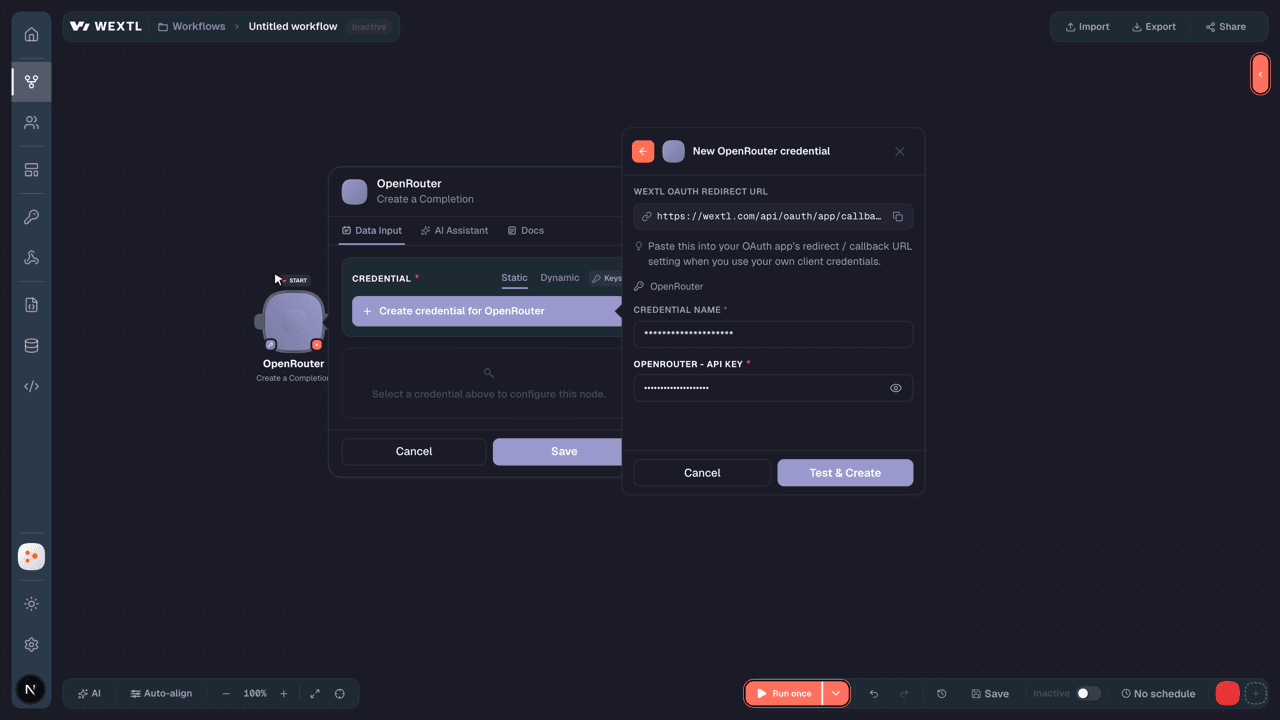
The following table illustrates what fields OpenRouter integration require during authorization flow inside our workflow builder [4].

Video slide demonstrates how OpenRouter is connected in WEXTL builder.

Video slide demonstrates how OpenRouter is connected in WEXTL builder [4].

FieldTypeHelp
API KeyRequired
password

Create a key at openrouter.ai/keys. It starts with sk-or-. Admin features such as keys, workspaces and guardrails need a management key instead, added as a separate connection.

Connect OpenRouter to popular apps on WEXTL

Enter a name of the other app you want to sync with OpenRouter below. Click on selected app to explore integration options with OpenRouter. If the app you search for is not available in WEXTL yet, you can use HTTP node [10] instead to integrate it directly.

Example automation with OpenRouter integration

Select Watch Video Events trigger from OpenRouter - this will be a starting point in your automation. Whenever event happens in OpenRouter, workflow will start [7] from Watch Video Events node.

Search for Create a Video, connect it as the next step of integration sequence. You can use filters between Watch Video Events and Create a Video, so only important data pass from Watch Video Events to the next step. WEXTL gives you full control over the process of OpenRouter automation. All parts of workflow are visible on the canvas [4].

OpenRouter on WEXTL has 138 modules for combining ai automations. Explore OpenRouter documentation for more.

Video slide demonstrates how Watch Video Events and Create a Video nodes are used in OpenRouter workflow.

Video slide demonstrates how Watch Video Events and Create a Video [6] nodes are used in OpenRouter workflow.

Frequently asked questions

Common questions about automating OpenRouter in your workflows.

Try OpenRouter on WEXTL®

Claim your 3-day trial to build OpenRouter integrations and access every WEXTL® feature.

Cancel anytime.

References

List of sources used to gather information about the OpenRouter integration.

  1. OpenRouter integration source code, module specs and credentials implementation.
  2. Internal OpenRouter integration documentation, structured input and output parameters, scopes, and authentication methods.
  3. Official OpenRouter vendor API documentation — used to verify field meanings, authentication flows, and anything our own specs don't fully capture.
  4. WEXTL® Visual Workflow Builder, anonymized data from our technical support team.
  5. WEXTL® Apps Library
  6. WEXTL® OpenRouter App Documentation
  7. WEXTL® Workflow Scheduler
  8. WEXTL® HTTP node documentation