


Requirements
Connecting Avoma takes an active account plus an API access token from your account settings — no other setup is required.[3]
Get your Avoma credentials
- API KeypasswordRequired
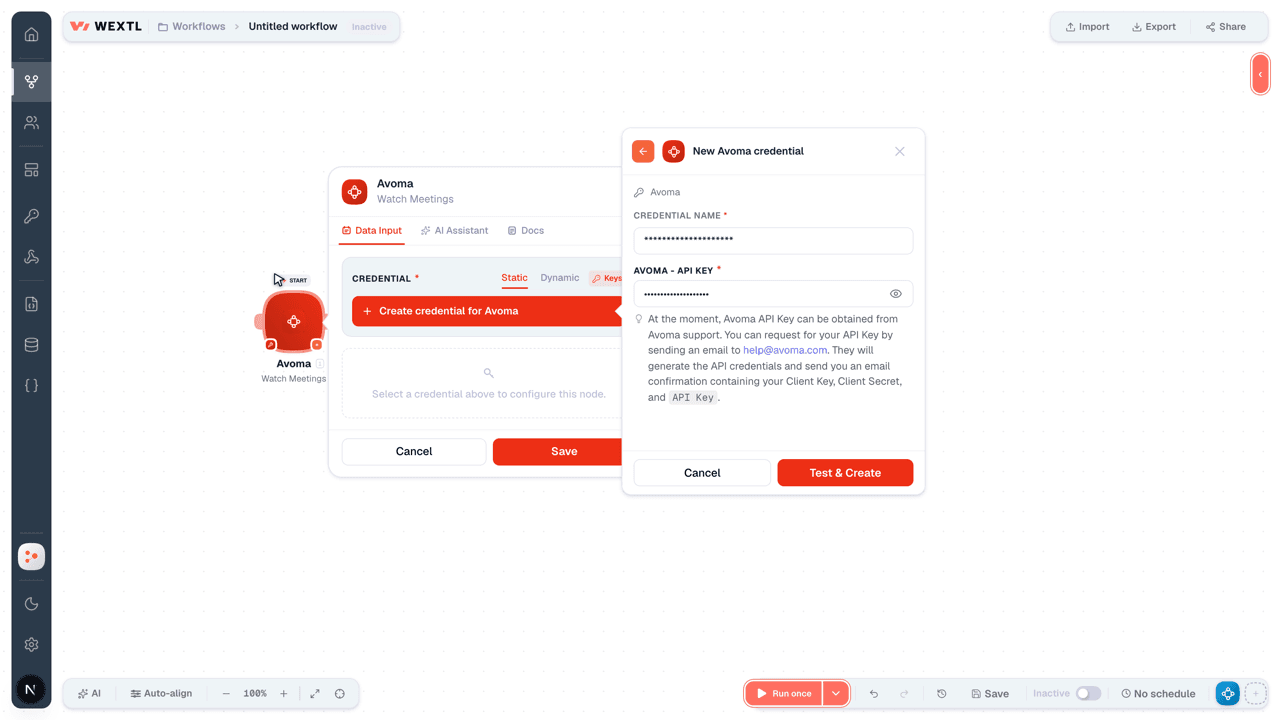
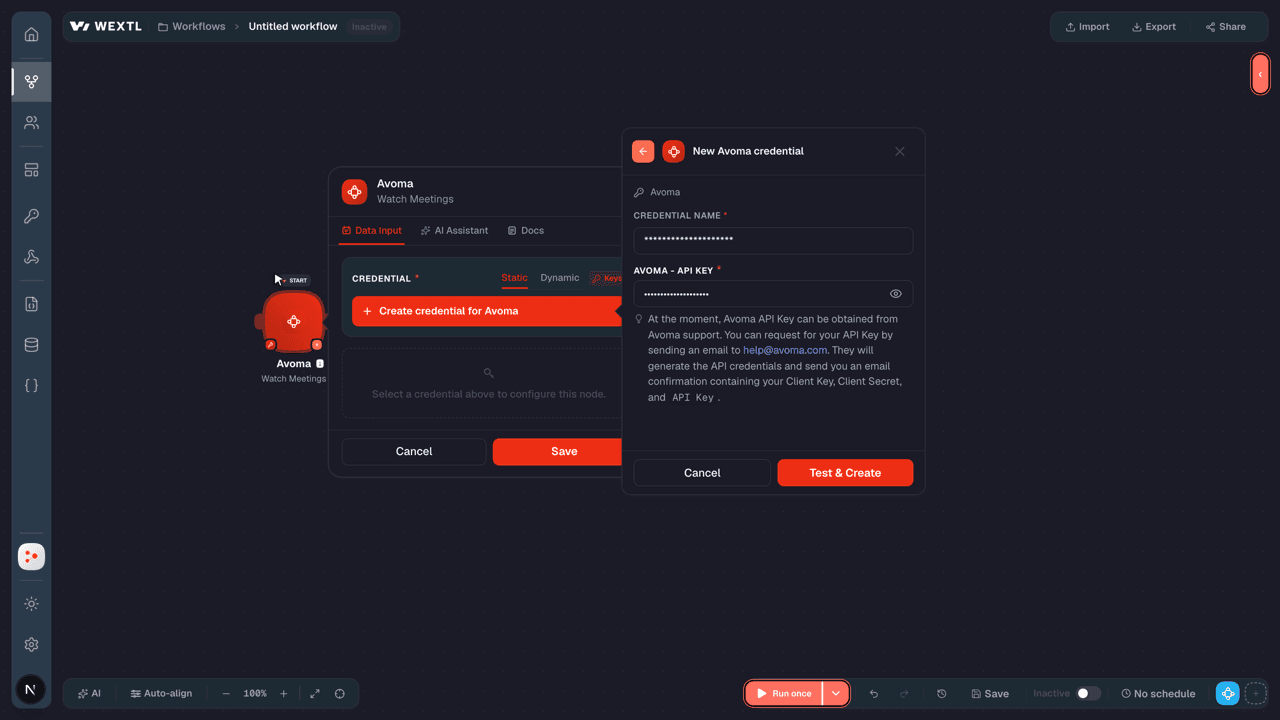
At the moment, API Key can be obtained from Avoma support. You can request for your API Key by sending an email to [email protected]. They will generate the API credentials and send you an email confirmation containing your Client Key, Client Secret, and
[1]API Key.
Connect Avoma in WEXTL
- Log in to your WEXTL account, add the Avoma node module to your workflow, and click Create new credential.
- Optional: In the Credential name field, enter a name for the credential.
- Enter the authentication credentials you copied from your Avoma account, or follow the on-screen instructions to create the credential.
- If prompted, authenticate your account and confirm access.
- If you want to make changes to your credential in the future, follow the steps in Manage credentials →
Notes
Credentials are org-scoped; share them with teammates from the Credentials picker on any of its nodes.For detailed information on connecting an application, see Connect an application →
Avoma node modules
The list below is a reference of every Avoma node module the integration supports. You will be able to pick any of them on the workflow canvas while building automations.
Expand any Avoma node module below to see exactly what it takes in, what it returns, and what connection it needs.
Watch MeetingsTrigger
| Field | Type |
|---|---|
| Attendees | array |
| Audio Ready | boolean |
| Call Details | object |
| External ID | text |
| From | date |
| To | date |
| Created | date |
| Duration | number |
| End at | date |
| Is Call | boolean |
| Is Internal | boolean |
| Is Private | boolean |
| Modified | date |
| Notes Ready | boolean |
| Organizer Email | |
| Outcome | object |
| Label | text |
| UUID | text |
| Processing Status | text |
| Purpose | object |
| Label | text |
| UUID | text |
| Recording UUID | text |
| Start at | date |
| State | text |
| Subject | text |
| Transcript Ready | boolean |
Watch NotesTrigger
| Field | Type |
|---|---|
| User ID | number |
| Email address | |
| Name | text |
| Date created | date |
Get a CallAction
| Field | Type |
|---|---|
External Call IDRequired | text |
| Field | Type |
|---|---|
| Additional Details | text |
| Answered | text |
| Direction | text |
| End at | date |
| External ID | text |
| Frm | text |
| Frm Name | text |
| Is Voicemail | boolean |
| Meeting | object |
| Created | date |
| End at | date |
| External ID | text |
| ID | number |
| Is Call | boolean |
| Is Disclaimer Added | boolean |
| Is Dummy | boolean |
| Is Impromptu | boolean |
| Is Internal | boolean |
| Is Original | boolean |
| Organization | object |
| Created | date |
| Domain | text |
| ID | number |
| Is Marked For Deletion | boolean |
| Modified | date |
| Name | text |
| Timezone | text |
| UUID | text |
| Recording URL | url |
| Source | text |
| Start at | date |
| State | text |
| To | text |
| To Name | text |
| User Email |
Get a MeetingAction
| Field | Type |
|---|---|
Meeting IDRequired | text |
| Field | Type |
|---|---|
| Attendees | array |
| Audio Ready | boolean |
| Call Details | object |
| External ID | text |
| From | date |
| To | date |
| Created | date |
| Duration | number |
| End at | date |
| Is Call | boolean |
| Is Internal | boolean |
| Is Private | boolean |
| Modified | date |
| Notes Ready | boolean |
| Organizer Email | |
| Outcome | object |
| Label | text |
| UUID | text |
| Processing Status | text |
| Purpose | object |
| Label | text |
| UUID | text |
| Recording UUID | text |
| Start at | date |
| State | text |
| Subject | text |
| Transcript Ready | boolean |
Get a Meeting InsightsAction
Get a Meeting RecordingAction
Get a RecordingAction
Get a TranscriptionAction
Search CallsSearch
| Field | Type |
|---|---|
| From Date | date |
| To Date | date |
| Direction | choice |
| Limit | number |
| Field | Type |
|---|---|
| Additional Details | text |
| Answered | text |
| Direction | text |
| End at | date |
| External ID | text |
| Frm | text |
| Frm Name | text |
| Is Voicemail | boolean |
| Meeting | object |
| Created | date |
| End at | date |
| External ID | text |
| ID | number |
| Is Call | boolean |
| Is Disclaimer Added | boolean |
| Is Dummy | boolean |
| Is Impromptu | boolean |
| Is Internal | boolean |
| Is Original | boolean |
| Organization | object |
| Created | date |
| Domain | text |
| ID | number |
| Is Marked For Deletion | boolean |
| Modified | date |
| Name | text |
| Timezone | text |
| UUID | text |
| Recording URL | url |
| Source | text |
| Start at | date |
| State | text |
| To | text |
| To Name | text |
| User Email |
Search MeetingsSearch
| Field | Type |
|---|---|
From DateRequired | date |
To DateRequired | date |
| Recording Duration Greater Than or Equal | number |
| Is Call | boolean |
| Is Internal | boolean |
| Ordering | choice |
| Limit | number |
| Field | Type |
|---|---|
| Attendees | array |
| Audio Ready | boolean |
| Call Details | object |
| External ID | text |
| From | date |
| To | date |
| Created | date |
| Duration | number |
| End at | date |
| Is Call | boolean |
| Is Internal | boolean |
| Is Private | boolean |
| Modified | date |
| Notes Ready | boolean |
| Organizer Email | |
| Outcome | object |
| Label | text |
| UUID | text |
| Processing Status | text |
| Purpose | object |
| Label | text |
| UUID | text |
| Recording UUID | text |
| Start at | date |
| State | text |
| Subject | text |
| Transcript Ready | boolean |
Search NotesSearch
| Field | Type |
|---|---|
From DateRequired | date |
To DateRequired | date |
| Ordering | choice |
| Output Format | choice |
| Meeting UUID | text |
| Custom Category | choice |
| Limit | number |
| Field | Type |
|---|---|
| Av Field Mapping | object |
| Background Color | text |
| Is Default | boolean |
| Key | text |
| Keywords | array |
| Name | text |
| Order | number |
| Prompts | array |
| Settings | object |
| Aug Notes Enabled | boolean |
| Keyword Notes Enabled | boolean |
| Keyword Tracking Enabled | boolean |
| Meeting Type Rule | number |
| Meeting Types Blacklisted | array |
| Meeting Types Whitelisted | array |
| Prompt Extract Length | text |
| Prompt Extract Strategy | text |
| Prompt Notes Enabled | boolean |
| UUID | text |
Search TranscriptionsSearch
Create a CallAction
| Field | Type |
|---|---|
| Additional Details | text |
| Answered | boolean |
| Associations | object |
| Object | array |
| System | text |
| Direction | choice |
| End At | date |
| External ID | text |
| From | text |
| From Name | text |
| Is Voicemail | boolean |
| Participants | array |
| Recording URL | url |
| Source | text |
| Start At | date |
| To | text |
| To Name | text |
| User Email |
| Field | Type |
|---|---|
| Additional Details | text |
| Answered | text |
| Direction | text |
| End at | date |
| External ID | text |
| From | text |
| From Name | text |
| Is Voicemail | boolean |
| Meeting | object |
| Created | date |
| End at | date |
| External ID | text |
| ID | number |
| Is Call | boolean |
| Is Disclaimer Added | boolean |
| Is Dummy | boolean |
| Is Impromptu | boolean |
| Is Internal | boolean |
| Is Original | boolean |
| Organization | object |
| Created | date |
| Domain | text |
| ID | number |
| Is Marked For Deletion | boolean |
| Modified | date |
| Name | text |
| Timezone | text |
| UUID | text |
| Recording URL | url |
| Source | text |
| Start at | date |
| State | text |
| To | text |
| To Name | text |
| User Email |
Drop a MeetingAction
Templates
Look for Avoma templates in the WEXTL template library.
Browse templates →Explore alternative apps
- Clari[2]Revenue intelligence platform for pipeline visibility, forecasting, and deal insights.
- Autobound AIAI sales content platform that personalizes outreach with account and contact insights.
- AmpleMarketSales engagement platform for prospecting, sequencing, and outreach.
- ForagerB2B data enrichment service for reverse lookups of contacts, companies, and job postings.
- Better ProposalsOnline proposal software for creating, sending, tracking, and signing sales proposals.


References
- WEXTL® Avoma Source Code connector implementation.
- Our users use cases and automations.
- Official API Documentation for Avoma.
- WEXTL® visual workflow builder data.
Last updated: Jul 23, 2026 22:38