


Requirements
To use Meevo on WEXTL you need an active account and OAuth client credentials, granted by signing in with your account.[3]
Get your Meevo credentials
You’ll be redirected to sign in and approve access — your password is never shared with WEXTL.
- Client ID (App ID)textRequired
Enter your unique
[1]appIdprovided in your Welcome Kit. This identifies your application and isrequiredto request an access token. - Client Secret (App Secret)passwordRequired
Enter your unique
[1]appSecretprovided in your Welcome Kit. This value isrequiredto authenticate your session and generate a secure JWT. - API URLurlRequired
The base URL for all API resource calls. For the Test Bed, use
[1]https://d18devpub.meevodev.com. This field isrequired. - Marketplace URLurlRequired
The base URL specifically for the OAuth 2.0 token endpoint. For the Test Bed, use
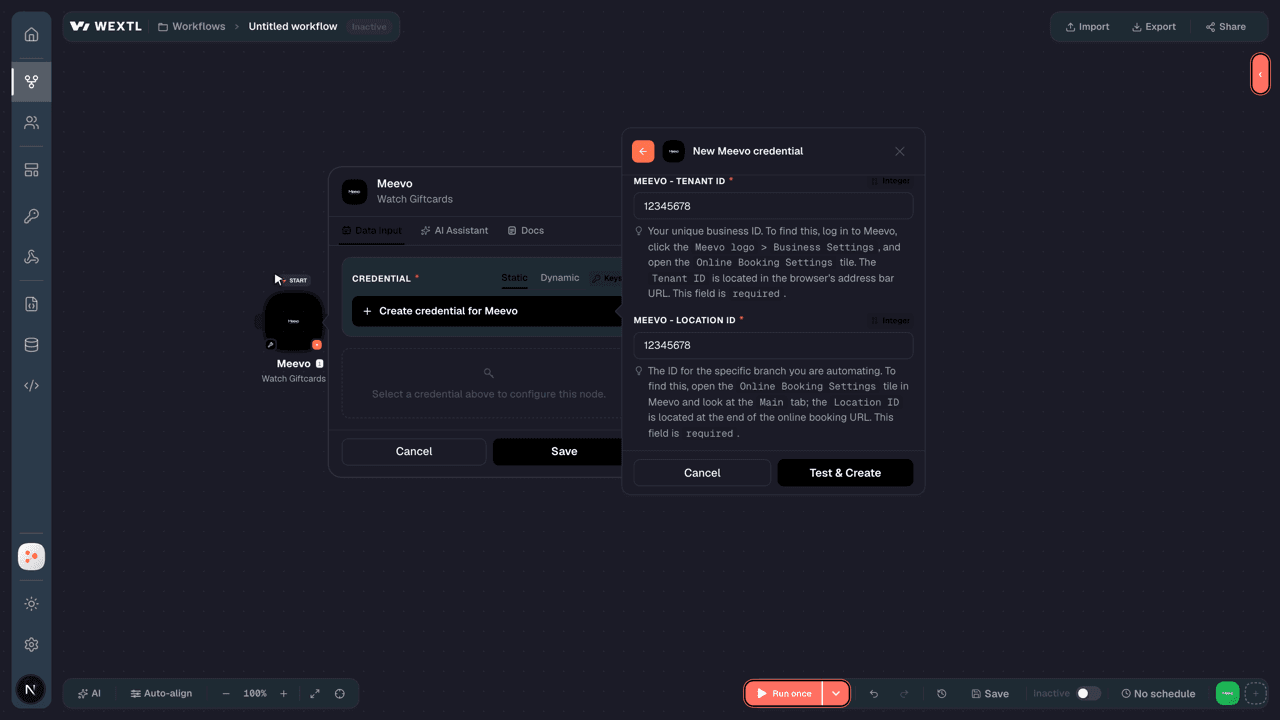
[1]https://d18devmarketplace.meevodev.com. This field isrequired. - Tenant IDintegerRequired
Your unique business ID. To find this, log in to Meevo, click the
[1]Meevo logo>Business Settings, and open theOnline Booking Settingstile. TheTenant IDis located in the browser's address bar URL. This field isrequired. - Location IDintegerRequired
The ID for the specific branch you are automating. To find this, open the
[1]Online Booking Settingstile in Meevo and look at theMaintab; theLocation IDis located at the end of the online booking URL. This field isrequired.
Connect Meevo in WEXTL
- Log in to your WEXTL account, add the Meevo node module to your workflow, and click Create new credential.Instant triggers use webhooks — click Create a webhook first when adding one, then create the credential.
- Optional: In the Credential name field, enter a name for the credential.
- Enter the authentication credentials you copied from your Meevo account, or follow the on-screen instructions to create the credential.
- If prompted, authenticate your account and confirm access.
- If you want to make changes to your credential in the future, follow the steps in Manage credentials →

Notes
Credentials are org-scoped; share them with teammates from the Credentials picker on any of its nodes.For detailed information on connecting an application, see Connect an application →
Meevo node modules
The list below is a reference of every Meevo node module the integration supports. You will be able to pick any of them on the workflow canvas while building automations.
Open any Meevo node module below to inspect its input parameters, outputs, and connection requirements.
Watch EventsTrigger
| Field | Type |
|---|---|
| User ID | number |
| Email address | |
| Name | text |
| Date created | date |
Watch GiftcardsTrigger
| Field | Type |
|---|---|
| Client gift card ID | text |
| Gift card type ID | text |
| Client ID | text |
| Gift card number | text |
| Original amount | text |
| Remaining amount | text |
| Is egift | text |
| Is archived | text |
| Date created | date |
| Remaining refund amount | text |
| Date updated | date |
| Active date | text |
| Sale date | text |
| Expire date | text |
Get a Cancellation ReasonAction
Get a ClientAction
Get a Client's Membership StatusAction
Get a Gift Card TypeAction
Get a MembershipAction
Get a PackageAction
| Field | Type |
|---|---|
PackageRequired | choice |
| Field | Type |
|---|---|
| Package ID | text |
| Package name | text |
| Expire after purchase weeks | text |
| Is bookable online | text |
| Is global package | text |
| Is location restricted redemption | text |
| Is shareable | text |
| Is unlimited services | text |
| Is split swappable | text |
| Is membership only | text |
| Package services | array |
| Package products | array |
| Package price | text |
| Prepaid tip | text |
Get a ProductAction
| Field | Type |
|---|---|
ProductRequired | choice |
| Field | Type |
|---|---|
| Product ID | text |
| Display name | text |
| Manufacturer ID | text |
| Manufacturer display name | text |
| Product category ID | text |
| Product category display name | text |
| Product sub category ID | text |
| Product sub category display name | text |
| Description | text |
| Object state | text |
| Sku | text |
| Bar code | text |
| Wholesale | text |
| Retail | text |
Get a Product CategoryAction
Get a ServiceAction
| Field | Type |
|---|---|
ServiceRequired | choice |
| Field | Type |
|---|---|
| Service category ID | text |
| Service category display name | text |
| Service sub cat ID | text |
| Service sub category ID | text |
| Service sub cat display name | text |
| Service sub category display name | text |
| Available for male | text |
| Available for female | text |
| Object state | text |
| Exclude point promotion | text |
| Is bookable | text |
| Is event only | text |
| Service price levels | array |
| Service steps | array |
Get a Service EmployeeSearch
Get an AppointmentAction
| Field | Type |
|---|---|
ClientRequired | choice |
| Field | Type |
|---|---|
| Appointment ID | text |
| Is confirmed | text |
| Is left message | text |
| Is do not confirm | text |
| Concurrency check digits | text |
| Channels | array |
| Appointment date | text |
| Booking client ID | text |
| Booking client gender | text |
| Appointment category ID | text |
| Appointment note | object |
| Body | text |
| Show at check in | text |
| Show at check out | text |
Get an Appointment CategoryAction
Get an Appointment ServiceAction
Get an EnumAction
Get Business InformationAction
| Field | Type |
|---|---|
| Tenant ID | text |
| Location ID | text |
| Store name | text |
| Address | object |
| Address 1 | text |
| Address 2 | text |
| City | text |
| State | text |
| Zip code | text |
| Country | text |
| Country code | text |
| Phone number | text |
| Email address | text |
| Business hours | object |
Get Client Gift CardsSearch
| Field | Type |
|---|---|
ClientRequired | choice |
| Limit | number |
| Field | Type |
|---|---|
| Gift card ID | text |
| Gift card type ID | text |
| Gift card number | text |
| Expire date | text |
| Active date | text |
| Original amount | text |
| Remaining amount | text |
| Note | text |
| Gift card type display name | text |
| Is promo | text |
| Is egift | text |
| Sale date | text |
| Purchased by first name | text |
| Purchased by middle name | text |
Get Client MembershipsSearch
| Field | Type |
|---|---|
Search TypeRequired | choice |
| Client IDs | array |
| Start Date | date |
| End Date | date |
| Membership ID | text |
| Limit | number |
| Field | Type |
|---|---|
| Membership ID | text |
| Client ID | text |
| Client name | text |
| Purchased on | text |
| Enrollment date | text |
| Recurring fee | text |
| Renewal fee | text |
| Monthly renewal fee | text |
| Enrollment fee | text |
| Payment day of month | text |
| Renewal date | text |
| Auto renew | text |
| Last bill | object |
| Date | text |
| Amount | text |
| Fee type | text |
| Next bill | object |
| Date | text |
| Amount | text |
| Fee type | text |
Get Client PackagesSearch
| Field | Type |
|---|---|
ClientRequired | choice |
| Limit | number |
| Field | Type |
|---|---|
| Client package ID | text |
| Package name | text |
| Package ID | text |
| Package number | text |
| Valid from date | text |
| Expiration date | text |
| Is global package | text |
| Client membership ID | text |
| Package creation type enum | text |
| Is unlimited services | text |
| Is available for use when expired | text |
| Available for use expire date | text |
| Is split swappable | text |
| Is shareable | text |
Get Client PointsSearch
Get Client Sale HistorySearch
Get Client TypesSearch
Get Client UDFsSearch
Get Client Visit NotesSearch
| Field | Type |
|---|---|
ClientRequired | choice |
| Limit | number |
| Field | Type |
|---|---|
| Client visit note ID | text |
| Visit note type ID | text |
| Note text | text |
| Employee ID | text |
| Entity version | text |
| Date created | date |
| Created by ID | text |
| Created by display name | text |
| Date updated | date |
| Updated by ID | text |
| Updated by display name | text |
| Employee first name | text |
| Employee last name | text |
| Is formatted | text |
Get Clients CountAction
| Field | Type |
|---|---|
| Value | number |
Get E-GiftsSearch
| Field | Type |
|---|---|
| Limit | number |
| Field | Type |
|---|---|
| Client gift card ID | text |
| Email address from | text |
| Email address to | text |
| Full name from | text |
| Full name to | text |
| Ship pickup date | text |
| Approximate pickup date | text |
| Address 1 | text |
| Address 2 | text |
| Country | text |
| City | text |
| State | text |
| Zip code | text |
| Processing fee | text |
Get EmployeeAction
| Field | Type |
|---|---|
EmployeeRequired | choice |
| Field | Type |
|---|---|
| Employee ID | text |
| Location ID | text |
| Home location ID | text |
| Employee entity type enum | text |
| First name | text |
| Last name | text |
| Code | text |
| Gender | text |
| Email address | text |
| Termination date | text |
| Object state | text |
| Default price level | text |
| Bio picture URL | text |
| Nick name | text |
Get Employee CountAction
| Field | Type |
|---|---|
| Value | number |
Get Employee SecurityAction
Get Employee ServicesSearch
Get Entity ChangesSearch
Get Gift Card TypesSearch
Get Image Gallery CategoriesSearch
Get Latest Entity ChangeAction
Get LocationAction
| Field | Type |
|---|---|
| Location ID | text |
| Store name | text |
| Store number | text |
Get Payment TypesSearch
Get Product CategoriesSearch
Get Referral TypesSearch
Get Service AddonsSearch
Get Service AddonsAction
Get Service CategoriesSearch
Get Service Employee PricingsSearch
Get ServicesSearch
| Field | Type |
|---|---|
Service IDsRequired | array |
| Limit | number |
| Field | Type |
|---|---|
| Service category ID | text |
| Service category display name | text |
| Service sub cat ID | text |
| Service sub category ID | text |
| Service sub cat display name | text |
| Service sub category display name | text |
| Available for male | text |
| Available for female | text |
| Object state | text |
| Exclude point promotion | text |
| Is bookable | text |
| Is event only | text |
| Service ID | text |
| Service display name | text |
Get System EnumsSearch
| Field | Type |
|---|---|
| Key 0 | object |
| Key 0 | text |
| Key 1 | text |
| Key 1 | object |
| Key 0 | text |
| Key 1 | text |
Get Visit Note TypesSearch
List Appointment CategoriesSearch
List Appointment ServicesSearch
| Field | Type |
|---|---|
ClientRequired | choice |
| Limit | number |
| Field | Type |
|---|---|
| Appointment service ID | text |
| Appointment ID | text |
| Is checked in | text |
| Is no show | text |
| Is checked out | text |
| Is cancelled | text |
| Servicing end time | date |
| Client end time | date |
| Booking end time | date |
| Create date | date |
| Update date | date |
| Concurrency check digits | text |
| Client ID | text |
| Client gender | text |
List Cancellation ReasonsSearch
List Client ServicesSearch
| Field | Type |
|---|---|
Client IDRequired | choice |
| Limit | number |
| Field | Type |
|---|---|
| Appointment service ID | text |
| Appointment ID | text |
| Is checked in | text |
| Is no show | text |
| Is checked out | text |
| Is cancelled | text |
| Servicing end time | text |
| Client end time | text |
| Booking end time | text |
| Create date | text |
| Update date | text |
| Concurrency check digits | text |
| Client ID | text |
| Client gender | text |
List ClientsSearch
| Field | Type |
|---|---|
| Search Type | choice |
| Start Date | date |
| End Date | date |
| Filter | text |
| Include Active | boolean |
| Include Inactive | boolean |
| Include Deleted | boolean |
| Include Merged | boolean |
| Limit | number |
| Field | Type |
|---|---|
| Client ID | text |
| Object state | text |
| First name | text |
| Middle name | text |
| Last name | text |
| Email address | text |
| Address 1 | text |
| Address 2 | text |
| City | text |
| State | text |
| Zip code | text |
| Country | text |
| Is not deliverable | text |
| Primary phone number | text |
List EmployeesSearch
| Field | Type |
|---|---|
| Is Terminated | boolean |
| Email Address | text |
| First Name | text |
| Last Name | text |
| Limit | number |
| Field | Type |
|---|---|
| Employee ID | text |
| Location ID | text |
| Home location ID | text |
| Employee entity type enum | text |
| First name | text |
| Last name | text |
| Code | text |
| Gender | text |
| Email address | text |
| Termination date | text |
| Object state | text |
| Default price level | text |
| Bio picture URL | text |
| Nick name | text |
List Gift CardsSearch
| Field | Type |
|---|---|
| Date Created Start | date |
| Date Created End | date |
| Gift Card Type | choice |
| Is eGift | boolean |
| Hide Gift Card Number | boolean |
| Limit | number |
| Field | Type |
|---|---|
| Client gift card ID | text |
| Gift card type ID | text |
| Client ID | text |
| Gift card number | text |
| Original amount | text |
| Remaining amount | text |
| Is egift | text |
| Is archived | text |
| Date created | date |
| Remaining refund amount | text |
| Date updated | date |
| Active date | text |
| Sale date | text |
| Expire date | text |
List LocationsSearch
List MembershipsSearch
List PackagesSearch
| Field | Type |
|---|---|
| Include Active | boolean |
| Include Inactive | boolean |
| Include Deleted | boolean |
| Limit | number |
| Field | Type |
|---|---|
| Package ID | text |
| Package name | text |
| Expire after purchase weeks | text |
| Is bookable online | text |
| Is global package | text |
| Is location restricted redemption | text |
| Is shareable | text |
| Is unlimited services | text |
| Is split swappable | text |
| Is membership only | text |
| Package services | array |
| Package products | array |
| Package price | text |
| Prepaid tip | text |
List ProductsSearch
| Field | Type |
|---|---|
| Search Type | choice |
| Product Barcodes | text |
| Product IDs | text |
| Product SKUs | text |
| Sub Category | choice |
| Include Active | boolean |
| Include Inactive | boolean |
| Include Deleted | boolean |
| Limit | number |
| Field | Type |
|---|---|
| Product ID | text |
| Display name | text |
| Manufacturer ID | text |
| Manufacturer display name | text |
| Product category ID | text |
| Product category display name | text |
| Product sub category ID | text |
| Product sub category display name | text |
| Description | text |
| Object state | text |
| Sku | text |
| Bar code | text |
| Wholesale | text |
| Retail | text |
List ServicesSearch
Lookup EmployeesSearch
| Field | Type |
|---|---|
| Employee IDs | array |
| Email Addresses | array |
| Limit | number |
| Field | Type |
|---|---|
| Employee ID | text |
| Location ID | text |
| Home location ID | text |
| Employee entity type enum | text |
| First name | text |
| Last name | text |
| Code | text |
| Gender | text |
| Email address | text |
| Termination date | text |
| Object state | text |
| Default price level | text |
| Bio picture URL | text |
| Nick name | text |
Lookup ServicesSearch
| Field | Type |
|---|---|
Service IDsRequired | array |
| Limit | number |
| Field | Type |
|---|---|
| Service category ID | text |
| Service category display name | text |
| Service sub cat ID | text |
| Service sub category ID | text |
| Service sub cat display name | text |
| Service sub category display name | text |
| Available for male | text |
| Available for female | text |
| Object state | text |
| Exclude point promotion | text |
| Is bookable | text |
| Is event only | text |
| Service ID | text |
| Service display name | text |
Scan OpeningsSearch
| Field | Type |
|---|---|
| Start Date | date |
| End Date | date |
| Scan Date Type | number |
| Start Time | date |
| End Time | date |
| Scan Time Type | number |
| Is Rescan | boolean |
| Scan Services | array |
| Max Openings Per Day | number |
| Require Same Start Time | boolean |
| Is Couples Scan | boolean |
| Paying Client | choice |
| Limit | number |
| Field | Type |
|---|---|
| Service openings | array |
| Note | text |
| Has more openings | text |
| Scan openings group by clients | array |
| Is shared resource | text |
| Container ID | text |
Scan OpeningsSearch
Search ClientsSearch
| Field | Type |
|---|---|
| Client IDs | array |
| Email Addresses | array |
| Phone Numbers | array |
| Limit | number |
| Field | Type |
|---|---|
| Client numeric ID | text |
| First visit date | text |
| Last visit date | text |
| Date created | date |
| Guardian first name | text |
| Guardian middle name | text |
| Guardian last name | text |
| Guardian email address | text |
| Guardian primary phone country code | text |
| Guardian primary phone number | text |
| Client t ID merged to | text |
| Client t ID merged from | array |
| Client ID | text |
| First name | text |
Search Gift CardsSearch
| Field | Type |
|---|---|
Gift Card NumbersRequired | text |
| From Location | choice |
| Hide Gift Card Number | boolean |
| Limit | number |
| Field | Type |
|---|---|
| Client gift card ID | text |
| Gift card type ID | text |
| Client ID | text |
| Gift card number | text |
| Original amount | text |
| Remaining amount | text |
| Is egift | text |
| Is archived | text |
| Date created | date |
| Remaining refund amount | text |
| Date updated | date |
| Active date | text |
| Sale date | text |
| Expire date | text |
Add an Image to a GalleryAction
Add Client PointsAction
Bypass a Conflict for a Book ServiceAction
| Field | Type |
|---|---|
ClientRequired | choice |
Concurrency Check DigitsRequired | number |
| Field | Type |
|---|---|
| Appointment service ID | text |
| Appointment ID | text |
| Is checked in | text |
| Is no show | text |
| Is checked out | text |
| Is cancelled | text |
| Servicing end time | date |
| Client end time | date |
| Booking end time | date |
| Create date | date |
| Update date | date |
| Concurrency check digits | text |
| Client ID | text |
| Client gender | text |
Cancel an AppointmentAction
| Field | Type |
|---|---|
ClientRequired | choice |
Concurrency Check DigitsRequired | number |
| Field | Type |
|---|---|
| Appointment service ID | text |
| Appointment ID | text |
| Is checked in | text |
| Is no show | text |
| Is checked out | text |
| Is cancelled | text |
| Servicing end time | date |
| Client end time | date |
| Booking end time | date |
| Create date | date |
| Update date | date |
| Concurrency check digits | text |
| Client ID | text |
| Client gender | text |
Check In a ServiceAction
| Field | Type |
|---|---|
ClientRequired | choice |
Concurrency Check DigitsRequired | number |
| Field | Type |
|---|---|
| Appointment service ID | text |
| Appointment ID | text |
| Is checked in | text |
| Is no show | text |
| Is checked out | text |
| Is cancelled | text |
| Servicing end time | date |
| Client end time | date |
| Booking end time | text |
| Create date | date |
| Update date | date |
| Concurrency check digits | text |
| Client ID | text |
| Client gender | text |
Confirm an AppointmentAction
| Field | Type |
|---|---|
ClientRequired | choice |
Concurrency Check DigitsRequired | number |
| Field | Type |
|---|---|
| Appointment ID | text |
| Is confirmed | text |
| Is left message | text |
| Is do not confirm | text |
| Concurrency check digits | text |
| Channels | array |
| Appointment date | date |
| Booking client ID | text |
| Booking client gender | text |
| Appointment category ID | text |
| Appointment note | object |
| Body | text |
| Show at check in | text |
| Show at check out | text |
Create a ClientAction
| Field | Type |
|---|---|
Online Booking AccessRequired | boolean |
| First Name | text |
| Middle Name | text |
| Last Name | text |
| Address 1 | text |
| Address 2 | text |
| City | text |
| State | text |
| Zip Code | text |
| Country | text |
| Gender | choice |
| Birth Day | number |
| Birth Month | number |
| Birth Year | number |
| Field | Type |
|---|---|
| Location ID | text |
| Tenant ID | text |
| Client ID | text |
| First name | text |
| Middle name | text |
| Last name | text |
| Address 1 | text |
| Address 2 | text |
| City | text |
| State | text |
| Zip code | text |
| Country | text |
| Gender enum | text |
| Birth day | text |
Create a Visit NoteAction
| Field | Type |
|---|---|
ClientRequired | choice |
Employee IDRequired | text |
Note TextRequired | text |
Is FormattedRequired | boolean |
Visit Note TypeRequired | choice |
| Field | Type |
|---|---|
| Client visit note ID | text |
| Visit note type ID | text |
| Note text | text |
| Employee ID | text |
| Entity version | text |
| Date created | date |
| Created by ID | text |
| Created by display name | text |
| Date updated | date |
| Updated by ID | text |
| Updated by display name | text |
| Employee first name | text |
| Employee last name | text |
| Is formatted | text |
Create an AppointmentAction
| Field | Type |
|---|---|
Service IDRequired | choice |
Start TimeRequired | date |
| Client ID | choice |
| Client Gender | choice |
| Add-On Service IDs | array |
| Service ID | choice |
| Employee ID | choice |
| Is Employee Requested By Client | boolean |
| Resource ID | choice |
| Gender Preference | choice |
| Address 1 | text |
| Address 2 | text |
| State | text |
| City | text |
| Postal Code | text |
| Field | Type |
|---|---|
| Appointment service ID | text |
| Appointment ID | text |
| Is checked in | text |
| Is no show | text |
| Is checked out | text |
| Is cancelled | text |
| Servicing end time | date |
| Client end time | date |
| Booking end time | date |
| Create date | date |
| Update date | date |
| Concurrency check digits | text |
| Client ID | text |
| Client gender | text |
Log a Contact AttemptAction
| Field | Type |
|---|---|
ClientRequired | choice |
Concurrency Check DigitsRequired | number |
| Field | Type |
|---|---|
| Appointment ID | text |
| Is confirmed | text |
| Is left message | text |
| Is do not confirm | text |
| Concurrency check digits | text |
| Channels | array |
| Appointment date | date |
| Booking client ID | text |
| Booking client gender | text |
| Appointment category ID | text |
| Appointment note | object |
| Body | text |
| Show at check in | text |
| Show at check out | text |
Make an API Calluniversal
Opt Out of ConfirmationAction
| Field | Type |
|---|---|
Appointment IDRequired | choice |
Concurrency Check DigitsRequired | number |
| Field | Type |
|---|---|
| Appointment ID | text |
| Is confirmed | text |
| Is left message | text |
| Is do not confirm | text |
| Concurrency check digits | text |
| Channels | array |
| Appointment date | date |
| Booking client ID | text |
| Booking client gender | text |
| Appointment category ID | text |
| Appointment note | object |
| Body | text |
| Show at check in | text |
| Show at check out | text |
Remove an Appointment ConfirmationAction
| Field | Type |
|---|---|
ClientRequired | choice |
Concurrency Check DigitsRequired | number |
| Field | Type |
|---|---|
| Appointment ID | text |
| Is confirmed | text |
| Is left message | text |
| Is do not confirm | text |
| Concurrency check digits | text |
| Channels | array |
| Appointment date | date |
| Booking client ID | text |
| Booking client gender | text |
| Appointment category ID | text |
| Appointment note | object |
| Body | text |
| Show at check in | text |
| Show at check out | text |
Update a ClientAction
| Field | Type |
|---|---|
ClientRequired | choice |
| Entity Version | number |
| Email Address | text |
| Email Comm Opt-In State | choice |
| Marketing Email Enabled | boolean |
| Phone Numbers | array |
| Field | Type |
|---|---|
| Location ID | text |
| Tenant ID | text |
| Client ID | text |
| First name | text |
| Middle name | text |
| Last name | text |
| Address 1 | text |
| Address 2 | text |
| City | text |
| State | text |
| Zip code | text |
| Country | text |
| Gender enum | text |
| Birth day | text |
Update a Client (Full)Action
| Field | Type |
|---|---|
ClientRequired | choice |
Online Booking AccessRequired | boolean |
| First Name | text |
| Middle Name | text |
| Last Name | text |
| Address 1 | text |
| Address 2 | text |
| City | text |
| State | text |
| Zip Code | text |
| Country | text |
| Gender | choice |
| Birth Day | number |
| Birth Month | number |
| Field | Type |
|---|---|
| Location ID | text |
| Tenant ID | text |
| Client ID | text |
| First name | text |
| Middle name | text |
| Last name | text |
| Address 1 | text |
| Address 2 | text |
| City | text |
| State | text |
| Zip code | text |
| Country | text |
| Gender enum | text |
| Birth day | text |
Update a Conflict BypassAction
| Field | Type |
|---|---|
ClientRequired | choice |
| Bypass Employee Double Book | boolean |
| Bypass Resource Double Book | boolean |
| Bypass Frequency Of Visit Warning | boolean |
| Field | Type |
|---|---|
| Appointment service ID | text |
| Appointment ID | text |
| Is checked in | text |
| Is no show | text |
| Is checked out | text |
| Is cancelled | text |
| Servicing end time | date |
| Client end time | date |
| Booking end time | date |
| Create date | date |
| Update date | date |
| Concurrency check digits | text |
| Client ID | text |
| Client gender | text |
Update an AppointmentAction
| Field | Type |
|---|---|
ClientRequired | choice |
Concurrency Check DigitsRequired | number |
| Booking Client ID | choice |
| Booking Client Gender | choice |
| Appointment Category ID | choice |
| Appointment Note | text |
| Show Note At Check-In | boolean |
| Show Note At Check-Out | boolean |
| Bypass Employee Double Book | boolean |
| Bypass Resource Double Book | boolean |
| Bypass Frequency Of Visit Warning | boolean |
| Field | Type |
|---|---|
| Appointment ID | text |
| Is confirmed | text |
| Is left message | text |
| Is do not confirm | text |
| Concurrency check digits | text |
| Channels | array |
| Appointment date | date |
| Booking client ID | text |
| Booking client gender | text |
| Appointment category ID | text |
| Appointment note | object |
| Body | text |
| Show at check in | text |
| Show at check out | text |
Update an Appointment ServiceAction
| Field | Type |
|---|---|
ClientRequired | choice |
Concurrency Check DigitsRequired | number |
Service IDRequired | choice |
Start TimeRequired | date |
Add-On Service IDsRequired | array |
| Service ID | choice |
| Update Client ID | choice |
| Client Gender | choice |
| Employee ID | choice |
| Is Employee Requested By Client | boolean |
| Resource ID | choice |
| Gender Preference | choice |
| Address 1 | text |
| Address 2 | text |
| State | text |
| Field | Type |
|---|---|
| Appointment service ID | text |
| Appointment ID | text |
| Is checked in | text |
| Is no show | text |
| Is checked out | text |
| Is cancelled | text |
| Servicing end time | date |
| Client end time | date |
| Booking end time | date |
| Create date | date |
| Update date | date |
| Concurrency check digits | text |
| Client ID | text |
| Client gender | text |
Update Visit NoteAction
| Field | Type |
|---|---|
ClientRequired | choice |
Visit Note IDRequired | text |
Employee IDRequired | text |
Entity VersionRequired | number |
Note TextRequired | text |
Is FormattedRequired | boolean |
Visit Note TypeRequired | choice |
| Field | Type |
|---|---|
| Client visit note ID | text |
| Visit note type ID | text |
| Note text | text |
| Employee ID | text |
| Entity version | text |
| Date created | date |
| Created by ID | text |
| Created by display name | text |
| Date updated | date |
| Updated by ID | text |
| Updated by display name | text |
| Employee first name | text |
| Employee last name | text |
| Is formatted | text |
Templates
Look for Meevo templates in the WEXTL template library.
Browse templates →Explore alternative apps
- Bookeo[2]Online booking and appointment scheduling platform for tours, classes, and service businesses.
- Anny Customer APIOnline booking and scheduling platform that lets customers book resources, services, and appointments in real time.
- BookedSchedulerResource reservation and scheduling platform for booking rooms, equipment, and shared assets.
- Anny Admin APIOnline booking and scheduling platform for managing services, resources, timeslots, and customer appointments.
- AgendaProSalon and clinic booking, payments, and client management.


References
- WEXTL® Meevo Source Code connector implementation.
- Our users use cases and automations.
- Official API Documentation for Meevo.
- WEXTL® visual workflow builder data.
Last updated: Jul 24, 2026 18:12