


Requirements
Before you set up the credential, make sure you have an active Brevo account and an API access token from your account settings ready.[3]
Get your Brevo credentials
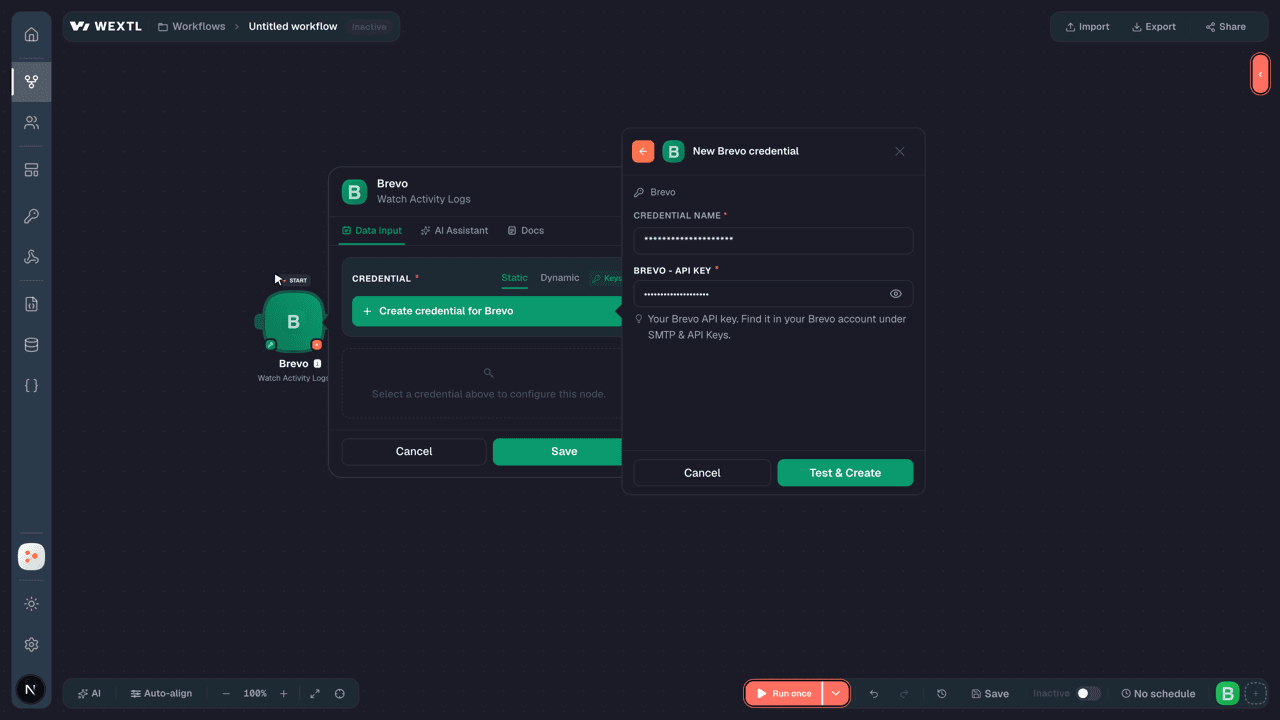
- API KeypasswordRequired
Your API key. Find it in your account under SMTP & API Keys.
[1]
Connect Brevo in WEXTL
- Log in to your WEXTL account, add the Brevo node module to your workflow, and click Create new credential.
- Optional: In the Credential name field, enter a name for the credential.
- Enter the authentication credentials you copied from your Brevo account, or follow the on-screen instructions to create the credential.
- If prompted, authenticate your account and confirm access.
- If you want to make changes to your credential in the future, follow the steps in Manage credentials →

Notes
Credentials are org-scoped; share them with teammates from the Credentials picker on any of its nodes.For detailed information on connecting an application, see Connect an application →
Brevo node modules
The list below is a reference of every Brevo node module the integration supports. You will be able to pick any of them on the workflow canvas while building automations.
Each Brevo node module below opens to reveal its input parameters, outputs, and connection requirements.
Watch Activity LogsTrigger
| Field | Type |
|---|---|
| Action | text |
| Date | date |
| User Agent | text |
| User Email | |
| User IP | text |
Watch Email CampaignsTrigger
Watch Email EventsTrigger
Watch Inbound EmailsTrigger
| Field | Type |
|---|---|
| UUID | text |
| Sender | |
| Recipient | |
| Date | date |
Watch New CategoriesTrigger
| Field | Type |
|---|---|
| ID | text |
| Name | text |
| URL | url |
| Created At | date |
| Modified At | date |
Watch New ContactsTrigger
| Field | Type |
|---|---|
| ID | number |
| Email Blacklisted | boolean |
| SMS Blacklisted | boolean |
| Created At | date |
Watch New Coupon CollectionsTrigger
| Field | Type |
|---|---|
| Created At | date |
| Default Coupon | text |
| Expiration Date | date |
| ID | text |
| Name | text |
Watch New CRM FilesTrigger
Watch New Email LogsTrigger
Watch New FeedsTrigger
Watch New Folder ListsTrigger
| Field | Type |
|---|---|
| ID | number |
| Name | text |
| Total Blacklisted | number |
| Total Subscribers | number |
| Unique Subscribers | number |
Watch New FoldersTrigger
| Field | Type |
|---|---|
| ID | number |
| Name | text |
| Total Blacklisted | number |
| Total Subscribers | number |
| Unique Subscribers | number |
Watch New List ContactsTrigger
| Field | Type |
|---|---|
| Contacts | array |
| Attributes | object |
| Created At | date |
| Email Blacklisted | boolean |
| ID | number |
| List Ids | array |
| List Unsubscribed | array |
| Modified At | date |
| SMS Blacklisted | boolean |
| Whatsapp Blacklisted | boolean |
| Count | number |
Watch New ListsTrigger
| Field | Type |
|---|---|
| Count | number |
| Lists | array |
| ID | number |
| Name | text |
| Total Blacklisted | number |
| Total Subscribers | number |
| Unique Subscribers | number |
| Folder ID | number |
Watch New NotesTrigger
| Field | Type |
|---|---|
| ID | text |
| Text | text |
| Contact Ids | array |
| Contact Ids | number |
| Company Ids | array |
| Company Ids | text |
| Deal Ids | array |
| Deal Ids | text |
Watch New ProcessesTrigger
| Field | Type |
|---|---|
| ID | number |
| Name | text |
| Status | text |
| Info | object |
| Import | object |
| Export URL | url |
Watch New ProductsTrigger
| Field | Type |
|---|---|
| Brand | text |
| Categories | array |
| Categories | text |
| Created At | date |
| Description | text |
| ID | text |
Watch New SegmentsTrigger
| Field | Type |
|---|---|
| Category Name | text |
| ID | number |
| Segment Name | text |
| Updated At | date |
Watch New SendersTrigger
| Field | Type |
|---|---|
| Active | boolean |
| text | |
| ID | number |
| Ips | array |
| Name | text |
Watch New SMS EventsTrigger
| Field | Type |
|---|---|
| Date | date |
| Event | text |
| Message ID | text |
| Phone Number | text |
| Reason | text |
Watch New TasksTrigger
| Field | Type |
|---|---|
| ID | text |
| Task Type ID | text |
| Name | text |
| Companies Ids | array |
| Companies Ids | text |
| Deals Ids | array |
| Deals Ids | text |
Get AccountAction
| Field | Type |
|---|---|
| Organization ID | text |
| User ID | number |
| Enterprise | boolean |
| Company Name | text |
Get Attribution MetricsAction
| Field | Type |
|---|---|
| Period From | date |
| Period To | date |
| Email Campaign IDs | array |
| Campaign | choice |
| SMS Campaign IDs | array |
| Campaign | choice |
| Field | Type |
|---|---|
| Results | array |
| ID | text |
| Conversion Source | text |
| Orders Count | number |
| Revenue | number |
| Average Basket | number |
| Totals | object |
| Orders Count | number |
| Revenue | number |
| Average Basket | number |
Get Attribution ProductsAction
Get Balance DefinitionAction
Get Balance Definition ListSearch
Get Balance LimitAction
Get CategoryAction
Get Code CountAction
Get CompanyAction
Get ContactAction
Get Contact BalancesSearch
Get Contact StatsAction
Get Conversation MessageAction
Get Corporate User PermsAction
Get Coupon CollectionAction
Get CRM File LinkAction
Get CRM File MetaAction
Get CRM Pipeline by IDAction
Get CRM Pipeline DetailsAction
| Field | Type |
|---|---|
| Pipeline ID | text |
| Pipeline Name | text |
| Stages | array |
| Stage ID | text |
| Stage Name | text |
Get DealAction
Get Display CurrencyAction
| Field | Type |
|---|---|
| Currency | text |
Get DomainAction
Get Email CampaignAction
Get Email Campaign AB ResultAction
Get Email Campaign Shared URLAction
Get Email ContentAction
Get Email ReportAction
Get Email Stats ReportSearch
Get FeedAction
Get FolderAction
Get GroupAction
Get Inbound EmailAction
Get ListAction
Get Loyalty Account InfoAction
Get Loyalty BalanceSearch
Get Loyalty Offer Programs RewardsSearch
Get Loyalty Offer Programs VouchersSearch
Get Loyalty ProgramAction
Get Master AccountAction
| Field | Type |
|---|---|
| ID | number |
| Company Name | text |
| Currency Code | text |
| Timezone | text |
Get Master Account SSOAction
Get NoteAction
Get Org User PermsAction
Get Payment RequestAction
Get ProcessAction
Get ProductAction
Get Pushed MessageAction
Get SMS Aggregated ReportAction
Get SMS CampaignAction
Get SMS Stats ReportSearch
Get Source MetricsAction
Get Sub-AccountAction
Get Subscription BalancesSearch
Get TaskAction
Get TemplateAction
Get Tier GroupAction
Get WA CampaignAction
Get WebhookAction
Get Whatsapp ConfigAction
| Field | Type |
|---|---|
| Phone Number | text |
| WhatsApp Account ID | text |
| Created At | date |
List Activity LogsSearch
List Admin UsersSearch
List AttributesSearch
List Blocked ContactsSearch
List Blocked DomainsSearch
List CategoriesSearch
List CompaniesSearch
List Company AttributesSearch
List ContactsSearch
List Corporate IpsSearch
List Coupon CollectionsSearch
List CRM FilesSearch
List Deal AttributesSearch
List DealsSearch
| Field | Type |
|---|---|
| Deal Name Filter | text |
| Linked Companies IDs | text |
| Linked Contacts IDs | text |
| Sort | choice |
| Sort By | text |
| Field | Type |
|---|---|
| ID | text |
| Attributes | object |
| Deal Name | text |
| Amount | number |
| Deal Stage | text |
| Close Date | text |
| Linked Contacts IDs | array |
| Contact ID | number |
| Linked Companies IDs | array |
| Company ID | text |
List Dedicated IpsSearch
List DomainsSearch
List Email CampaignsSearch
List Email EventsSearch
List Email LogsSearch
List EventsSearch
List FeedsSearch
List Folder ListsSearch
List FoldersSearch
List Inbound EmailsSearch
List List ContactsSearch
List ListsSearch
List Loyalty ProgramsSearch
List Loyalty RewardsSearch
List Loyalty TransactionsSearch
List NotesSearch
List Object RecordsSearch
List OrdersSearch
List Org UsersSearch
List PipelinesSearch
List ProcessesSearch
List ProductsSearch
List Scheduled EmailsSearch
List SegmentsSearch
List Sender IpsSearch
List SendersSearch
List SMS CampaignsSearch
List SMS EventsSearch
List SMS TemplatesSearch
List Sub-AccountsSearch
List TasksSearch
List TemplatesSearch
List Tier GroupsSearch
List TiersSearch
List WA CampaignsSearch
List WebhooksSearch
List Whatsapp Event StatsSearch
List Whatsapp TemplatesSearch
Activate EcommerceAction
No fields documented.
Add Subscription to TierAction
Add to ListAction
Associate IP to Sub-AccountsAction
| Field | Type |
|---|---|
IP AddressRequired | text |
Sub-Account IDsRequired | array |
| Sub-Account | choice |
Attribute RewardAction
Authenticate DomainAction
Batch Create CategoriesAction
Batch Create EventsAction
Batch Create OrdersAction
Batch Create ProductsAction
Batch Update ContactsAction
| Field | Type |
|---|---|
ContactsRequired | array |
| ID | number |
| SMS | text |
| External ID | text |
| Attributes | object |
| Email Blacklisted | boolean |
| SMS Blacklisted | boolean |
| Add to List IDs | array |
| Remove from List IDs | array |
| SMTP Blacklist Senders | array |
Block a DomainAction
| Field | Type |
|---|---|
DomainRequired | text |
Bulk Update Sub-Account PlansAction
| Field | Type |
|---|---|
Sub-Account IDsRequired | array |
| Sub-Account | choice |
| Credits | object |
| Email Credits | number |
| SMS Credits | number |
| WhatsApp Credits | number |
| Push Credits | number |
| External Feeds | number |
| Features | object |
| Landing Pages | number |
| Sales Users | number |
| Users | number |
Cancel Loyalty TransactionAction
Complete Loyalty TransactionAction
Complete Redeem TransactionAction
Create AttributeAction
| Field | Type |
|---|---|
Attribute CategoryRequired | choice |
Attribute NameRequired | text |
| Type | choice |
| Value | text |
| Enumeration | array |
| Value | number |
| Label | text |
Create Balance LimitAction
Create Balance OrderAction
Create ContactAction
Create Coupon CollectionAction
Create CouponsAction
| Field | Type |
|---|---|
Coupon CollectionRequired | choice |
CouponsRequired | array |
| Coupon Code | text |
Create CRM AttributesAction
Create CRM CompanyAction
Create DealAction
Create DOI ContactAction
| Field | Type |
|---|---|
EmailRequired | |
DOI TemplateRequired | choice |
Redirection URLRequired | url |
Include List IDsRequired | array |
| List | choice |
| Exclude List IDs | array |
| List | choice |
Create DomainAction
Create Email CampaignAction
Create EventAction
| Field | Type |
|---|---|
Event NameRequired | text |
IdentifiersRequired | object |
| Contact ID | number |
| Email ID | |
| External ID | text |
| Phone ID | text |
| WhatsApp ID | text |
| Landline Number ID | text |
| Event Date | date |
| Event Properties | object |
| Contact Properties | object |
Create FeedAction
Create GroupAction
Create ListAction
Create Loyalty Balance Programs Balance DefinitionsAction
| Field | Type |
|---|---|
PidRequired | choice |
| Balance Availability Duration Modifier | text |
| Balance Availability Duration Unit | text |
| Balance Availability Duration Value | number |
| Balance Expiration Date | text |
Create Loyalty Balance Programs Subscriptions BalancesAction
Create Loyalty ProgramAction
Create Loyalty RewardAction
Create Loyalty TransactionAction
Create NoteAction
Create or Update CategoryAction
Create or Update OrderAction
| Field | Type |
|---|---|
Order IDRequired | text |
StatusRequired | choice |
AmountRequired | number |
| Customer Email | |
| Billing | object |
| Address | text |
| City | text |
| Country Code | text |
| Zip Code | text |
Create or Update ProductAction
Create Payment RequestAction
Create SenderAction
Create SMS CampaignAction
Create Sub-AccountAction
Create Sub-Account API KeyAction
Create TaskAction
Create TemplateAction
Create TierAction
Create Tier GroupAction
Create WebhookAction
Create Whats App CampaignAction
| Field | Type |
|---|---|
NameRequired | text |
RecipientsRequired | object |
Scheduled AtRequired | text |
Template IDRequired | choice |
Create Whatsapp TemplateAction
Delete AttributeAction
| Field | Type |
|---|---|
Attribute CategoryRequired | choice |
Attribute NameRequired | text |
Delete Attribute OptionAction
| Field | Type |
|---|---|
Attribute TypeRequired | choice |
Multiple Choice AttributeRequired | text |
Option to DeleteRequired | text |
Delete Balance DefinitionAction
| Field | Type |
|---|---|
PidRequired | choice |
BdidRequired | choice |
Delete Balance LimitAction
| Field | Type |
|---|---|
PidRequired | choice |
BdidRequired | choice |
BlidRequired | text |
Delete Blocked ContactAction
| Field | Type |
|---|---|
EmailRequired |
Delete CompanyAction
| Field | Type |
|---|---|
CompanyRequired | choice |
Delete ContactAction
| Field | Type |
|---|---|
IdentifierRequired | text |
Delete Contact MembersAction
| Field | Type |
|---|---|
PidRequired | choice |
Delete Contact SubscriptionAction
| Field | Type |
|---|---|
PidRequired | choice |
CidRequired | choice |
Delete Conversation MessageAction
| Field | Type |
|---|---|
Message IDRequired | text |
Delete CRM AttributesAction
| Field | Type |
|---|---|
IDRequired | text |
Delete CRM FileAction
| Field | Type |
|---|---|
File IDRequired | text |
Delete DealAction
| Field | Type |
|---|---|
DealRequired | choice |
Delete DomainAction
| Field | Type |
|---|---|
Domain NameRequired | text |
Delete Email CampaignAction
| Field | Type |
|---|---|
Email CampaignRequired | choice |
Delete Email LogAction
| Field | Type |
|---|---|
IdentifierRequired | choice |
| From Date | date |
| To Date | date |
Delete FeedAction
| Field | Type |
|---|---|
External FeedRequired | choice |
Delete FolderAction
| Field | Type |
|---|---|
FolderRequired | choice |
Delete GroupAction
| Field | Type |
|---|---|
GroupRequired | choice |
Delete Hard BouncesAction
| Field | Type |
|---|---|
| Start Date | text |
| End Date | text |
| Contact Email |
Delete ListAction
| Field | Type |
|---|---|
ListRequired | choice |
Delete Loyalty ProgramAction
| Field | Type |
|---|---|
Loyalty ProgramRequired | choice |
Delete NoteAction
| Field | Type |
|---|---|
Note IDRequired | choice |
Delete Object RecordsAction
Delete Payment RequestAction
| Field | Type |
|---|---|
Payment Request IDRequired | text |
Delete Pushed MessageAction
| Field | Type |
|---|---|
Message IDRequired | text |
Delete Scheduled EmailAction
| Field | Type |
|---|---|
Batch ID or Message IDRequired | choice |
Delete SenderAction
| Field | Type |
|---|---|
SenderRequired | choice |
Delete SMS CampaignAction
| Field | Type |
|---|---|
Campaign IDRequired | choice |
Delete Sub-AccountAction
| Field | Type |
|---|---|
Sub-AccountRequired | choice |
Delete TaskAction
| Field | Type |
|---|---|
Task IDRequired | choice |
Delete TemplateAction
| Field | Type |
|---|---|
TemplateRequired | choice |
Delete TierAction
| Field | Type |
|---|---|
Loyalty ProgramRequired | choice |
Tier IDRequired | text |
Delete Tier GroupAction
| Field | Type |
|---|---|
Loyalty ProgramRequired | choice |
Tier Group IDRequired | text |
Delete WebhookAction
| Field | Type |
|---|---|
WebhookRequired | choice |
Delete Whats App CampaignAction
| Field | Type |
|---|---|
Campaign IDRequired | choice |
Dissociate IP from Sub-AccountsAction
| Field | Type |
|---|---|
IP AddressRequired | text |
Sub-Account IDsRequired | array |
| Sub-Account | choice |
Download Inbound FileAction
Export ContactsAction
| Field | Type |
|---|---|
Custom Contact FilterRequired | object |
| Action For Contacts | choice |
| Action For Email Campaigns | choice |
| Action For SMS Campaigns | choice |
| List | choice |
| Segment ID | number |
| Email Campaign | choice |
| SMS Campaign | choice |
| Export Attributes | array |
| Attribute | text |
| Export Mandatory Attributes | boolean |
| Export Metadata | array |
| Metadata Field | text |
| Export Date in UTC | boolean |
| Field | Type |
|---|---|
| Process ID | number |
Export Email RecipientsAction
Export SMS RecipientsAction
Export Webhook LogsAction
Generate Sub-Account SSOAction
Import CompaniesAction
Import ContactsAction
Import CRM DealsAction
Invite Admin UserAction
Invite Org UserAction
Link DealAction
| Field | Type |
|---|---|
DealRequired | choice |
| Link Contact IDs | array |
| Contact | choice |
| Unlink Contact IDs | array |
| Contact | choice |
| Link Company IDs | array |
| Company | choice |
| Unlink Company IDs | array |
| Company | choice |
Link or Unlink CompanyAction
| Field | Type |
|---|---|
CompanyRequired | choice |
| Link Contact IDs | array |
| Contact ID | number |
| Unlink Contact IDs | array |
| Contact ID | number |
| Link Deal IDs | array |
| Deal ID | text |
| Unlink Deal IDs | array |
| Deal ID | text |
Make an Api Calluniversal
Manage InvitationAction
Patch Loyalty ProgramAction
Ping AgentAction
| Field | Type |
|---|---|
| Agent ID | text |
| Agent Email | |
| Agent Name | text |
| Received From | text |
Preview Email TemplateAction
Publish Loyalty ProgramAction
| Field | Type |
|---|---|
PidRequired | choice |
Redeem RewardAction
Remove from ListAction
Resend or Cancel Admin InvitationAction
Revoke Admin UserAction
| Field | Type |
|---|---|
User EmailRequired |
Revoke Org User PermsAction
Revoke VouchersAction
| Field | Type |
|---|---|
PidRequired | choice |
Send Conversation MsgAction
Send EmailAction
Send Email CampaignAction
| Field | Type |
|---|---|
Email CampaignRequired | choice |
Send Email Campaign ReportAction
| Field | Type |
|---|---|
Email CampaignRequired | choice |
| Language | choice |
EmailRequired | object |
| To | array |
Send Email Campaign TestAction
| Field | Type |
|---|---|
Email CampaignRequired | choice |
| Email To | array |
Send Pushed MessageAction
Send SMSAction
Send SMS AsyncAction
Send SMS CampaignAction
| Field | Type |
|---|---|
SMS CampaignRequired | choice |
Send SMS ReportAction
| Field | Type |
|---|---|
SMS CampaignRequired | choice |
| Language | choice |
EmailRequired | object |
| To | array |
Send SMS TestAction
| Field | Type |
|---|---|
SMS CampaignRequired | choice |
| Phone Number | text |
Send Test TemplateAction
| Field | Type |
|---|---|
TemplateRequired | choice |
| Email To | array |
Send Whatsapp MessageAction
Set Display CurrencyAction
Set Email Campaign StatusAction
| Field | Type |
|---|---|
Email CampaignRequired | choice |
StatusRequired | choice |
Set Product AlertAction
| Field | Type |
|---|---|
Product IDRequired | choice |
Alert TypeRequired | choice |
| Enabled | boolean |
Set SMS Campaign StatusAction
| Field | Type |
|---|---|
SMS CampaignRequired | choice |
StatusRequired | choice |
Submit Whatsapp Template ApprovalAction
| Field | Type |
|---|---|
Template IDRequired | number |
Subscribe Member to AsubscriptionAction
Subscribe to Loyalty ProgramAction
Toggle Sub-Account AppsAction
| Field | Type |
|---|---|
Sub-AccountRequired | choice |
| Automation | boolean |
| Conversations | boolean |
| Sales CRM | boolean |
| Email Campaigns | boolean |
Unblock a DomainAction
| Field | Type |
|---|---|
DomainRequired | text |
Unlink Group Sub-AccountsAction
| Field | Type |
|---|---|
GroupRequired | choice |
Sub-Account IDsRequired | array |
| Sub-Account | choice |
Update AttributeAction
| Field | Type |
|---|---|
Attribute CategoryRequired | choice |
Attribute NameRequired | text |
| Value | text |
| Enumeration | array |
| Value | number |
| Label | text |
| Multi Category Options | array |
| Option | text |
Update Balance DefinitionAction
Update Balance LimitAction
Update CompanyAction
| Field | Type |
|---|---|
CompanyRequired | choice |
| Attributes | object |
| Link Contact IDs | array |
| Contact ID | number |
| Unlink Contact IDs | array |
| Contact ID | number |
| Link Deal IDs | array |
| Deal ID | text |
| Field | Type |
|---|---|
| Attributes | object |
| ID | text |
| Linked Contacts Ids | array |
| Linked Contacts Ids | number |
| Linked Deals Ids | array |
| Linked Deals Ids | text |
Update ContactAction
| Field | Type |
|---|---|
IdentifierRequired | text |
| Identifier Type | choice |
| Attributes | object |
| Email Blacklisted | boolean |
| SMS Blacklisted | boolean |
Update Conversation MessageAction
Update Conversations VisitorgroupAction
Update Corporate User PermsAction
| Field | Type |
|---|---|
User EmailRequired | |
All Features AccessRequired | boolean |
| Privileges | array |
| Feature | choice |
| Permissions | array |
Update Coupon CollectionAction
Update CRM AttributeAction
| Field | Type |
|---|---|
Attribute IDRequired | text |
| Label | text |
Update DealAction
| Field | Type |
|---|---|
DealRequired | choice |
| Attributes | object |
| Linked Contact IDs | array |
| Contact | choice |
| Linked Company IDs | array |
| Company | choice |
| Unlinked Contact IDs | array |
| Contact | choice |
Update Email CampaignAction
| Field | Type |
|---|---|
Email CampaignRequired | choice |
| Name | text |
| Subject | text |
| Sender | object |
| Name | text |
| ID | number |
| HTML Content | text |
Update FeedAction
| Field | Type |
|---|---|
External FeedRequired | choice |
| Name | text |
| URL | url |
| Auth Type | choice |
| Username | text |
Update FolderAction
| Field | Type |
|---|---|
FolderRequired | choice |
NameRequired | text |
Update GroupAction
| Field | Type |
|---|---|
GroupRequired | choice |
| Group Name | text |
| Sub-Account IDs | array |
| Sub-Account | choice |
Update ListAction
| Field | Type |
|---|---|
ListRequired | choice |
| Name | text |
| Folder | choice |
Update Loyalty ProgramAction
Update NoteAction
| Field | Type |
|---|---|
Note IDRequired | choice |
| Text | text |
| Contact IDs | array |
| Contact | choice |
| Company IDs | array |
| Company | choice |
| Deal IDs | array |
| Deal | choice |
Update Org User PermissionsAction
Update Org User PermsAction
Update Pushed MessageAction
Update SenderAction
| Field | Type |
|---|---|
SenderRequired | choice |
| Name | text |
| IPs | array |
| IP | text |
| Domain | text |
| Weight | number |
Update SMS CampaignAction
| Field | Type |
|---|---|
SMS CampaignRequired | choice |
| Name | text |
| Sender | text |
| Content | text |
| Recipients | object |
| List IDs | array |
| Exclusion List IDs | array |
Update Sub-Account PlanAction
| Field | Type |
|---|---|
Sub-AccountRequired | choice |
| Credits | object |
| Email Credits | number |
| SMS Credits | number |
| WhatsApp Credits | number |
| WP Subscribers Credits | number |
| External Feeds Credits | number |
| Features | object |
| Inbox | number |
| Landing Pages | number |
| Sales Users | number |
| Users | number |
Update TaskAction
| Field | Type |
|---|---|
Task IDRequired | choice |
| Name | text |
| Task Type | choice |
| Due Date | date |
| Duration (ms) | number |
Update TemplateAction
| Field | Type |
|---|---|
TemplateRequired | choice |
| Template Name | text |
| Subject | text |
| Sender | object |
| Name | text |
| ID | number |
| HTML Content | text |
Update TierAction
Update Tier GroupAction
Update WebhookAction
| Field | Type |
|---|---|
WebhookRequired | choice |
| URL | url |
| Description | text |
| Events | array |
| Event | choice |
| Domain | text |
Update Whats App CampaignAction
| Field | Type |
|---|---|
Campaign IDRequired | choice |
| Campaign Name | text |
| Campaign Status | text |
| Recipients | object |
| Reschedule For | text |
Upload CRM FileAction
Upload Email ImageAction
Upsert Object RecordsAction
Validate RewardAction
Validate Sender OTPAction
| Field | Type |
|---|---|
SenderRequired | choice |
OTPRequired | number |
Templates
Look for Brevo templates in the WEXTL template library.
Browse templates →Explore alternative apps
- Benchmark Email[2]Email marketing platform for campaigns, lists, automations, and subscriber engagement.
- ArpooneBusiness SMS messaging platform for sending and managing text campaigns.
- CallRailCall tracking — calls, SMS, form submissions, companies, and trackers.
- AcumbamailEmail marketing platform for campaigns, lists, and subscriber automation.
- Bland AIAI phone-calling platform that places and handles automated voice conversations at scale.


References
- WEXTL® Brevo Source Code connector implementation.
- Our users use cases and automations.
- Official API Documentation for Brevo.
- WEXTL® visual workflow builder data.
Last updated: Jul 22, 2026 23:18