


Requirements
To use Buttondown on WEXTL you need an active account and an API access token from your account settings.[3]
Get your Buttondown credentials
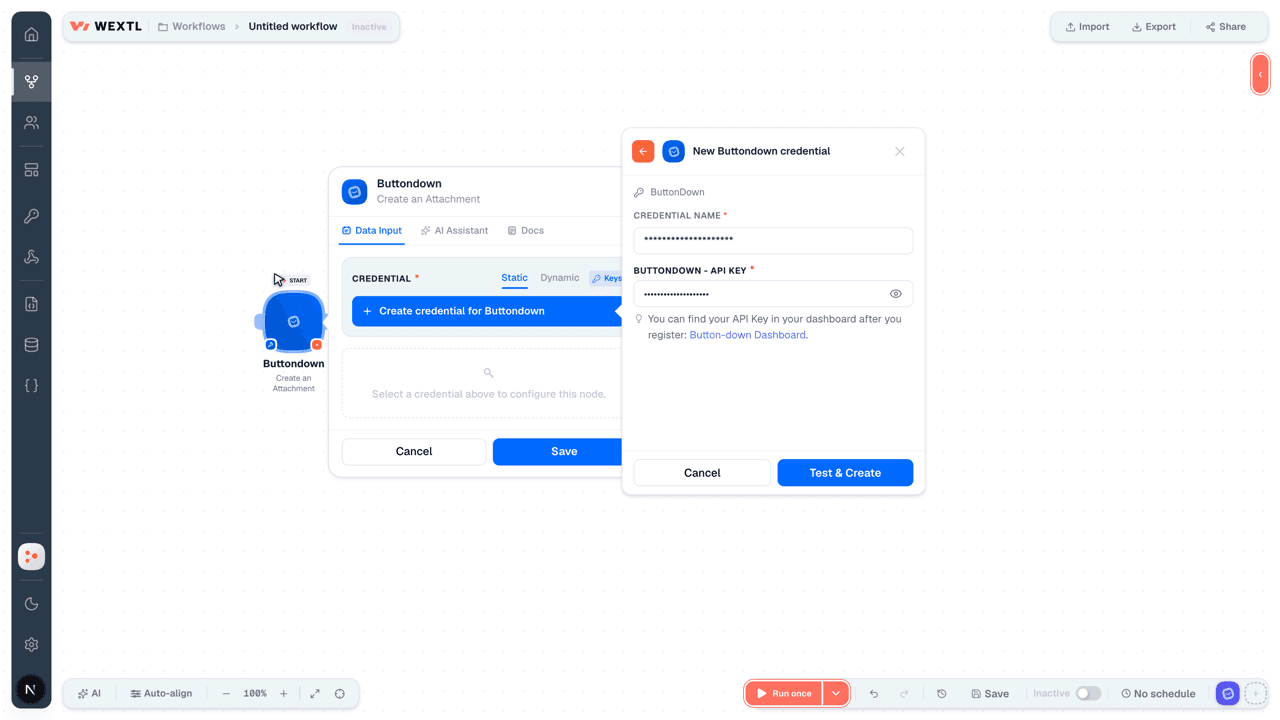
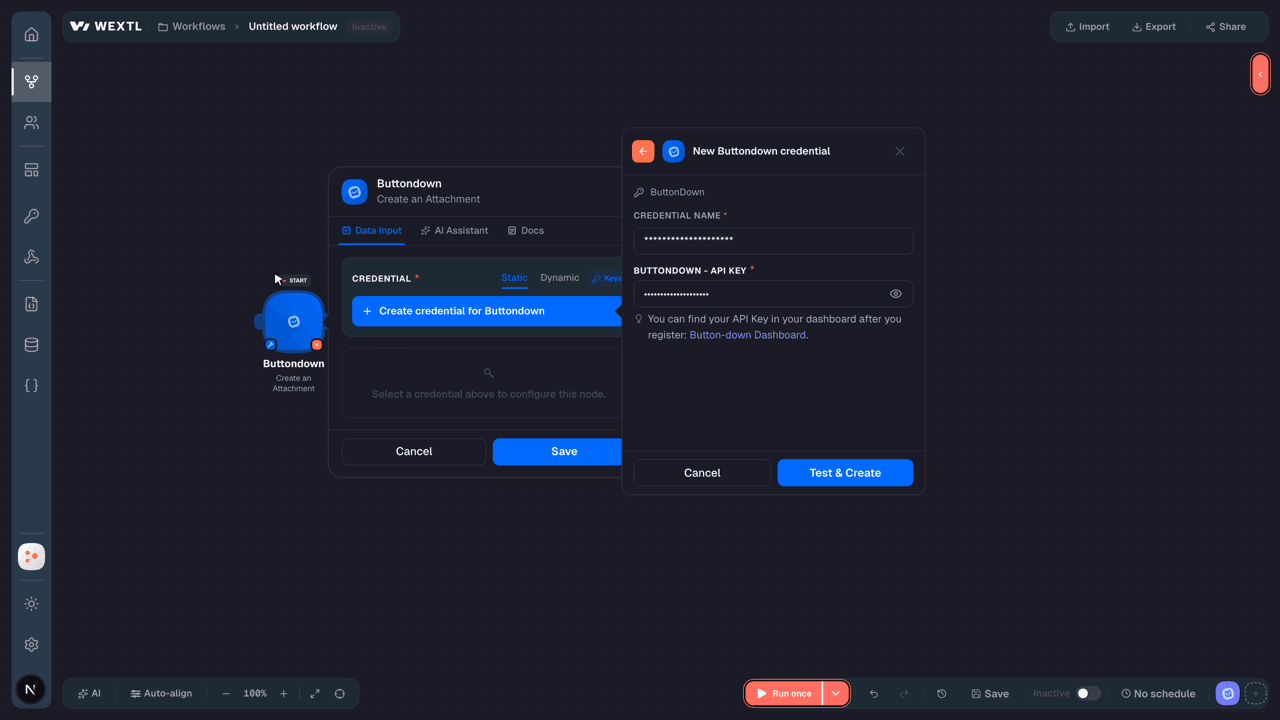
- ButtonDown - API KeypasswordRequired
You can find your API Key in your dashboard after you register: Button-down Dashboard.
[1]
Connect Buttondown in WEXTL
- Log in to your WEXTL account, add the Buttondown node module to your workflow, and click Create new credential.Instant triggers use webhooks — click Create a webhook first when adding one, then create the credential.
- Optional: In the Credential name field, enter a name for the credential.
- Enter the authentication credentials you copied from your Buttondown account, or follow the on-screen instructions to create the credential.
- If prompted, authenticate your account and confirm access.
- If you want to make changes to your credential in the future, follow the steps in Manage credentials →
Notes
Credentials are org-scoped; share them with teammates from the Credentials picker on any of its nodes.For detailed information on connecting an application, see Connect an application →
Buttondown node modules
The list below is a reference of every Buttondown node module the integration supports. You will be able to pick any of them on the workflow canvas while building automations.
Open any Buttondown node module below to inspect its input parameters, outputs, and connection requirements.
Watch EventsTrigger
No fields documented.
Get a Bulk ActionAction
Get a CommentAction
Get a SubscriberAction
| Field | Type |
|---|---|
| Subscriber ID or Email | choice |
| Expand Fields | array |
| Field | Type |
|---|---|
| Subscriber ID | text |
| Creation date | text |
| Email address | text |
| Notes | text |
| Metadata | object |
| Tags | array |
| Referrer URL | text |
| Secondary ID | number |
| Type | text |
| Source | text |
| Utm campaign | text |
| Utm medium | text |
| Utm source | text |
| Referral code | text |
| Avatar URL | text |
| Stripe coupon | text |
| Unsubscription date | text |
| Churn date | text |
| Undeliverability date | text |
| Undeliverability reason | text |
Get a TagAction
Get an AccountAction
| Field | Type |
|---|---|
| Username | text |
| Email address |
Get an Email or DraftAction
| Field | Type |
|---|---|
Email IDRequired | choice |
| Field | Type |
|---|---|
| Email ID | text |
| Creation Date | date |
| Modification Date | date |
| Publish Date | date |
| Subject | text |
| Body | text |
| Status | text |
| Suppression Reason | text |
| Slug | text |
| Canonical URL | text |
| Email Type | text |
| Image | text |
| Description | text |
| Source | text |
| Secondary ID | number |
| Commenting Mode | text |
| Absolute URL | text |
| Filters (rules) | array |
| Filters (groups) | array |
| Filters Predicate | text |
Get Email AnalyticsAction
| Field | Type |
|---|---|
Email IDRequired | choice |
| Field | Type |
|---|---|
| Recipients | number |
| Deliveries | number |
| Opens | number |
| Clicks | number |
| Temporary Failures | number |
| Permanent Failures | number |
| Unsubscriptions | number |
| Complaints | number |
| Survey Responses | number |
| Webmentions | number |
| Page Views (Lifetime) | number |
| Page Views (30 days) | number |
| Page Views (7 days) | number |
| Subscriptions | number |
| Paid Subscriptions | number |
| Replies | number |
| Comments | number |
| Social Mentions | number |
Get Email Historical BodyAction
Get Email HistorySearch
Get ExportAction
List AttachmentsSearch
List CommentsSearch
List CouponsSearch
List EmailsSearch
| Field | Type |
|---|---|
| Email IDS | array |
| Email Status | choice |
| Email Type | choice |
| Subject Contains | text |
| Order By | choice |
| Limit | number |
| Field | Type |
|---|---|
| Email ID | text |
| Creation Date | date |
| Modification Date | date |
| Publish Date | date |
| Subject | text |
| Body | text |
| Status | text |
| Suppression Reason | text |
| Slug | text |
| Canonical URL | text |
| Email Type | text |
| Image | text |
| Description | text |
| Source | text |
| Secondary ID | number |
| Commenting Mode | text |
| Absolute URL | text |
| Filters (rules) | array |
| Filters (groups) | array |
| Filters Predicate | text |
List EventsSearch
| Field | Type |
|---|---|
Event TypeRequired | choice |
| Ordering | choice |
| Expand | array |
| Email ID | text |
| Automation ID | text |
| Subscriber ID | text |
| Maximum Results | number |
| Field | Type |
|---|---|
| Event ID | text |
| Subscriber ID | text |
| Email ID | text |
| Automation ID | text |
| Creation date | text |
| Metadata | object |
| Event type | text |
| Subscriber | text |
| text | |
| Automation | text |
List External FeedsSearch
List ImagesSearch
List NewslettersSearch
| Field | Type |
|---|---|
| Limit | number |
| Field | Type |
|---|---|
| Newsletter ID | text |
| Username | text |
| Name | text |
| Description | text |
| Creation date | text |
| API key | text |
| Tint color | text |
| From name | text |
| Header | text |
| Footer | text |
| Domain | text |
| Email domain | text |
| Enabled features | array |
| Custom email template | text |
| CSS | text |
| Web CSS | text |
| Icon | text |
| Image | text |
| Auditing mode | text |
List NotesSearch
List SubscribersSearch
| Field | Type |
|---|---|
| Email Address | text |
| Subscriber Type | choice |
| Source | choice |
| Limit | number |
| Field | Type |
|---|---|
| subscriber ID | text |
| Creation date | text |
| Email address | text |
| Notes | text |
| Metadata | object |
| Tags | array |
| Referrer URL | text |
| Secondary ID | number |
| Type | text |
| Source | text |
| Utm campaign | text |
| Utm medium | text |
| Utm source | text |
| Referral code | text |
| Avatar URL | text |
| Stripe coupon | text |
| Unsubscription date | text |
| Churn date | text |
| Undeliverability date | text |
| Undeliverability reason | text |
List Survey ResponsesSearch
List SurveysSearch
List TagsSearch
Create a Bulk ActionAction
Create a Confirmation ReminderAction
Create a Draft EmailAction
Create a Finalized EmailAction
Create a NewsletterAction
| Field | Type |
|---|---|
UsernameRequired | text |
Newsletter NameRequired | text |
DescriptionRequired | text |
| Tint Color | text |
| From Name | text |
| Header | text |
| Footer | text |
| Domain | text |
| Email Domain | text |
| Enabled Features | array |
| Custom Email Template | text |
| Custom CSS (Emails) | text |
| Custom CSS (Web) | text |
| Icon URL | text |
| Header Image URL | text |
| Field | Type |
|---|---|
| Newsletter ID | text |
| Username | text |
| Name | text |
| Description | text |
| Creation date | text |
| API key | text |
| Tint color | text |
| From name | text |
| Header | text |
| Footer | text |
| Domain | text |
| Email domain | text |
| Enabled features | array |
| Custom email template | text |
| CSS | text |
| Web CSS | text |
| Icon | text |
| Image | text |
| Auditing mode | text |
Create a NoteAction
Create a SubscriberAction
| Field | Type |
|---|---|
Email AddressRequired | text |
| Subscriber Type | choice |
| Source | choice |
| Notes | text |
| Name | text |
| Tags | array |
| IP Address | text |
| Field | Type |
|---|---|
| Subscriber ID | text |
| Creation date | text |
| Email address | text |
| Notes | text |
| Metadata | object |
| Last name | text |
| First name | text |
| Subscription plan | text |
| Tags | array |
| Referrer URL | text |
| Secondary ID | number |
| Type | text |
| Source | text |
| Utm campaign | text |
| Utm medium | text |
| Utm source | text |
| Referral code | text |
| Avatar URL | text |
| Stripe coupon | text |
| Unsubscription date | text |
| Churn date | text |
| Undeliverability date | text |
| Undeliverability reason | text |
Create a SurveyAction
| Field | Type |
|---|---|
Survey IdentifierRequired | text |
Survey QuestionRequired | text |
Possible AnswersRequired | array |
| Notes | text |
| Allow Freeform Responses | boolean |
| Response Cadence | choice |
| Field | Type |
|---|---|
| Survey ID | text |
| Creation date | text |
| Identifier | text |
| Question | text |
| Response count | number |
| Answers | array |
| Notes | text |
| Response cadence | text |
| Status | text |
| Is freeform response enabled | boolean |
Create a TagAction
Create an AttachmentAction
Create an EmailAction
| Field | Type |
|---|---|
Email SubjectRequired | text |
Email BodyRequired | text |
| Email Status | choice |
| Publish Date | date |
| Attachments | array |
| Name | text |
| Slug | text |
| Email Type | choice |
| Commenting Mode | choice |
| Related Email IDs | array |
| Featured | boolean |
| Trigger Pay-Per-Email Billing | boolean |
| Description | text |
| Canonical URL | text |
| Image URL | text |
| Secondary ID | number |
| Audience Filters | choice |
| Field | Type |
|---|---|
| Email ID | text |
| Creation date | text |
| Modification date | text |
| Publish date | text |
| Subject | text |
| Body | text |
| Status | text |
| Suppression reason | text |
| Slug | text |
| Canonical URL | text |
| Email type | text |
| Image | text |
| Description | text |
| Metadata | object |
| Source | text |
| Secondary ID | text |
| Commenting mode | text |
| Absolute URL | text |
| Filters | object |
| Filters | array |
| Groups | array |
| Predicate | text |
| Analytics | text |
Create an ExportAction
Create an External FeedAction
| Field | Type |
|---|---|
RSS Feed URLRequired | text |
Email SubjectRequired | text |
Email BodyRequired | text |
Feed LabelRequired | text |
| Behavior | choice |
| Cadence | choice |
| Cadence Metadata | text |
| Filters | text |
| Metadata | text |
| Skip Old Items | boolean |
| Field | Type |
|---|---|
| External Feed ID | text |
| Creation date | text |
| Last checked date | text |
| Status | text |
| Behavior | text |
| Cadence | text |
| Cadence metadata | object |
| Filters | object |
| Filters | array |
| Groups | array |
| Predicate | text |
| URL | text |
| Subject | text |
| Body | text |
| Label | text |
| Metadata | object |
| Skip old items | boolean |
Create an ImageAction
Delete a NewsletterAction
| Field | Type |
|---|---|
Newsletter IDRequired | number |
Delete a NoteAction
| Field | Type |
|---|---|
Note IDRequired | text |
Delete a SubscriberAction
| Field | Type |
|---|---|
Subscriber ID or EmailRequired | choice |
Delete a SurveyAction
| Field | Type |
|---|---|
Survey IDRequired | text |
Delete a TagAction
| Field | Type |
|---|---|
Tag IDRequired | text |
Delete a WebhookAction
| Field | Type |
|---|---|
Webhook IDRequired | text |
Delete an AttachmentAction
| Field | Type |
|---|---|
Attachment IDRequired | text |
Delete an External FeedAction
| Field | Type |
|---|---|
External Feed IDRequired | text |
Delete an ImageAction
| Field | Type |
|---|---|
Image IDRequired | text |
Make an API Calluniversal
Update a NewsletterAction
| Field | Type |
|---|---|
| Newsletter ID | text |
| Username | text |
| Newsletter Name | text |
| Description | text |
| Tint Color | text |
| From Name | text |
| Header | text |
| Footer | text |
| Domain | text |
| Email Domain | text |
| Enabled Features | array |
| Custom Email Template | text |
| Custom CSS (Emails) | text |
| Custom CSS (Web) | text |
| Icon URL | text |
| Header Image URL | text |
| Field | Type |
|---|---|
| Newsletter ID | text |
| Username | text |
| Name | text |
| Description | text |
| Creation date | text |
| API key | text |
| Tint color | text |
| From name | text |
| Header | text |
| Footer | text |
| Domain | text |
| Email domain | text |
| Enabled features | array |
| Custom email template | text |
| CSS | text |
| Web CSS | text |
| Icon | text |
| Image | text |
| Auditing mode | text |
Update a SubscriberAction
| Field | Type |
|---|---|
Subscriber ID or EmailRequired | choice |
| Email Address | text |
| Notes | text |
| Name | text |
| Tags | array |
| Referrer URL | text |
| Subscriber Type | choice |
| Unsubscription Reason | text |
Update a SurveyAction
| Field | Type |
|---|---|
Survey IDRequired | text |
| Survey Identifier | text |
| Survey Question | text |
| Possible Answers | array |
| Notes | text |
| Allow Freeform Responses | boolean |
| Response Cadence | choice |
| Field | Type |
|---|---|
| Survey ID | text |
| Creation date | text |
| Identifier | text |
| Question | text |
| Response count | number |
| Answers | array |
| Notes | text |
| Response cadence | text |
| Status | text |
| Is freeform response enabled | boolean |
Update a TagAction
Update an Email or a DraftAction
| Field | Type |
|---|---|
Email IDRequired | choice |
| Subject | text |
| Body (HTML or Markdown) | text |
| Email Type | choice |
| Status | choice |
| Related Email IDs | array |
| Name | text |
| Slug | text |
| Canonical URL | text |
| Description | text |
| Publish Date | date |
| Suppression Reason | text |
| Metadata (JSON) | text |
| Image URL | text |
| Commenting Mode | choice |
| Attachments | text |
| Featured? | boolean |
| Trigger Pay-Per-Email Billing? | boolean |
| Field | Type |
|---|---|
| Email ID | text |
| Creation date | text |
| Modification date | text |
| Publish date | text |
| Subject | text |
| Body | text |
| Status | text |
| Suppression reason | text |
| Slug | text |
| Canonical URL | text |
| Email type | text |
| Image | text |
| Description | text |
| Metadata | object |
| Source | text |
| Secondary ID | text |
| Commenting mode | text |
| Absolute URL | text |
| Filters | object |
| Filters | array |
| Groups | array |
| Predicate | text |
| Analytics | text |
Update an External FeedAction
| Field | Type |
|---|---|
External Feed IDRequired | text |
| RSS Feed URL | text |
| Email Subject | text |
| Email Body | text |
| Feed Label | text |
| Behavior | choice |
| Cadence | choice |
| Cadence Metadata | text |
| Filters | text |
| Metadata | text |
| Skip Old Items | boolean |
| Field | Type |
|---|---|
| External Feed ID | text |
| Creation date | text |
| Last checked date | text |
| Status | text |
| Behavior | text |
| Cadence | text |
| Cadence metadata | object |
| Filters | object |
| Filters | array |
| Groups | array |
| Predicate | text |
| URL | text |
| Subject | text |
| Body | text |
| Label | text |
| Metadata | object |
| Skip old items | boolean |
Templates
Look for Buttondown templates in the WEXTL template library.
Browse templates →Explore alternative apps
- Acumbamail[2]Email marketing platform for campaigns, lists, and subscriber automation.
- Autocalls AIAI phone agents for outbound and inbound calling, lead qualification, and follow-ups.
- BandwidthEnterprise communications APIs for voice, messaging, and phone number services.
- CallTrackingMetricsCall tracking for businesses, with numbers, texts, and routing.
- Benchmark EmailEmail marketing platform for campaigns, lists, automations, and subscriber engagement.


References
- WEXTL® Buttondown Source Code connector implementation.
- Our users use cases and automations.
- Official API Documentation for Buttondown.
- WEXTL® visual workflow builder data.
Last updated: Jul 23, 2026 22:38