


Requirements
Before you set up the credential, make sure you have an active Jicoo account and an API access token from your account settings ready.[3]
Get your Jicoo credentials
- API KeypasswordRequired
Your API key. Found in your dashboard at https://www.jicoo.com/dashboard/api_keys. Starts with sk_live_.
[1]
Connect Jicoo in WEXTL
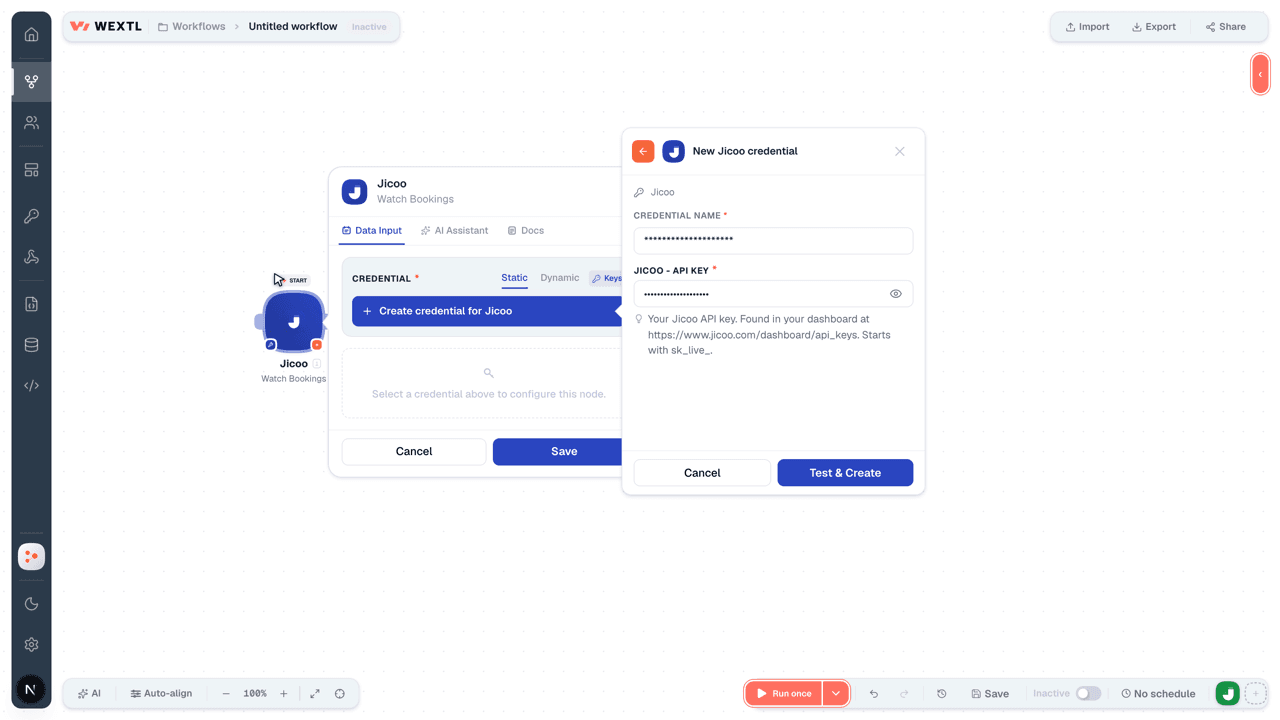
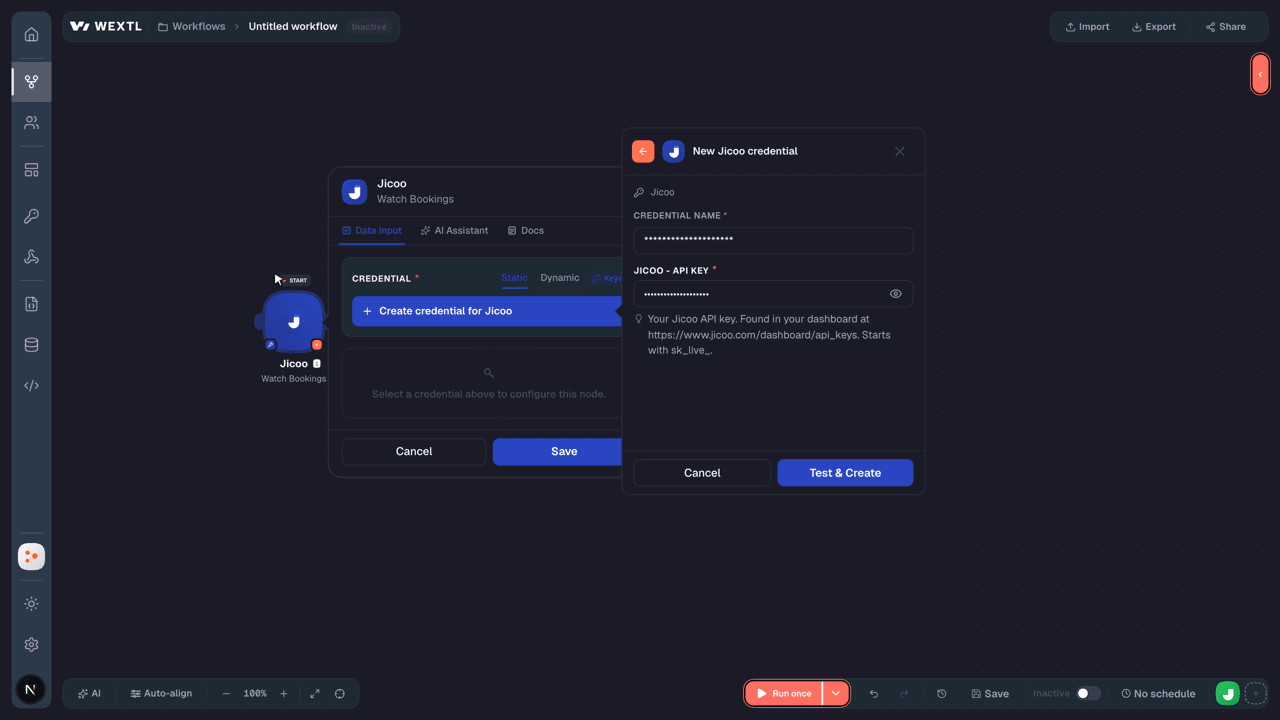
- Log in to your WEXTL account, add the Jicoo node module to your workflow, and click Create new credential.Instant triggers use webhooks — click Create a webhook first when adding one, then create the credential.
- Optional: In the Credential name field, enter a name for the credential.
- Enter the authentication credentials you copied from your Jicoo account, or follow the on-screen instructions to create the credential.
- If prompted, authenticate your account and confirm access.
- If you want to make changes to your credential in the future, follow the steps in Manage credentials →
Notes
Credentials are org-scoped; share them with teammates from the Credentials picker on any of its nodes.For detailed information on connecting an application, see Connect an application →
Jicoo node modules
The list below is a reference of every Jicoo node module the integration supports. You will be able to pick any of them on the workflow canvas while building automations.
Each Jicoo node module below opens to reveal its input parameters, outputs, and connection requirements.
Watch Availability CalendarsTrigger
| Field | Type |
|---|---|
| UID | text |
| User ID | text |
| Name | text |
| Is Default | boolean |
| Timezone | text |
| Calendars | array |
| Start Hour | number |
| Start Minute | number |
| End Hour | number |
| End Minute | number |
| Started At | date |
| Ended At | date |
| Weekday | number |
| Frequency Type | text |
| Frequency Interval | number |
| Exceptions | array |
| Created At | date |
| Updated At | date |
Watch BookingsTrigger
| Field | Type |
|---|---|
| UID | text |
| Event Type ID | text |
| Name | text |
| Description | text |
| Status | text |
| Started At | date |
| Ended At | date |
| Location ID | text |
| URL | url |
| Phone Number | text |
| Address | text |
| Custom Location | text |
| Access | text |
| Time Zone | text |
| Priority | text |
| Spam Type | number |
| Cancel Reason | text |
| Cancelled At | date |
| Cancelled By | text |
| Hosts | array |
| User ID | text |
| Role | text |
Watch EventTrigger
| Field | Type |
|---|---|
| User ID | number |
| Email address | |
| Name | text |
| Date created | date |
Watch Event TypesTrigger
| Field | Type |
|---|---|
| UID | text |
| Slug | text |
| Name | text |
| Description | text |
| Cover Image | url |
| Color | text |
| Duration | number |
| Status | text |
| Internal Note | text |
| Locations | array |
| Location ID | text |
| Questions | array |
| UID | text |
| Content | text |
| Is Required | boolean |
| Workflow Type | text |
| Has Other Choice | boolean |
| Choices | array |
| Services | array |
| Payment Methods | array |
| Available User Type | text |
| Host Assign Type | text |
| Created At | date |
| Updated At | date |
Watch Organization InvitationsTrigger
| Field | Type |
|---|---|
| ID | number |
| Role | text |
| Created At | date |
| Updated At | date |
Watch Organization UsersTrigger
| Field | Type |
|---|---|
| User ID | text |
| Name | text |
| Profile Image | url |
| Color | text |
| Slug | text |
| Role | text |
| Created At | date |
| Updated At | date |
Watch SchedulesTrigger
| Field | Type |
|---|---|
| UID | text |
| Name | text |
| Description | text |
| Routine | object |
| Duration | number |
| Ended At | date |
| Schedules | array |
| Is Remind | boolean |
| Project ID | number |
| Phone Number | text |
| Access | text |
| Address | text |
| Custom Location | text |
| Attendees | array |
| User ID | text |
| Role | text |
| User Type | text |
| Is All Day | boolean |
| Time Zone | text |
| Started At | date |
| Ended At | date |
| Priority | text |
| Display Type | text |
| Location | text |
| Transparency | text |
| Behavior | text |
Get BookingAction
| Field | Type |
|---|---|
BookingRequired | choice |
| Field | Type |
|---|---|
| Uid | text |
| Event type ID | text |
| Name | text |
| Description | text |
| Status | text |
| Started at | date |
| Ended at | date |
| Location ID | text |
| URL | text |
| Phone number | text |
| Address | text |
| Custom location | text |
| Access | text |
| Time zone | text |
| Priority | text |
| Spam type | number |
| Cancel reason | text |
| Cancelled at | date |
| Cancelled by | text |
| Hosts | array |
Get Booking ContactsSearch
Get Event TypeAction
| Field | Type |
|---|---|
Event TypeRequired | choice |
| Field | Type |
|---|---|
| Uid | text |
| Slug | text |
| Name | text |
| Description | text |
| Cover image | url |
| Color | text |
| Duration | number |
| Status | text |
| Internal note | text |
| Locations | array |
| Questions | array |
| Services | array |
| Payment methods | array |
| Available user type | text |
| Host assign type | text |
| Created at | date |
| Updated at | date |
| Host assign rules | array |
Get Organization InvitationAction
Get Organization TeamAction
| Field | Type |
|---|---|
| Uid | text |
| Slug | text |
| Name | text |
| Profile | text |
| Profile image | url |
| Header team image | text |
| Created at | date |
| Updated at | date |
Get Organization UserAction
Get User Availability CalendarAction
List Booking RecapsSearch
| Field | Type |
|---|---|
BookingRequired | choice |
| Limit | number |
| Field | Type |
|---|---|
| Created at | date |
| Updated at | date |
| Title | text |
| Summary | object |
| Background | text |
| Conclusion | text |
| Next steps | text |
| Minutes | text |
| Details | text |
| Decisions | array |
| Risks | array |
| Custom scores | object |
| Insight content types | array |
| Insight purpose types | array |
| Summary image URL | text |
| Speaker summaries | text |
| Speaker metrics | array |
| Guest experience insights | array |
| Is share summary | boolean |
| Is share minutes | boolean |
| Is share task | text |
List Booking RecordingsSearch
List Booking TranscriptsSearch
List BookingsSearch
| Field | Type |
|---|---|
| Status | choice |
| Started At (From) | date |
| Ended At (To) | date |
| Sort Direction | choice |
| Sort By | choice |
| Limit | number |
| Field | Type |
|---|---|
| UID | text |
| Event Type ID | text |
| Name | text |
| Description | text |
| Status | text |
| Started At | date |
| Ended At | date |
| Location ID | text |
| URL | url |
| Phone Number | text |
| Address | text |
| Custom Location | text |
| Access | text |
| Time Zone | time |
| Priority | text |
| Spam Type | number |
| Cancel Reason | text |
| Cancelled At | date |
| Cancelled By | text |
| Hosts | array |
| User ID | text |
| Role | text |
List Event TypesSearch
| Field | Type |
|---|---|
| Maximum Number of Results | number |
| Field | Type |
|---|---|
| Uid | text |
| Slug | text |
| Name | text |
| Description | text |
| Cover image | url |
| Color | text |
| Duration | number |
| Status | text |
| Internal note | text |
| Locations | array |
| Questions | array |
| Services | array |
| Payment methods | array |
| Available user type | text |
| Host assign type | text |
| Created at | date |
| Updated at | date |
| Host assign rules | array |
List Organization InvitationsSearch
List Organization UsersSearch
List SchedulesSearch
| Field | Type |
|---|---|
| Maximum Number of Results | number |
| Field | Type |
|---|---|
| Uid | text |
| Name | text |
| Description | text |
| Routine | object |
| Duration | number |
| Ended at | date |
| Schedules | array |
| Is remind | boolean |
| Project ID | number |
| Phone number | text |
| Access | text |
| Address | text |
| Custom location | text |
| Attendees | array |
| Is all day | boolean |
| Time zone | text |
| Started at | date |
| Ended at | date |
| Priority | text |
| Display type | text |
| Location | text |
| Transparency | text |
| Behavior | text |
List User Availability CalendarsSearch
Cancel BookingAction
| Field | Type |
|---|---|
BookingRequired | choice |
| Field | Type |
|---|---|
| Uid | text |
| Event type ID | text |
| Name | text |
| Description | text |
| Status | text |
| Started at | date |
| Ended at | date |
| Location ID | text |
| URL | text |
| Phone number | text |
| Address | text |
| Custom location | text |
| Access | text |
| Time zone | text |
| Priority | text |
| Spam type | number |
| Cancel reason | text |
| Cancelled at | date |
| Cancelled by | text |
| Hosts | array |
Create BookingAction
| Field | Type |
|---|---|
Event TypeRequired | choice |
Started AtRequired | date |
Time ZoneRequired | text |
Guest EmailRequired | |
Guest NameRequired | text |
LocationRequired | choice |
| Company | text |
| Text Remind Country Code | text |
| Text Remind Number | text |
| CC Emails | array |
| Message | text |
| Locale | choice |
| Phone Number | text |
| Tracking | object |
| Campaign | text |
| Source | text |
| Medium | text |
| Content | text |
| Term | text |
| Custom Question Answers | array |
Question UIDRequired | text |
Answer ContentRequired | text |
| Payment | object |
Payment MethodRequired | choice |
| Payment Items | array |
| Success URL | url |
| Cancel URL | url |
| Field | Type |
|---|---|
| Uid | text |
| Event type ID | text |
| Name | text |
| Description | text |
| Status | text |
| Started at | date |
| Ended at | date |
| Location ID | text |
| URL | text |
| Phone number | text |
| Address | text |
| Custom location | text |
| Access | text |
| Time zone | text |
| Priority | text |
| Spam type | number |
| Cancel reason | text |
| Cancelled at | date |
| Cancelled by | text |
| Hosts | array |
Create Event TypeAction
| Field | Type |
|---|---|
NameRequired | text |
SlugRequired | text |
Duration (minutes)Required | number |
Event Type UsersRequired | array |
UserRequired | choice |
RoleRequired | choice |
User TypeRequired | choice |
PriorityRequired | number |
| Description | text |
| Interval Minutes | number |
| Max Capacity | number |
| Buffer Before (minutes) | number |
| Buffer After (minutes) | number |
| Internal Note | text |
| Available User Type | choice |
| Host Assign Type | choice |
| Round Robin Allocate Type | choice |
| Reschedule Type | choice |
| Location Settings | object |
| In Person | boolean |
| Access Info | text |
| Address | text |
| Zoom | boolean |
| Google Meet | boolean |
| Microsoft Teams | boolean |
| Phone | boolean |
| Phone Number | text |
| Phone Country Code | text |
| Phone Type | choice |
| Booking Form | object |
WorkflowsRequired | array |
| Host Assign Rules | array |
SortRequired | number |
PriorityRequired | number |
| Daily Limit Minutes | number |
| Weekly Limit Minutes | number |
| Monthly Limit Minutes | number |
ConditionsRequired | array |
| Field | Type |
|---|---|
| Uid | text |
| Slug | text |
| Name | text |
| Description | text |
| Cover image | url |
| Color | text |
| Duration | number |
| Status | text |
| Internal note | text |
| Locations | array |
| Questions | array |
| Services | array |
| Payment methods | array |
| Available user type | text |
| Host assign type | text |
| Created at | date |
| Updated at | date |
| Host assign rules | array |
Create Organization InvitationAction
Create ScheduleAction
| Field | Type |
|---|---|
NameRequired | text |
Time ZoneRequired | text |
Started AtRequired | date |
Ended AtRequired | date |
AttendeesRequired | array |
| User | choice |
RoleRequired | choice |
User TypeRequired | choice |
| Description | text |
| Is All Day | boolean |
| Enable Reminders | boolean |
| Project ID | number |
| Phone Number | text |
| Access Information | text |
| Address | text |
| Custom Location | text |
| Priority | choice |
| Display Type | choice |
| Location Type | choice |
| Transparency | choice |
| Behavior | choice |
| Visibility Type | choice |
| Update Message | text |
| Field | Type |
|---|---|
| Uid | text |
| Name | text |
| Description | text |
| Routine | object |
| Duration | number |
| Ended at | date |
| Schedules | array |
| Is remind | boolean |
| Project ID | number |
| Phone number | text |
| Access | text |
| Address | text |
| Custom location | text |
| Attendees | array |
| Is all day | boolean |
| Time zone | time |
| Started at | date |
| Ended at | date |
| Priority | text |
| Display type | text |
| Location | text |
| Transparency | text |
| Behavior | text |
Delete Event TypeAction
| Field | Type |
|---|---|
Event TypeRequired | choice |
Delete Organization InvitationAction
| Field | Type |
|---|---|
Organization InvitationRequired | choice |
Delete Organization UserAction
| Field | Type |
|---|---|
UserRequired | choice |
Delete ScheduleAction
| Field | Type |
|---|---|
ScheduleRequired | choice |
Make an API Calluniversal
Update BookingAction
| Field | Type |
|---|---|
BookingRequired | choice |
| Name | text |
| Description | text |
| Time Zone | text |
| Started At | date |
| Ended At | date |
| Hosts | array |
UserRequired | choice |
RoleRequired | choice |
| Priority | choice |
| Update Message | text |
| Send Update Notifications | boolean |
| Field | Type |
|---|---|
| Uid | text |
| Event type ID | text |
| Name | text |
| Description | text |
| Status | text |
| Started at | date |
| Ended at | date |
| Location ID | text |
| URL | text |
| Phone number | text |
| Address | text |
| Custom location | text |
| Access | text |
| Time zone | text |
| Priority | text |
| Spam type | number |
| Cancel reason | text |
| Cancelled at | date |
| Cancelled by | text |
| Hosts | array |
Update Event TypeAction
| Field | Type |
|---|---|
Event TypeRequired | choice |
| Name | text |
| Description | text |
| Status | choice |
| Duration (minutes) | number |
| Interval Minutes | number |
| Internal Note | text |
| Available User Type | choice |
| Host Assign Type | choice |
| Round Robin Allocate Type | choice |
| Reschedule Type | choice |
| Event Type Users | array |
UserRequired | choice |
RoleRequired | choice |
User TypeRequired | choice |
PriorityRequired | number |
| Location Settings | object |
| In Person | boolean |
| Access Info | text |
| Address | text |
| Zoom | boolean |
| Google Meet | boolean |
| Microsoft Teams | boolean |
| Phone | boolean |
| Phone Number | text |
| Phone Country Code | text |
| Phone Type | choice |
| Booking Form | object |
WorkflowsRequired | array |
| Field | Type |
|---|---|
| Uid | text |
| Slug | text |
| Name | text |
| Description | text |
| Cover image | url |
| Color | text |
| Duration | number |
| Status | text |
| Internal note | text |
| Locations | array |
| Questions | array |
| Services | array |
| Payment methods | array |
| Available user type | text |
| Host assign type | text |
| Created at | date |
| Updated at | date |
| Host assign rules | array |
Update Organization UserAction
Update ScheduleAction
| Field | Type |
|---|---|
ScheduleRequired | choice |
| Name | text |
| Description | text |
| Time Zone | text |
| Started At | date |
| Ended At | date |
| Is All Day | boolean |
| Enable Reminders | boolean |
| Project ID | number |
| Phone Number | text |
| Access Information | text |
| Address | text |
| Custom Location | text |
| Attendees | array |
| User | choice |
RoleRequired | choice |
User TypeRequired | choice |
| Priority | choice |
| Display Type | choice |
| Location Type | choice |
| Transparency | choice |
| Behavior | choice |
| Visibility Type | choice |
| Field | Type |
|---|---|
| Uid | text |
| Name | text |
| Description | text |
| Routine | object |
| Duration | number |
| Ended at | date |
| Schedules | array |
| Is remind | boolean |
| Project ID | number |
| Phone number | text |
| Access | text |
| Address | text |
| Custom location | text |
| Attendees | array |
| Is all day | boolean |
| Time zone | text |
| Started at | date |
| Ended at | date |
| Priority | text |
| Display type | text |
| Location | text |
| Transparency | text |
| Behavior | text |
Templates
Look for Jicoo templates in the WEXTL template library.
Browse templates →Explore alternative apps
- Avirato[2]Hotel property management and channel booking for rates, availability, and reservations.
- Acuity SchedulingOnline appointment scheduling for service businesses and calendars.
- AgendaProSalon and clinic booking, payments, and client management.
- AppointeddOnline booking and appointment scheduling for retail and service businesses.
- AgendizeOnline appointment scheduling and customer engagement platform for businesses.


References
- WEXTL® Jicoo Source Code connector implementation.
- Our users use cases and automations.
- Official API Documentation for Jicoo.
- WEXTL® visual workflow builder data.
Last updated: Jul 21, 2026 15:22