


Requirements
Before you set up the credential, make sure you have an active Heartland account and an API access token from your account settings ready.[3]
Get your Heartland credentials
Connect Heartland in WEXTL
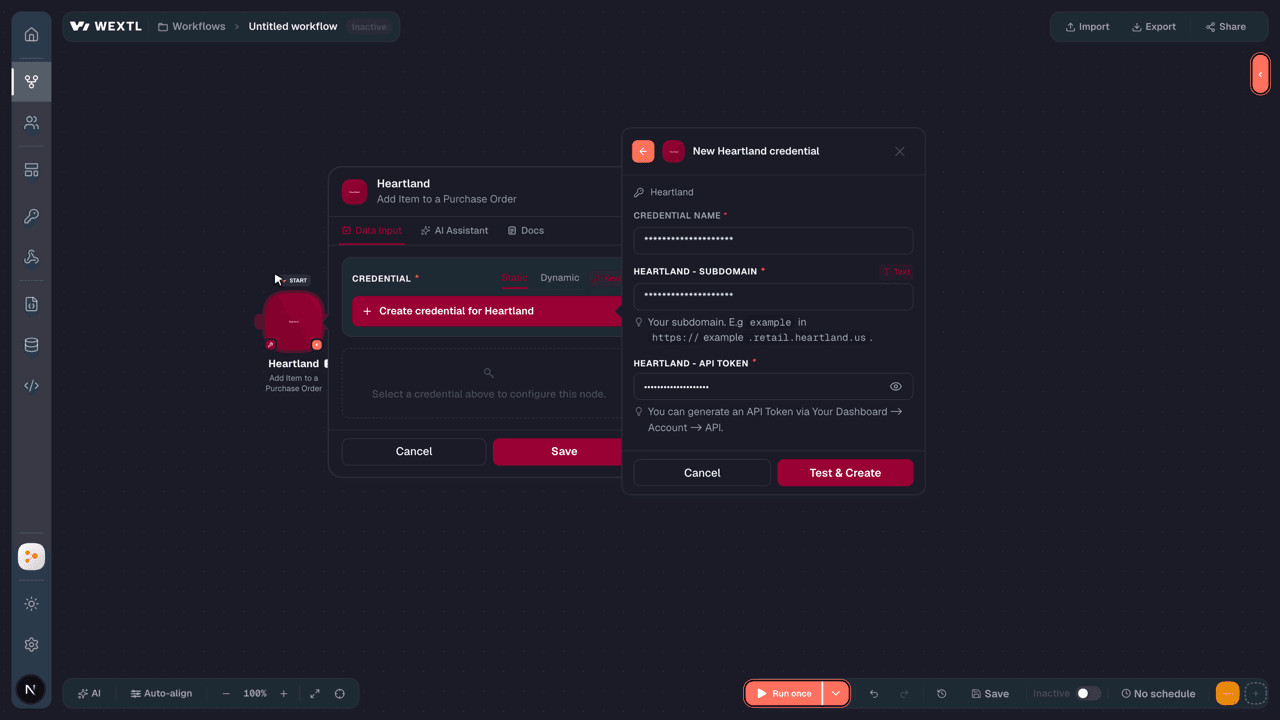
- Log in to your WEXTL account, add the Heartland node module to your workflow, and click Create new credential.Instant triggers use webhooks — click Create a webhook first when adding one, then create the credential.
- Optional: In the Credential name field, enter a name for the credential.
- Enter the authentication credentials you copied from your Heartland account, or follow the on-screen instructions to create the credential.
- If prompted, authenticate your account and confirm access.
- If you want to make changes to your credential in the future, follow the steps in Manage credentials →

Notes
Credentials are org-scoped; share them with teammates from the Credentials picker on any of its nodes.For detailed information on connecting an application, see Connect an application →
Heartland node modules
The list below is a reference of every Heartland node module the integration supports. You will be able to pick any of them on the workflow canvas while building automations.
Each Heartland node module below opens to reveal its input parameters, outputs, and connection requirements.
Watch EventsTrigger
Output fields[3]
| Field | Type |
|---|---|
| User ID | number |
| Email address | |
| Name | text |
| Date created | date |
Get a CustomerAction
Get a Gift CardAction
Get a Purchase OrderAction
Input fields[3]
| Field | Type |
|---|---|
Purchase Order IDRequired | number |
Output fields[3]
| Field | Type |
|---|---|
| ID | number |
| Vendor ID | number |
| Created by user ID | number |
| Receive at location ID | number |
| Total qty | number |
| Total cost | number |
| Total price | number |
| Total received qty | number |
| Total received cost | number |
| Total received price | number |
| Total open qty | number |
| Total open cost | number |
| Total open price | number |
| Po import batch ID | number |
Get a ReceiptAction
Get a ReturnAction
Get a Sales OrderAction
Get a TicketAction
Input fields[3]
| Field | Type |
|---|---|
Ticket IDRequired | choice |
Output fields[3]
| Field | Type |
|---|---|
| ID | number |
| Type | text |
| Customer ID | number |
| Source location ID | number |
| Station ID | number |
| Parent transaction ID | number |
| Status | text |
| Total | number |
| Created by user ID | number |
| Local created at | date |
| Local updated at | date |
| Updated by user ID | number |
| Completed at | date |
| Coupon ID | number |
| Sales rep ids | array |
Get a VendorAction
Get an Inventory TransferAction
Input fields[3]
| Field | Type |
|---|---|
Inventory Transfer IDRequired | choice |
Output fields[3]
| Field | Type |
|---|---|
| ID | number |
| Status | text |
| From location ID | number |
| To location ID | number |
| Created by user ID | number |
| Updated by user ID | number |
| Shipped by user ID | number |
| Received by user ID | number |
| Total qty shipped | number |
| Total qty received | number |
| Total qty lost | number |
| Total qty requested | number |
| Purchasing receipt ID | number |
| Total qty discrepant | number |
Get an InvoiceAction
Get an ItemAction
List CustomersSearch
Input fields[3]
| Field | Type |
|---|---|
| Search | text |
| Search criteria | text |
| Limit | number |
Output fields[3]
| Field | Type |
|---|---|
| ID | number |
| First name | text |
| Last name | text |
| text | |
| Address ID | number |
| Shipping address ID | number |
| Billing address ID | number |
| Custom | object |
| Customer import batch ID | number |
| Name | text |
| Loyalty points balance | number |
| Loyalty points total | number |
List Gift CardsSearch
List Inventory TransactionsSearch
List Inventory TransfersSearch
Input fields[3]
| Field | Type |
|---|---|
| Search | text |
| Search criteria | text |
| Limit | number |
Output fields[3]
| Field | Type |
|---|---|
| ID | number |
| Status | text |
| From location ID | number |
| To location ID | number |
| Created by user ID | number |
| Updated by user ID | number |
| Shipped by user ID | number |
| Received by user ID | number |
| Total qty shipped | number |
| Total qty received | number |
| Total qty lost | number |
| Total qty requested | number |
| Purchasing receipt ID | number |
| Total qty discrepant | number |
List Invoice LinesSearch
Input fields[3]
| Field | Type |
|---|---|
Invoice IDRequired | choice |
| Limit | number |
Output fields[3]
| Field | Type |
|---|---|
| ID | number |
| Type | text |
| Sales transaction ID | number |
| Value | number |
| Qty | number |
| Adjusted unit price | number |
| Unit cost | number |
| Original unit price | number |
| Item ID | number |
| Shipping line ID | number |
| Item line ID | number |
| Sales transaction line ID | number |
| Address ID | number |
| Shipping method ID | number |
| Lookup ID | number |
| Customer ID | number |
| Loyalty points | number |
| Order line ID | number |
| Address revision ID | number |
| Order discount ID | number |
2other output fields
List InvoicesSearch
List ItemsSearch
List Purchase Order LinesSearch
List Receipt LinesSearch
List Return LinesSearch
List Sales OrdersSearch
List TicketsSearch
Input fields[3]
| Field | Type |
|---|---|
| Search | text |
| Search criteria | text |
| Limit | number |
Output fields[3]
| Field | Type |
|---|---|
| ID | number |
| Type | text |
| Customer ID | number |
| Source location ID | number |
| Station ID | number |
| Parent transaction ID | number |
| Status | text |
| Total | number |
| Created by user ID | number |
| Local created at | date |
| Local updated at | date |
| Updated by user ID | number |
| Completed at | date |
| Coupon ID | number |
| Sales rep ids | array |
List UsersSearch
List VendorsSearch
Add Item to a Purchase OrderAction
Input fields[3]
| Field | Type |
|---|---|
Item IDRequired | choice |
Order IDRequired | number |
QuantityRequired | number |
Unit CostRequired | number |
Quantity ReceivedRequired | number |
| Received Cost | number |
| Open Cost | number |
| Quantity Expected | number |
| Status | text |
Add Item to a ReceiptAction
Input fields[3]
| Field | Type |
|---|---|
Item IDRequired | choice |
QuantityRequired | number |
| Unit Cost | number |
Receipt IDRequired | number |
| Order Line ID | number |
| Quantity Expected | number |
| Quantity Unauthorized | number |
Add Item to a ReturnAction
Input fields[3]
| Field | Type |
|---|---|
Item IDRequired | choice |
Return IDRequired | number |
QuantityRequired | number |
Unit CostRequired | number |
Create a CustomerAction
Input fields[3]
| Field | Type |
|---|---|
First NameRequired | text |
| Public ID | text |
| Last Name | text |
| text | |
| Shipping Address ID | number |
| Billing Address ID | number |
| Active | boolean |
| Custom Field | array |
| Key | choice |
| Value | text |
Create a Gift CardAction
Input fields[3]
| Field | Type |
|---|---|
NumberRequired | text |
| Expires At | date |
Create a Purchase OrderAction
Input fields[3]
| Field | Type |
|---|---|
StatusRequired | text |
Vendor IDRequired | choice |
Receive at Location IDRequired | choice |
| Public ID | text |
| Start Shipments At | date |
| End Shipments At | date |
| Created by User ID | choice |
| Description | text |
| Total Quantity | number |
| Total Cost | number |
| Total Price | number |
| Total Received Quantity | number |
| Total Received Cost | number |
| Total Received Price | number |
| Total Open Quantity | number |
| Total Open Cost | number |
| Total Open Price | number |
| Initial Margin Ratio | number |
| PO Import Batch ID | number |
| Custom Field | array |
| Key | choice |
| Value | text |
Create a ReceiptAction
Input fields[3]
| Field | Type |
|---|---|
StatusRequired | text |
| Order ID | text |
| Public ID | text |
| Custom Field | array |
| Key | choice |
| Value | text |
Create a ReturnAction
Input fields[3]
| Field | Type |
|---|---|
StatusRequired | text |
| Order ID | number |
| Public ID | text |
| Custom Field | array |
| Key | choice |
| Value | text |
Create a Sales OrderAction
Input fields[3]
| Field | Type |
|---|---|
Customer IDRequired | choice |
Station IDRequired | number |
Source Location IDRequired | choice |
| Status | choice |
| Sales Representative | text |
| Recalculate | boolean |
| Shipping Method ID | choice |
| Shipping Charge | number |
| Billing Address ID | number |
| Shipping Address ID | number |
| Gift Cards | array |
Create a TicketAction
Input fields[3]
| Field | Type |
|---|---|
TypeRequired | choice |
Customer IDRequired | choice |
Source Location IDRequired | choice |
| Sales Rep | text |
| Public ID | text |
| Station ID | number |
| Parent Transaction ID | number |
| Recalculate | boolean |
| Status | choice |
| Local Created At | date |
| Local Updated At | date |
| Completed At | date |
| Affect Inventory | boolean |
| Coupon ID | number |
| Sales Rep IDs | choice |
| Custom Field | array |
| Key | choice |
| Value | text |
Create a UserAction
Input fields[3]
| Field | Type |
|---|---|
LoginRequired | text |
EmailRequired | text |
Is Account OwnerRequired | boolean |
Is Account AdminRequired | boolean |
| First Name | text |
| Last Name | text |
| Phone | text |
| Public ID | text |
| All Locations | boolean |
| Active | boolean |
| Is Admin | boolean |
| Sales Rep | boolean |
Create a VendorAction
Input fields[3]
| Field | Type |
|---|---|
NameRequired | text |
| Address ID | number |
| Public ID | text |
| Active | boolean |
| Vendor Import Batch ID | number |
| Custom Field | array |
| Key | choice |
| Value | text |
Create an Inventory TransferAction
Input fields[3]
| Field | Type |
|---|---|
StatusRequired | text |
| From Location ID | choice |
| To Location ID | choice |
| Created By User ID | choice |
| Updated By User ID | choice |
| Shipped At | date |
| Shipped By User ID | choice |
| Received At | date |
| Received By User ID | choice |
| Total Quantity Shipped | number |
| Total Quantity Received | number |
| Total Quantity Lost | number |
| Total Quantity Requested | number |
| Due Date | date |
| Purchasing Receipt ID | choice |
| Total Quantity Discrepant | number |
| Receipt Overdue | boolean |
| Pick Overdue | boolean |
| Custom Field | array |
| Key | choice |
| Value | text |
Create an InvoiceAction
Input fields[3]
| Field | Type |
|---|---|
| Customer ID | choice |
| Source Location ID | choice |
| Sales Representative | text |
| Public ID | text |
| Station ID | number |
| Recalculate | boolean |
| Status | choice |
| Order ID | choice |
| Completed At | date |
| Affect Inventory | boolean |
| Billing Address ID | number |
| Custom Field | array |
| Key | choice |
| Value | text |
Create an ItemAction
Input fields[3]
| Field | Type |
|---|---|
CostRequired | number |
PriceRequired | number |
DescriptionRequired | text |
| Public ID | text |
| Long Description | text |
| Active | boolean |
| Financial Class ID | number |
| Weight | number |
| Width | number |
| Height | number |
| Depth | number |
| Primary Vendor ID | choice |
| Custom Field | array |
| Key | choice |
| Value | text |
Make an API Calluniversal
Update a CustomerAction
Input fields[3]
| Field | Type |
|---|---|
Customer IDRequired | choice |
First NameRequired | text |
| Public ID | text |
| Last Name | text |
| text | |
| Shipping Address ID | number |
| Billing Address ID | number |
| Active | boolean |
| Custom Field | array |
| Key | choice |
| Value | text |
Update a Sales OrderAction
Input fields[3]
| Field | Type |
|---|---|
Sales Order IDRequired | choice |
Customer IDRequired | choice |
Station IDRequired | number |
Source Location IDRequired | choice |
| Status | choice |
| Sales Representative | text |
| Recalculate | boolean |
| Shipping Method ID | choice |
| Shipping Charge | number |
| Billing Address ID | number |
| Shipping Address ID | number |
| Gift Cards | array |
Update a TicketAction
Input fields[3]
| Field | Type |
|---|---|
Ticket IDRequired | choice |
TypeRequired | choice |
Customer IDRequired | choice |
Source Location IDRequired | choice |
| Sales Rep | text |
| Public ID | text |
| Station ID | number |
| Parent Transaction ID | number |
| Recalculate | boolean |
| Status | choice |
| Local Created At | date |
| Local Updated At | date |
| Completed At | date |
| Affect Inventory | boolean |
| Coupon ID | number |
| Sales Rep IDs | choice |
| Custom Field | array |
| Key | choice |
| Value | text |
Update a UserAction
Input fields[3]
| Field | Type |
|---|---|
User IDRequired | choice |
LoginRequired | text |
EmailRequired | text |
Is Account OwnerRequired | boolean |
Is Account AdminRequired | boolean |
| First Name | text |
| Last Name | text |
| Phone | text |
| Public ID | text |
| All Locations | boolean |
| Active | boolean |
| Is Admin | boolean |
| Sales Rep | boolean |
Update a VendorAction
Input fields[3]
| Field | Type |
|---|---|
Vendor IDRequired | choice |
NameRequired | text |
| Address ID | number |
| Public ID | text |
| Active | boolean |
| Vendor Import Batch ID | number |
| Custom Field | array |
| Key | choice |
| Value | text |
Update an Inventory TransferAction
Input fields[3]
| Field | Type |
|---|---|
Inventory Transfer IDRequired | choice |
StatusRequired | text |
| From Location ID | choice |
| To Location ID | choice |
| Created By User ID | choice |
| Updated By User ID | choice |
| Shipped At | date |
| Shipped By User ID | choice |
| Received At | date |
| Received By User ID | choice |
| Total Quantity Shipped | number |
| Total Quantity Received | number |
| Total Quantity Lost | number |
| Total Quantity Requested | number |
| Due Date | date |
| Purchasing Receipt ID | choice |
| Total Quantity Discrepant | number |
| Receipt Overdue | boolean |
| Pick Overdue | boolean |
| Custom Field | array |
| Key | choice |
| Value | text |
Update an InvoiceAction
Input fields[3]
| Field | Type |
|---|---|
Invoice IDRequired | choice |
| Customer ID | choice |
| Source Location ID | choice |
| Sales Representative | text |
| Public ID | text |
| Station ID | number |
| Recalculate | boolean |
| Status | choice |
| Order ID | choice |
| Completed At | date |
| Affect Inventory | boolean |
| Billing Address ID | number |
| Custom Field | array |
| Key | choice |
| Value | text |
Update an ItemAction
Input fields[3]
| Field | Type |
|---|---|
Item IDRequired | choice |
CostRequired | number |
PriceRequired | number |
DescriptionRequired | text |
| Public ID | text |
| Long Description | text |
| Active | boolean |
| Financial Class ID | number |
| Weight | number |
| Width | number |
| Height | number |
| Depth | number |
| Primary Vendor ID | choice |
| Custom Field | array |
| Key | choice |
| Value | text |
Templates
Look for Heartland templates in the WEXTL template library.
Browse templates →Explore alternative apps
- Chargebee[2]Subscription billing for customers, plans, invoices, and payments.
- AdyenGlobal payment platform for online, in-person, and unified commerce transactions.
- BillogramDigital invoicing and billing platform that sends invoices and collects payments from customers.
- BlueSnapGlobal payment gateway for accepting cards, local payment methods, and managing subscriptions.
- BillingoHungarian online invoicing and billing platform for creating invoices, tracking payments, and managing customers.


References
- WEXTL® Heartland Source Code connector implementation.
- Our users use cases and automations.
- Official API Documentation for Heartland.
- WEXTL® visual workflow builder data.
Last updated: Jul 24, 2026 18:11