


Requirements
Lever requires an active account and an API access token from your account settings to connect — both are set up on its own site.[3]
Get your Lever credentials
- API KeytextRequired
You can generate API key from the Integrations and API page in Settings of your account.
[1]
Connect Lever in WEXTL
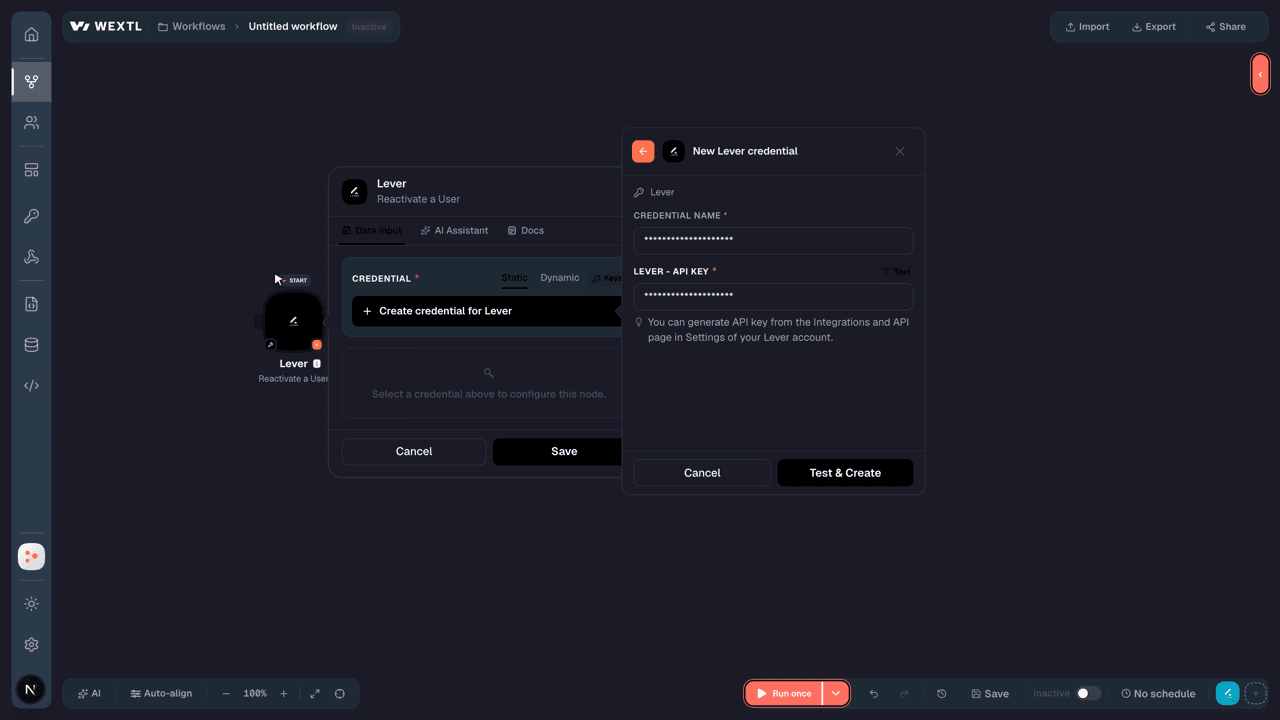
- Log in to your WEXTL account, add the Lever node module to your workflow, and click Create new credential.Instant triggers use webhooks — click Create a webhook first when adding one, then create the credential.
- Optional: In the Credential name field, enter a name for the credential.
- Enter the authentication credentials you copied from your Lever account, or follow the on-screen instructions to create the credential.
- If prompted, authenticate your account and confirm access.
- If you want to make changes to your credential in the future, follow the steps in Manage credentials →

Notes
Credentials are org-scoped; share them with teammates from the Credentials picker on any of its nodes.For detailed information on connecting an application, see Connect an application →
Lever node modules
The list below is a reference of every Lever node module the integration supports. You will be able to pick any of them on the workflow canvas while building automations.
Browse every Lever node module below — each one opens to show its input parameters, outputs, and connection requirements.
Watch EventsTrigger
| Field | Type |
|---|---|
| User ID | number |
| Email address | |
| Name | text |
| Date created | date |
Get a Feedback FormAction
Get a FileAction
Get a NoteAction
Get a PostingAction
| Field | Type |
|---|---|
Posting IDRequired | choice |
| Distribution | choice |
| Field | Type |
|---|---|
| ID | text |
| Text | text |
| Created at | date |
| Updated at | date |
| User | text |
| Owner | text |
| Hiring manager | text |
| Confidentiality | text |
| Categories | object |
| Team | text |
| Department | text |
| Location | text |
| All locations | array |
| Commitment | text |
| Level | text |
| Content | object |
| Description | text |
| Description HTML | text |
| Lists | array |
| Closing | text |
| Closing HTML | text |
| Country | text |
| Tags | array |
| State | text |
| Distribution channels | array |
| Req code | text |
| Requisition codes | array |
| Salary description | text |
| Salary description HTML | text |
| Salary range | object |
| Max | number |
| Min | number |
| Currency | text |
| Interval | text |
| Urls | object |
| List | text |
| Show | text |
| Apply | text |
Get a ResumeAction
Get a UserAction
Get an InterviewAction
Get an OpportunityAction
| Field | Type |
|---|---|
Opportunity IDRequired | choice |
| Field | Type |
|---|---|
| ID | text |
| Name | text |
| Headline | text |
| Contact | text |
| Emails | array |
| Phones | array |
| Confidentiality | text |
| Location | text |
| Links | array |
| Created at | date |
| Updated at | date |
| Last interaction at | number |
| Last advanced at | number |
| Snoozed until | number |
| Archived at | text |
| Archive reason | text |
| Stage | text |
| Stage changes | array |
| Owner | text |
| Tags | array |
Get FeedbackSearch
Get FilesSearch
Get InterviewsSearch
| Field | Type |
|---|---|
Opportunity IDRequired | choice |
| Limit | number |
| Field | Type |
|---|---|
| ID | text |
| Panel | text |
| Subject | text |
| Note | text |
| Interviewers | array |
| Timezone | text |
| Created at | date |
| Date | number |
| Duration | number |
| Location | text |
| Feedback template | text |
| Feedback forms | array |
| Feedback reminder | text |
| User | text |
| Stage | text |
| Canceled at | text |
| Postings | array |
Get NotesSearch
Get OffersSearch
Get OpportunitiesSearch
| Field | Type |
|---|---|
| Followers | boolean |
| Expand | choice |
| Tag | text |
| Origin | text |
| Source | text |
| Confidentiality | choice |
| Stage ID | text |
| Posting ID | text |
| Archived Posting ID | text |
| Created At Start | date |
| Created At End | date |
| Updated At Start | date |
| Updated At End | date |
| Advanced At Start | date |
| Advanced At End | date |
| Archived At Start | date |
| Archived At End | date |
| Archived | boolean |
| Archive Reason ID | text |
| Field | Type |
|---|---|
| ID | text |
| Name | text |
| Headline | text |
| Contact | text |
| Emails | array |
| Phones | array |
| Confidentiality | text |
| Location | text |
| Links | array |
| Created at | date |
| Updated at | date |
| Last interaction at | number |
| Last advanced at | number |
| Snoozed until | number |
| Archived at | text |
| Archive reason | text |
| Stage | text |
| Stage changes | array |
| Owner | text |
| Tags | array |
Get PostingsSearch
| Field | Type |
|---|---|
| Include | choice |
| Expand | choice |
| State | choice |
| Distribution Channel | choice |
| Confidentiality | choice |
| Group | choice |
| Team | text |
| Department | text |
| Location | text |
| Commitment | text |
| Level | text |
| Tag | text |
| Updated At Start | date |
| Updated At End | date |
| Field | Type |
|---|---|
| ID | text |
| Text | text |
| Created at | date |
| Updated at | date |
| User | text |
| Owner | text |
| Hiring manager | text |
| Confidentiality | text |
| Categories | object |
| Team | text |
| Department | text |
| Location | text |
| All locations | array |
| Commitment | text |
| Level | text |
| Content | object |
| Description | text |
| Description HTML | text |
| Lists | array |
| Closing | text |
| Closing HTML | text |
| Country | text |
| Tags | array |
| State | text |
| Distribution channels | array |
| Req code | text |
| Requisition codes | array |
| Salary description | text |
| Salary description HTML | text |
| Salary range | object |
| Max | number |
| Min | number |
| Currency | text |
| Interval | text |
| Urls | object |
| List | text |
| Show | text |
| Apply | text |
Get ResumesSearch
Get UsersSearch
| Field | Type |
|---|---|
| Access Role | choice |
| Include Deactivated | boolean |
| External Directory ID | text |
| Limit | number |
| Field | Type |
|---|---|
| ID | text |
| Name | text |
| Username | text |
| Created at | date |
| Deactivated at | number |
| External directory ID | text |
| Access role | text |
| Photo | url |
| Linked contact ids | array |
| Job title | text |
| Manager ID | text |
Create a Feedback FormAction
| Field | Type |
|---|---|
Opportunity IDRequired | choice |
Form Template UIDRequired | choice |
| Field Values | array |
| Created At | date |
| Completed At | date |
| Perform As | choice |
| Field | Type |
|---|---|
| ID | text |
| Name | text |
| Username | text |
| Created at | date |
| Deactivated at | number |
| External directory ID | text |
| Access role | text |
| Photo | url |
| Linked contact ids | array |
| Job title | text |
| Manager ID | text |
Create a NoteAction
| Field | Type |
|---|---|
Opportunity IDRequired | choice |
ValueRequired | text |
| Perform As | choice |
| Secret | boolean |
| Score | number |
| Notify Followers | boolean |
| Created At | date |
| Field | Type |
|---|---|
| ID | text |
| Name | text |
| Username | text |
| Created at | date |
| Deactivated at | number |
| External directory ID | text |
| Access role | text |
| Photo | url |
| Linked contact ids | array |
| Job title | text |
| Manager ID | text |
Create a PostingAction
| Field | Type |
|---|---|
Perform AsRequired | choice |
TitleRequired | text |
TeamRequired | text |
DepartmentRequired | text |
LocationRequired | text |
| State | text |
| Distribution Channels | array |
| Owner | choice |
| Hiring Manager | choice |
| Has Categories? | boolean |
| Tags | array |
| Content | object |
| Description HTML | text |
| Lists | array |
| Closing Posting HTML | text |
| Workplace Type | choice |
| Requisition Codes | array |
| Field | Type |
|---|---|
| ID | text |
| Text | text |
| Created at | date |
| Updated at | date |
| User | text |
| Owner | text |
| Hiring manager | text |
| Confidentiality | text |
| Categories | object |
| Team | text |
| Department | text |
| Location | text |
| All locations | array |
| Commitment | text |
| Level | text |
| Content | object |
| Description | text |
| Description HTML | text |
| Lists | array |
| Closing | text |
| Closing HTML | text |
| Country | text |
| Tags | array |
| State | text |
| Distribution channels | array |
| Req code | text |
| Requisition codes | array |
| Salary description | text |
| Salary description HTML | text |
| Salary range | object |
| Max | number |
| Min | number |
| Currency | text |
| Interval | text |
| Urls | object |
| List | text |
| Show | text |
| Apply | text |
Create a UserAction
| Field | Type |
|---|---|
NameRequired | text |
EmailRequired | |
| Access Role | choice |
| External Directory ID | text |
| Job Title | text |
| Manager ID | text |
| Field | Type |
|---|---|
| ID | text |
| Name | text |
| Username | text |
| Created at | date |
| Deactivated at | number |
| External directory ID | text |
| Access role | text |
| Photo | url |
| Linked contact ids | array |
| Job title | text |
| Manager ID | text |
Create an InterviewAction
| Field | Type |
|---|---|
Opportunity IDRequired | choice |
| Perform As | choice |
Interview Panel UIDRequired | choice |
InterviewersRequired | array |
DateRequired | date |
DurationRequired | number |
| Subject | text |
| Note | text |
| Location | text |
| Feedback Template | choice |
| Feedback Reminder | choice |
| Field | Type |
|---|---|
| ID | text |
| Panel | text |
| Subject | text |
| Note | text |
| Interviewers | array |
| Timezone | text |
| Created at | date |
| Date | number |
| Duration | number |
| Location | text |
| Feedback template | text |
| Feedback forms | array |
| Feedback reminder | text |
| User | text |
| Stage | text |
| Canceled at | text |
| Postings | array |
Create an OpportunityAction
| Field | Type |
|---|---|
Perform AsRequired | choice |
| Parse | boolean |
| Perform As Posting Owner | boolean |
| Name | text |
| Headline | text |
| Stage UID | choice |
| Location | text |
| Phones | array |
| Emails | array |
| Links | array |
| Tags | array |
| Sources | array |
| Origin | choice |
| Owner UID | choice |
| Followers | array |
| Resume File | text |
| Files | array |
| Postings | array |
| Created At | date |
| Archived | object |
| Archived At | date |
Archive Reason UIDRequired | text |
| Field | Type |
|---|---|
| ID | text |
| Name | text |
| Headline | text |
| Contact | text |
| Emails | array |
| Phones | array |
| Confidentiality | text |
| Location | text |
| Links | array |
| Created at | date |
| Updated at | date |
| Last interaction at | number |
| Last advanced at | number |
| Snoozed until | number |
| Archived at | text |
| Archive reason | text |
| Stage | text |
| Stage changes | array |
| Owner | text |
| Tags | array |
Deactivate a UserAction
Delete a FileAction
| Field | Type |
|---|---|
Opportunity IDRequired | choice |
Perform AsRequired | choice |
Delete a NoteAction
| Field | Type |
|---|---|
Opportunity IDRequired | choice |
Delete an InterviewAction
| Field | Type |
|---|---|
Opportunity IDRequired | choice |
| Perform As | choice |
Delete FeedbackAction
| Field | Type |
|---|---|
Opportunity IDRequired | choice |
Download a FileAction
Download a ResumeAction
Download an Offer FileAction
Make an API Calluniversal
Reactivate a UserAction
Update a PostingAction
| Field | Type |
|---|---|
Posting IDRequired | choice |
Perform AsRequired | choice |
| Title | text |
| Team | text |
| Department | text |
| Location | text |
| State | text |
| Distribution Channels | array |
| Owner | choice |
| Hiring Manager | choice |
| Has Categories? | boolean |
| Tags | array |
| Content | object |
| Description HTML | text |
| Lists | array |
| Closing Posting HTML | text |
| Workplace Type | choice |
| Requisition Codes | array |
| Field | Type |
|---|---|
| ID | text |
| Name | text |
| Username | text |
| Created at | date |
| Deactivated at | number |
| External directory ID | text |
| Access role | text |
| Photo | url |
| Linked contact ids | array |
| Job title | text |
| Manager ID | text |
Update a UserAction
| Field | Type |
|---|---|
User IDRequired | choice |
NameRequired | text |
EmailRequired | |
| Access Role | choice |
| External Directory ID | text |
| Job Title | text |
| Manager ID | text |
| Field | Type |
|---|---|
| ID | text |
| Name | text |
| Username | text |
| Created at | date |
| Deactivated at | number |
| External directory ID | text |
| Access role | text |
| Photo | url |
| Linked contact ids | array |
| Job title | text |
| Manager ID | text |
Update an InterviewAction
| Field | Type |
|---|---|
Opportunity IDRequired | choice |
| Perform As | choice |
Interview Panel UIDRequired | choice |
InterviewersRequired | array |
DateRequired | date |
DurationRequired | number |
| Subject | text |
| Note | text |
| Location | text |
| Feedback Template | choice |
| Feedback Reminder | choice |
| Field | Type |
|---|---|
| ID | text |
| Name | text |
| Username | text |
| Created at | date |
| Deactivated at | number |
| External directory ID | text |
| Access role | text |
| Photo | url |
| Linked contact ids | array |
| Job title | text |
| Manager ID | text |
Update FeedbackAction
Templates
Look for Lever templates in the WEXTL template library.
Browse templates →Explore alternative apps
- BambooHR[2]HRIS for employee records, time off, time tracking, benefits, hiring, and payroll-adjacent workflows.
- AshbyAll-in-one recruiting ATS with analytics, scheduling, and candidate CRM.
- actiTIMETime tracking and project work-assignment software for teams and leave management.
- AffindaAI document parsing for resumes, invoices, and structured data extraction.
- Base.vnWorkplace suite for HR, requests, meetings, time off, and team operations.


References
- WEXTL® Lever Source Code connector implementation.
- Our users use cases and automations.
- Official API Documentation for Lever.
- WEXTL® visual workflow builder data.
Last updated: Jul 24, 2026 18:12