


Requirements
To use Kenjo on WEXTL you need an active account and OAuth client credentials, granted by signing in with your account.[3]
Get your Kenjo credentials
You’ll be redirected to sign in and approve access — your password is never shared with WEXTL.
Connect Kenjo in WEXTL
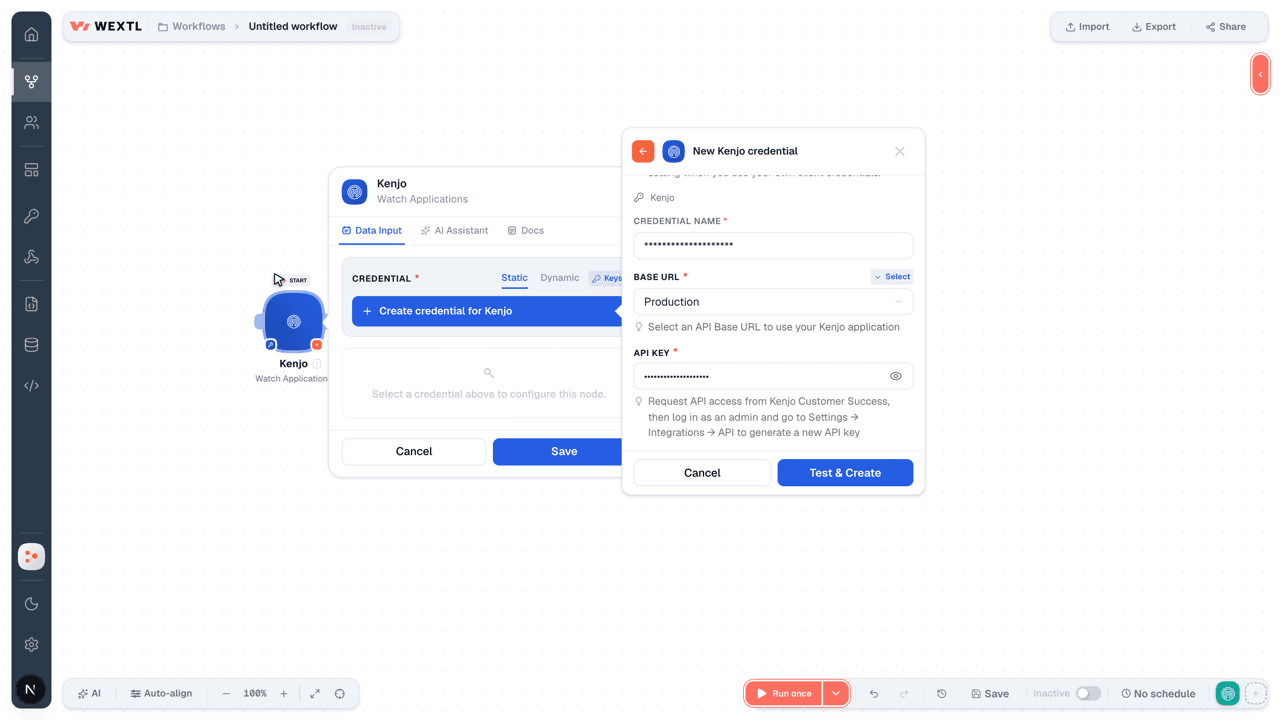
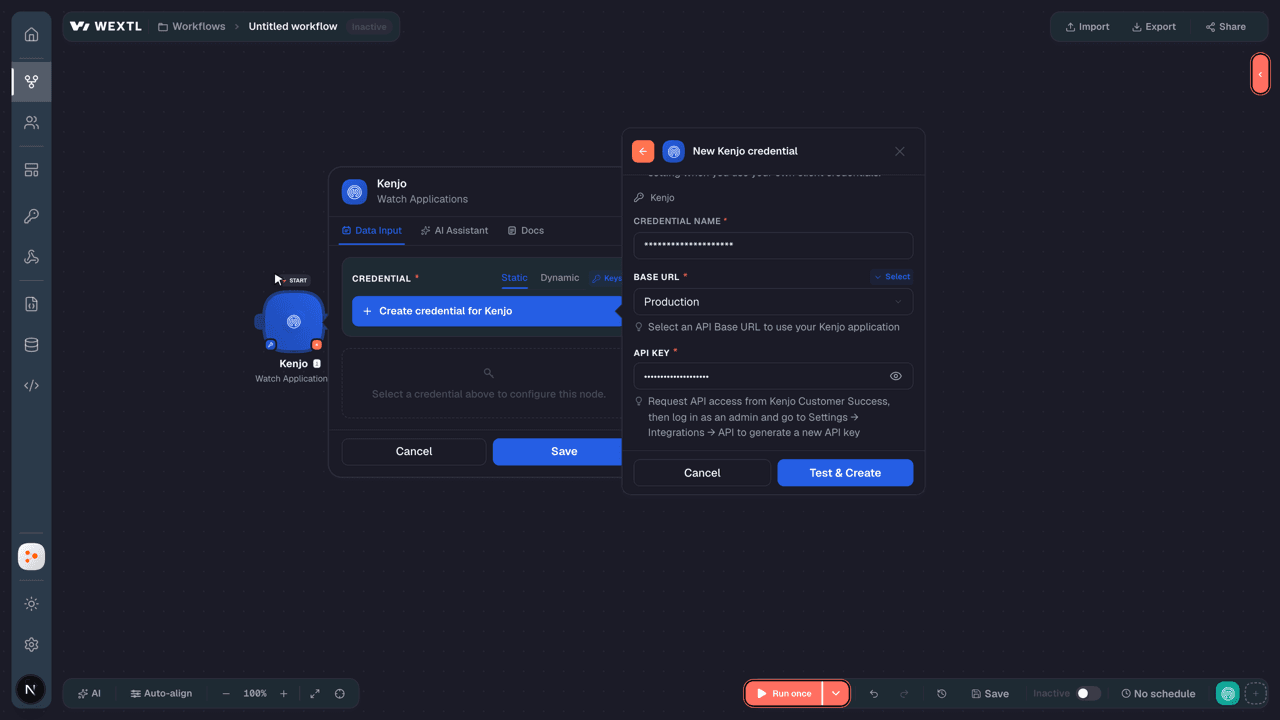
- Log in to your WEXTL account, add the Kenjo node module to your workflow, and click Create new credential.
- Optional: In the Credential name field, enter a name for the credential.
- Enter the authentication credentials you copied from your Kenjo account, or follow the on-screen instructions to create the credential.
- If prompted, authenticate your account and confirm access.
- If you want to make changes to your credential in the future, follow the steps in Manage credentials →
Notes
Credentials are org-scoped; share them with teammates from the Credentials picker on any of its nodes.For detailed information on connecting an application, see Connect an application →
Kenjo node modules
The list below is a reference of every Kenjo node module the integration supports. You will be able to pick any of them on the workflow canvas while building automations.
Open any Kenjo node module below to inspect its input parameters, outputs, and connection requirements.
Watch ApplicationsTrigger
| Field | Type |
|---|---|
| ID | text |
| position ID | text |
| candidate ID | text |
| Stage ID | text |
| Is disqualified | boolean |
| Rejection reason | text |
| Origin | text |
| created by ID | text |
| updated by ID | text |
| created at | date |
| updated at | date |
Watch CandidatesTrigger
| Field | Type |
|---|---|
| ID | text |
| First name | text |
| Last name | text |
| Phone | text |
| Origin | text |
| created by ID | text |
| updated by ID | text |
| created at | date |
| updated at | date |
Watch Time-off RequestsTrigger
| Field | Type |
|---|---|
| ID | text |
| user ID | text |
| time off type ID | text |
| policy ID | text |
| Policy name | text |
| policy type | text |
| Status | text |
| From | date |
| To | date |
| Duration | number |
| Working time | number |
| created at | date |
| Has attachment | boolean |
| type | text |
Get a CandidateAction
Get a DepartmentAction
Get an AttendanceAction
Get an OfficeAction
Get Employee SectionsAction
| Field | Type |
|---|---|
Employee IDRequired | choice |
| Field | Type |
|---|---|
| Account | object |
| ID | text |
| External ID | text |
| Is active | boolean |
| Language | text |
| Personal | object |
| First name | text |
| Last name | text |
| Display name | text |
| Gender | text |
| Birthdate | date |
| Nationality | text |
| Delegated approver ID | text |
| Work | object |
| Company ID | text |
| Office ID | text |
| Department ID | text |
| Area ids | array |
| Team ids | array |
| Start date | date |
| Job title | text |
| Work phone | text |
| Work mobile | text |
| Is assistant | boolean |
| Work schedule | object |
| Monday working day | boolean |
| Tuesday working day | boolean |
| Wednesday working day | boolean |
| Thursday working day | boolean |
| Friday working day | boolean |
| Saturday working day | boolean |
| Sunday working day | boolean |
| Address | object |
| Street | text |
| Postal code | text |
| City | text |
| Country | text |
| House number | text |
| Additional address | text |
| Financial | object |
| Account holder name | text |
| Bank name | text |
| Account number | text |
| Iban | text |
| Swift code | text |
| National ID | text |
| Passport | text |
| National insurance number | text |
| Tax code | text |
| Tax identification number | text |
| Home | object |
| Marital status | text |
| Spouse first name | text |
| Spouse last name | text |
| Spouse birthdate | date |
| Spouse gender | text |
| Personal email | |
| Personal phone | text |
| Personal mobile | text |
| Children | array |
| Emergency | object |
| Emergency first name | text |
| Emergency middle name | text |
| Emergency last name | text |
| Relation | text |
| Emergency phone number | text |
| Emergency mobile number | text |
List Additional PaymentsSearch
List Additional Payments TypesSearch
List ApplicationsSearch
| Field | Type |
|---|---|
| Position ID | choice |
| Candidate ID | choice |
| Stage ID | choice |
| Is Disqualified | boolean |
| Source | text |
| Rejection Reason | text |
| Limit | number |
| Field | Type |
|---|---|
| ID | text |
| position ID | text |
| candidate ID | text |
| Stage ID | text |
| Is disqualified | boolean |
| Rejection reason | text |
| Origin | text |
| created by ID | text |
| updated by ID | text |
| created at | date |
| updated at | date |
List AttendanceSearch
List Attendance CategoriesSearch
List CalendarsSearch
List CandidatesSearch
List CompaniesSearch
List Contract TypesSearch
List ContractsSearch
List Custom FieldsSearch
List Daily Net Expected TimeSearch
List DepartmentsSearch
List DocumentsSearch
List Employee AccountsSearch
List Employee AddressSearch
List Employee EmergenciesSearch
List Employee FinancialSearch
| Field | Type |
|---|---|
| Account Holder Name | text |
| Bank Name | text |
| Account Number | text |
| IBAN | text |
| SWIFT Code | text |
| National ID | text |
| Passport Number | text |
| National Insurance Number | text |
| Tax Code | text |
| Tax Identification Number | text |
| Limit | number |
| Field | Type |
|---|---|
| ID | text |
| Account holder name | text |
| Bank name | text |
| Account number | text |
| Iban | text |
| Swift code | text |
| National ID | text |
| Passport | text |
| National insurance number | text |
| Tax code | text |
| Tax identification number | text |
List Employee HomesSearch
| Field | Type |
|---|---|
Marital StatusRequired | choice |
| Spouse First Name | text |
| Spouse Last Name | text |
| Spouse Birthdate | date |
| Spouse Gender | choice |
| Personal Email | |
| Personal Phone | text |
| Personal Mobile | text |
| Limit | number |
| Field | Type |
|---|---|
| ID | text |
| Marital status | text |
| Spouse first name | text |
| Spouse last name | text |
| Spouse birthdate | date |
| Spouse gender | text |
| Personal email | |
| Personal phone | text |
| Personal mobile | text |
| Children | array |
List Employee PersonalsSearch
List Employee SchedulesSearch
List Employee WorksSearch
| Field | Type |
|---|---|
Company IDRequired | choice |
Office IDRequired | choice |
Department IDRequired | choice |
Start DateRequired | date |
Job TitleRequired | text |
Work PhoneRequired | text |
| Work Mobile | text |
| Is Assistant | boolean |
| Probation Period End | date |
| Contract End | date |
| Reports To ID | choice |
| Limit | number |
| Field | Type |
|---|---|
| ID | text |
| Company ID | text |
| Office ID | text |
| Department ID | text |
| Area ids | array |
| Team ids | array |
| Start date | date |
| Job title | text |
| Work phone | text |
| Work mobile | text |
| Is assistant | boolean |
| Probation period end | date |
| Time off approver ID | text |
| Contract end | date |
| Reports to ID | text |
List OfficesSearch
List PositionsSearch
| Field | Type |
|---|---|
| ID | choice |
StatusRequired | choice |
Company IDRequired | choice |
Office IDRequired | choice |
Department IDRequired | choice |
Position TypeRequired | choice |
| Limit | number |
| Field | Type |
|---|---|
| ID | text |
| Job title | text |
| Company ID | text |
| Office ID | text |
| Department ID | text |
| Position type | text |
| Status | text |
| Job description | object |
| HTML | text |
List SalariesSearch
List TeamsSearch
List Time-off RequestsSearch
| Field | Type |
|---|---|
FromRequired | date |
ToRequired | date |
| User ID | choice |
| Time Off Type ID | choice |
| Status | choice |
| Limit | number |
| Field | Type |
|---|---|
| ID | text |
| user ID | text |
| time off type ID | text |
| policy ID | text |
| Policy name | text |
| policy type | text |
| Status | text |
| From | date |
| To | date |
| Duration | number |
| Working time | number |
| created at | date |
| Has attachment | boolean |
| type | text |
List Time-off TypesSearch
List User AccountsSearch
List UsersSearch
Activate an EmployeeAction
| Field | Type |
|---|---|
Employee IDRequired | choice |
Adjust Time-off BalanceAction
Application AttachmentAction
| Field | Type |
|---|---|
Position IDRequired | choice |
Candidate IDRequired | choice |
AttachmentRequired | text |
File NameRequired | text |
Candidate AttachmentAction
| Field | Type |
|---|---|
Candidate IDRequired | choice |
AttachmentRequired | text |
File NameRequired | text |
Create a CandidateAction
Create a DepartmentAction
Create an AttendanceAction
| Field | Type |
|---|---|
DateRequired | date |
Start TimeRequired | time |
| User ID | choice |
| External ID | text |
| End Time | time |
| Is Overnight Shift | boolean |
| Breaks | array |
| Comment | text |
| Field | Type |
|---|---|
| ID | text |
| User ID | text |
| External ID | text |
| Start time | date |
| End time | date |
| Breaks | array |
| Break time | number |
| Paid break time | number |
| Comment | text |
Create an EmployeeAction
| Field | Type |
|---|---|
AccountRequired | object |
EmailRequired | |
| Language | choice |
| External ID | text |
PersonalRequired | object |
First NameRequired | text |
Last NameRequired | text |
| Display Name | text |
| Gender | choice |
| Birthdate | date |
| Nationality | text |
WorkRequired | object |
Company IDRequired | choice |
Weekly HoursRequired | number |
| Office ID | choice |
| Department ID | choice |
| Start Date | date |
| Job Title | text |
| Work Phone | text |
| Work Mobile | text |
| Is Assistant | boolean |
| Probation Period End | date |
| Work Schedule | object |
| Monday Working Day | boolean |
| Tuesday Working Day | boolean |
| Wednesday Working Day | boolean |
| Thursday Working Day | boolean |
| Friday Working Day | boolean |
| Saturday Working Day | boolean |
| Sunday Working Day | boolean |
| Track Attendance | boolean |
| Address | object |
| Street | text |
| Postal Code | text |
| City | text |
| Country | text |
| House Number | text |
| Additional Address | text |
| Financial | object |
| Account Holder Name | text |
| Bank Name | text |
| Account Number | text |
| IBAN | text |
| SWIFT Code | text |
| National ID | text |
| Passport | text |
| National Insurance Number | text |
| Tax Code | text |
| Tax Identification Number | text |
| Home | object |
| Marital Status | choice |
| Spouse First Name | text |
| Spouse Last Name | text |
| Spouse Birthdate | date |
| Spouse Gender | choice |
| Personal Email | |
| Personal Phone | text |
| Personal Mobile | text |
| Children | array |
| Emergency | object |
| Emergency First Name | text |
| Emergency Middle Name | text |
| Emergency Last Name | text |
| Relation | choice |
| Emergency Phone Number | text |
| Emergency Mobile Number | text |
| Field | Type |
|---|---|
| Account | object |
| ID | text |
| External ID | text |
| Is active | boolean |
| Language | text |
| Personal | object |
| First name | text |
| Last name | text |
| Display name | text |
| Gender | text |
| Birthdate | date |
| Nationality | text |
| Work | object |
| Company ID | text |
| Office ID | text |
| Department ID | text |
| Start date | date |
| Job title | text |
| Work phone | text |
| Work mobile | text |
| Is assistant | boolean |
| Probation period end | date |
| Contract end | date |
| Work schedule | object |
| Monday working day | boolean |
| Tuesday working day | boolean |
| Wednesday working day | boolean |
| Thursday working day | boolean |
| Friday working day | boolean |
| Saturday working day | boolean |
| Sunday working day | boolean |
| Track attendance | boolean |
| Address | object |
| Street | text |
| Postal code | text |
| City | text |
| Country | text |
| House number | text |
| Additional address | text |
| Financial | object |
| Account holder name | text |
| Bank name | text |
| Account number | text |
| Iban | text |
| Swift code | text |
| National ID | text |
| Passport | text |
| National insurance number | text |
| Tax code | text |
| Tax identification number | text |
| Home | object |
| Marital status | text |
| Spouse first name | text |
| Spouse last name | text |
| Spouse birthdate | date |
| Spouse gender | text |
| Personal email | |
| Personal phone | text |
| Personal mobile | text |
| Children | array |
| Emergency | object |
| Emergency first name | text |
| Emergency middle name | text |
| Emergency last name | text |
| Relation | text |
| Emergency phone number | text |
| Emergency mobile number | text |
Create an OfficeAction
Create Approved Time-off RequestAction
Create Candidate ApplicationAction
| Field | Type |
|---|---|
Position IDRequired | choice |
Candidate IDRequired | choice |
| Stage ID | choice |
| Source | text |
| Is Disqualified | boolean |
| Rejection Reason | text |
| Field | Type |
|---|---|
| ID | text |
| position ID | text |
| candidate ID | text |
| Stage ID | text |
| Is disqualified | boolean |
| Rejection reason | text |
| Origin | text |
| created by ID | text |
| updated by ID | text |
| created at | date |
| updated at | date |
Create Time-off RequestAction
Deactivate an EmployeeAction
| Field | Type |
|---|---|
Employee IDRequired | choice |
Delete a DepartmentAction
| Field | Type |
|---|---|
IDRequired | choice |
Delete a TeamAction
| Field | Type |
|---|---|
IDRequired | choice |
Delete an AreaAction
| Field | Type |
|---|---|
IDRequired | choice |
Delete an AttendanceAction
| Field | Type |
|---|---|
Attendance IDRequired | choice |
Delete an OfficeAction
| Field | Type |
|---|---|
IDRequired | choice |
Make an API Calluniversal
Track an AttendanceAction
Update a CandidateAction
Update a DepartmentAction
Update a TeamAction
Update an AreaAction
Update an AttendanceAction
Update an OfficeAction
Update Candidate ApplicationAction
| Field | Type |
|---|---|
Position IDRequired | choice |
Candidate IDRequired | choice |
| Stage ID | choice |
| Source | text |
| Is Disqualified | boolean |
| Rejection Reason | text |
| Field | Type |
|---|---|
| ID | text |
| position ID | text |
| candidate ID | text |
| Stage ID | text |
| Is disqualified | boolean |
| Rejection reason | text |
| Origin | text |
| created by ID | text |
| updated by ID | text |
| created at | date |
| updated at | date |
Update Employee AccountAction
Update Employee AddressAction
Update Employee EmergenciesAction
| Field | Type |
|---|---|
Employee IDRequired | choice |
| Emergency First Name | text |
| Emergency Middle Name | text |
| Emergency Last Name | text |
| Relation | choice |
| Emergency Phone Number | text |
| Emergency Mobile Number | text |
| Field | Type |
|---|---|
| ID | text |
| Emergency first name | text |
| Emergency middle name | text |
| Emergency last name | text |
| Relation | text |
| Emergency phone number | text |
| Emergency mobile number | text |
Update Employee FinanceAction
| Field | Type |
|---|---|
Employee IDRequired | choice |
| Account Holder Name | text |
| Bank Name | text |
| Account Number | text |
| IBAN | text |
| SWIFT Code | text |
| National ID | text |
| Passport Number | text |
| National Insurance Number | text |
| Tax Code | text |
| Tax Identification Number | text |
| Field | Type |
|---|---|
| ID | text |
| Account holder name | text |
| Bank name | text |
| Account number | text |
| Iban | text |
| Swift code | text |
| National ID | text |
| Passport | text |
| National insurance number | text |
| Tax code | text |
| Tax identification number | text |
Update Employee HomeAction
| Field | Type |
|---|---|
Employee IDRequired | choice |
Marital StatusRequired | choice |
| Spouse First Name | text |
| Spouse Last Name | text |
| Spouse Birthdate | date |
| Spouse Gender | choice |
| Personal Email | |
| Personal Phone | text |
| Personal Mobile | text |
| Children | array |
Child First NameRequired | text |
Child Last NameRequired | text |
Child BirthdateRequired | date |
| Child Gender | text |
| Field | Type |
|---|---|
| ID | text |
| Marital status | text |
| Spouse first name | text |
| Spouse last name | text |
| Spouse birthdate | date |
| Spouse gender | text |
| Personal email | |
| Personal phone | text |
| Personal mobile | text |
| Children | array |
Update Employee PersonalsAction
Update Employee Work ScheduleAction
| Field | Type |
|---|---|
Employee IDRequired | choice |
| Monday Working Day | boolean |
| Tuesday Working Day | boolean |
| Wednesday Working Day | boolean |
| Thursday Working Day | boolean |
| Friday Working Day | boolean |
| Saturday Working Day | boolean |
| Sunday Working Day | boolean |
| Field | Type |
|---|---|
| ID | text |
| Monday working day | boolean |
| Tuesday working day | boolean |
| Wednesday working day | boolean |
| Thursday working day | boolean |
| Friday working day | boolean |
| Saturday working day | boolean |
| Sunday working day | boolean |
Templates
Look for Kenjo templates in the WEXTL template library.
Browse templates →Explore alternative apps
- BrightHR[2]HR software for small businesses covering people, absence, and time tracking.
- BullhornRecruiting ATS and CRM for staffing agencies and talent teams.
- AchieversEmployee recognition and engagement platform for celebrations, rewards, and newsfeeds.
- AladtecWorkforce scheduling and timekeeping for public safety and healthcare teams.
- BeameryTalent lifecycle CRM for recruiting, talent pooling, campaigns, and workforce planning.


References
- WEXTL® Kenjo Source Code connector implementation.
- Our users use cases and automations.
- Official API Documentation for Kenjo.
- WEXTL® visual workflow builder data.
Last updated: Jul 18, 2026 19:12