


Requirements
To use Nookal on WEXTL you need an active account and OAuth client credentials, granted by signing in with your account.[3]
Get your Nookal credentials
You’ll be redirected to sign in and approve access — your password is never shared with WEXTL.
- Basic KeypasswordRequired
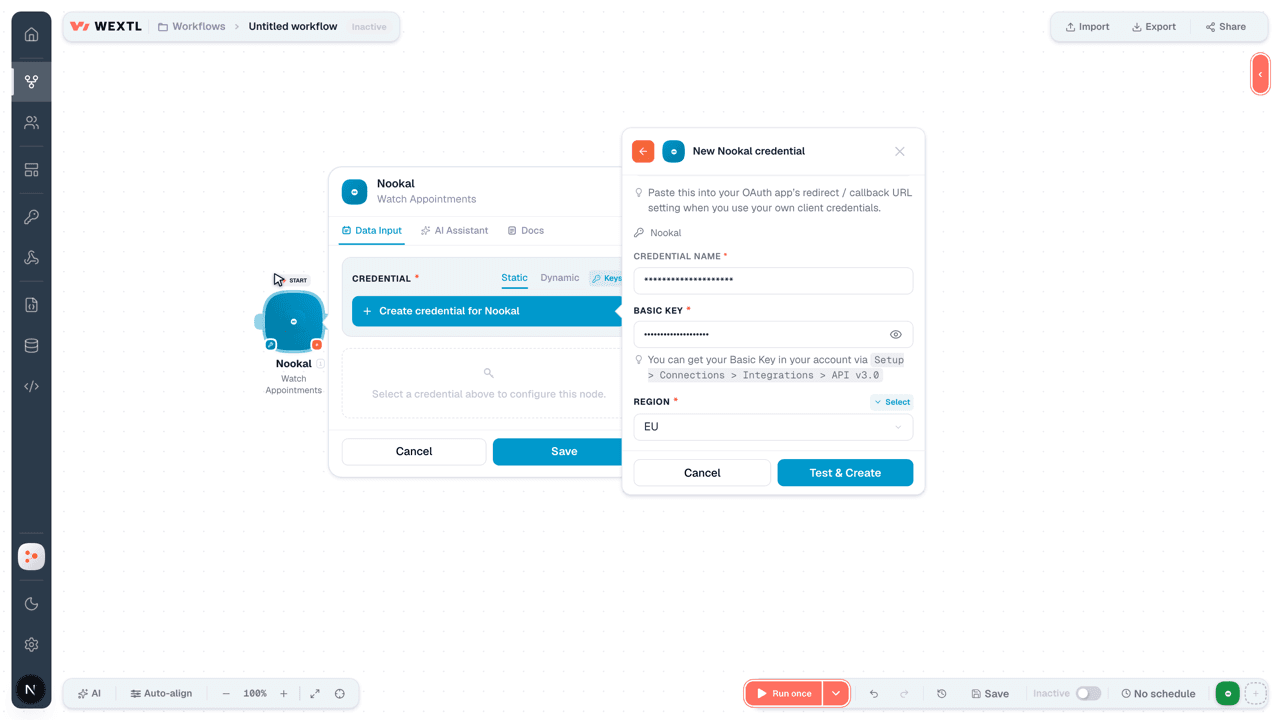
You can get your Basic Key in your account via
[1]Setup > Connections > Integrations > API v3.0 - RegionselectRequired
Connect Nookal in WEXTL
- Log in to your WEXTL account, add the Nookal node module to your workflow, and click Create new credential.
- Optional: In the Credential name field, enter a name for the credential.
- Enter the authentication credentials you copied from your Nookal account, or follow the on-screen instructions to create the credential.
- If prompted, authenticate your account and confirm access.
- If you want to make changes to your credential in the future, follow the steps in Manage credentials →
Notes
Credentials are org-scoped; share them with teammates from the Credentials picker on any of its nodes.For detailed information on connecting an application, see Connect an application →
Nookal node modules
The list below is a reference of every Nookal node module the integration supports. You will be able to pick any of them on the workflow canvas while building automations.
Open any Nookal node module below to inspect its input parameters, outputs, and connection requirements.
Watch AppointmentsTrigger
| Field | Type |
|---|---|
| Appt ID | number |
| Client ID | number |
| Client Name | text |
| Provider ID | number |
| Provider Name | text |
| Case ID | number |
| Case Name | text |
| Is New Client | number |
| Is New Case | number |
| Appt Type | text |
| Type Name | text |
| Type ID | number |
| Appointment Date | text |
| Start Time | text |
| End Time | text |
| Date Added | date |
| Cancellation Date | text |
| Status | text |
| Notes | text |
| Location ID | number |
Watch ClientsTrigger
| Field | Type |
|---|---|
| Client ID | number |
| Contact Details | array |
| Addresses | array |
| Files | array |
| Alerts | text |
| DOB | text |
| Date Created | text |
| Date Modified | text |
| Doctor | object |
| Contact ID | number |
| First Name | text |
| Last Name | text |
| Title | text |
| Display Name | text |
| Active | number |
| Company | text |
| Contact Type | text |
| Employer | text |
| Title | text |
| First Name | text |
| Middle Name | text |
| Last Name | text |
| Full Name | text |
| Location ID | text |
| Notes | text |
| Occupation | text |
| Pension No | text |
| Private Health No | text |
Watch InvoicesTrigger
| Field | Type |
|---|---|
| Invoice ID | number |
| Client ID | number |
| Case ID | number |
| Location ID | number |
| Invoice Number | text |
| Practitioner ID | number |
| Date Created | text |
| Last Modified | text |
| Is Third Party Invoice | number |
| Invoice Notes | text |
| Account Notes | text |
| Addressee ID | number |
| Appt ID | number |
| Appt Date | text |
| GST | number |
| Subtotal | number |
| GST Total | number |
| Total | number |
| Total Payments | number |
| Balance | number |
Watch PaymentsTrigger
| Field | Type |
|---|---|
| Payment ID | number |
| Location ID | number |
| Client ID | number |
| Method | text |
| Amount | number |
| Invoice ID | number |
| Date | text |
| Payment Ref | text |
| Cheque No | text |
| Bank Name | text |
| Eft Ref | text |
| Active | number |
List AppointmentsSearch
| Field | Type |
|---|---|
| Locations | choice |
| Appointments | choice |
| Date From | date |
| Date To | date |
| Clients | choice |
| Provider IDs | array |
| Appointment Type | array |
| Appointment Status | array |
| Last Modified Date From | date |
| Last Modified Date To | date |
| Limit | number |
| Field | Type |
|---|---|
| Appt ID | number |
| Client ID | number |
| Client Name | text |
| Provider ID | number |
| Provider Name | text |
| Case ID | number |
| Case Name | text |
| Is New Client | number |
| Is New Case | number |
| Appt Type | text |
| Type Name | text |
| Type ID | number |
| Appointment Date | text |
| Start Time | text |
| End Time | text |
| Date Added | date |
| Cancellation Date | text |
| Status | text |
| Notes | text |
| Location ID | number |
List ClientsSearch
| Field | Type |
|---|---|
| Locations | choice |
| Client IDs | choice |
| Online Quick Code | text |
| Location ID | choice |
| Deceased Flag | number |
| First Name | text |
| Last Name | text |
| Date of Birth | date |
| Mobile | text |
| Email Address | |
| Fuzzy Match | number |
| File Type | choice |
| Limit | number |
| Field | Type |
|---|---|
| Client ID | number |
| Contact Details | array |
| Addresses | array |
| Files | array |
| Alerts | text |
| DOB | text |
| Date Created | date |
| Date Modified | date |
| Doctor | object |
| Contact ID | number |
| First Name | text |
| Last Name | text |
| Title | text |
| Display Name | text |
| Active | number |
| Company | text |
| Contact Type | text |
| Employer | text |
| Title | text |
| First Name | text |
| Middle Name | text |
| Last Name | text |
| Full Name | text |
| Location ID | text |
| Notes | text |
| Occupation | text |
| Pension No | text |
| Private Health No | text |
List InvoicesSearch
| Field | Type |
|---|---|
| Locations | choice |
| Invoices | choice |
| Date From | date |
| Date To | date |
| Limit | number |
| Field | Type |
|---|---|
| Invoice ID | number |
| Client ID | number |
| Case ID | number |
| Location ID | number |
| Invoice Number | text |
| Practitioner ID | number |
| Date Created | date |
| Last Modified | date |
| Is Third Party Invoice | number |
| Invoice Notes | text |
| Account Notes | text |
| Addressee ID | number |
| Appt ID | number |
| Appt Date | text |
| GST | number |
| Subtotal | number |
| GST Total | number |
| Total | number |
| Total Payments | number |
| Balance | number |
List PaymentsSearch
Cancel AppointmentAction
| Field | Type |
|---|---|
AppointmentRequired | choice |
ClientRequired | choice |
| Client Name | text |
| Provider ID | number |
| Provider Name | text |
| Case | choice |
| Case Name | text |
| Is New Client | choice |
| Is New Case | choice |
| Appointment Type | text |
| Type Name | text |
| Appointment Type | number |
| Appointment Date | date |
| Start Time | time |
| Start Date Time UTC | date |
| End Date Time UTC | date |
| End Time | time |
| Date Added | date |
| Cancellation Date | date |
| Status | text |
| Field | Type |
|---|---|
| Appt ID | number |
| Client ID | number |
| Client Name | text |
| Provider ID | number |
| Provider Name | text |
| Case ID | number |
| Case Name | text |
| Is New Client | number |
| Is New Case | number |
| Appt Type | text |
| Type Name | text |
| Type ID | number |
| Appointment Date | text |
| Start Time | text |
| Start Date Time UTC | text |
| End Date Time UTC | text |
| End Time | text |
| Date Added | text |
| Cancellation Date | text |
| Status | text |
Create a ClientAction
| Field | Type |
|---|---|
First NameRequired | text |
Last NameRequired | text |
Date of BirthRequired | date |
| Date Created | date |
| Date Modified | date |
| Employer | text |
| Title | text |
| Middle Name | text |
| Full Name | text |
| Location ID | text |
| Notes | text |
| Occupation | text |
| Pension Number | text |
| Private Health Number | text |
| Private Health Type | text |
| Registration Date | date |
| Health Fund Data | text |
| Active | boolean |
| Allergies | text |
| Allow Online Bookings | boolean |
| Field | Type |
|---|---|
| Client ID | number |
| Contact Details | array |
| Addresses | array |
| Files | array |
| Alerts | text |
| DOB | text |
| Date Created | text |
| Date Modified | text |
| Doctor | object |
| Contact ID | number |
| First Name | text |
| Last Name | text |
| Title | text |
| Display Name | text |
| Active | number |
| Company | text |
| Contact Type | text |
| Employer | text |
| Title | text |
| First Name | text |
| Middle Name | text |
| Last Name | text |
| Full Name | text |
| Location ID | text |
| Notes | text |
| Occupation | text |
| Pension No | text |
| Private Health No | text |
Create a PaymentAction
| Field | Type |
|---|---|
| Location | choice |
| Client | choice |
MethodRequired | text |
AmountRequired | number |
InvoiceRequired | choice |
| Date | date |
| Payment Reference | text |
| Cheque Number | text |
| Bank Name | text |
| EFT Reference | text |
| Active | choice |
| Field | Type |
|---|---|
| Payment ID | number |
| Location ID | number |
| Client ID | number |
| Method | text |
| Amount | number |
| Invoice ID | number |
| Date | text |
| Payment Ref | text |
| Cheque No | text |
| Bank Name | text |
| Eft Ref | text |
| Active | number |
Create an AppointmentAction
| Field | Type |
|---|---|
ClientRequired | choice |
| Client Name | text |
Provider IDRequired | number |
| Provider Name | text |
| Case | choice |
| Case Name | text |
| Is New Client | choice |
| Is New Case | choice |
| Appointment Type | text |
| Type Name | text |
Appointment TypeRequired | number |
Appointment DateRequired | date |
Start TimeRequired | time |
| Start Date Time UTC | date |
| End Date Time UTC | date |
| End Time | time |
| Date Added | date |
| Cancellation Date | date |
| Status | text |
| Notes | text |
| Field | Type |
|---|---|
| Appt ID | number |
| Client ID | number |
| Client Name | text |
| Provider ID | number |
| Provider Name | text |
| Case ID | number |
| Case Name | text |
| Is New Client | number |
| Is New Case | number |
| Appt Type | text |
| Type Name | text |
| Type ID | number |
| Appointment Date | text |
| Start Time | text |
| Start Date Time UTC | text |
| End Date Time UTC | text |
| End Time | text |
| Date Added | text |
| Cancellation Date | text |
| Status | text |
Create an InvoiceAction
| Field | Type |
|---|---|
ClientRequired | choice |
Case IDRequired | choice |
LocationRequired | choice |
| Invoice Number | text |
| Practitioner ID | number |
| Recipient ID | number |
| Recipient Type | text |
| Is TP | number |
| Date Created | date |
| Is Third Party Invoice | number |
| Invoice Notes | text |
| Account Notes | text |
| Addressee ID | number |
| Appointment | choice |
| Appointment Date | date |
| GST | number |
| Subtotal | number |
| GST Total | number |
| Total | number |
| Total Payments | number |
| Field | Type |
|---|---|
| Invoice ID | number |
| Client ID | number |
| Case ID | number |
| Location ID | number |
| Invoice Number | text |
| Practitioner ID | number |
| Recipient ID | number |
| Recipient Type | text |
| Is TP | number |
| Date Created | text |
| Is Third Party Invoice | number |
| Invoice Notes | text |
| Account Notes | text |
| Addressee ID | number |
| Appt ID | number |
| Appt Date | text |
| GST | number |
| Subtotal | number |
| GST Total | number |
| Total | number |
Create an Invoice EntryAction
| Field | Type |
|---|---|
InvoiceRequired | choice |
Item IDRequired | number |
| Tax | number |
| Total | number |
| Void | number |
| Subtotal | number |
| Item Type | text |
| Item Price | number |
| Item GST | number |
| Item Code | text |
| Quantity | number |
| Name | text |
| Category | text |
| Description | text |
| Date | date |
| Appointment | choice |
| Provider ID | number |
| Appointment Date | date |
| Date Created | date |
| Field | Type |
|---|---|
| Entry ID | number |
| Invoice ID | number |
| Tax | number |
| Total | number |
| Void | number |
| Subtotal | number |
| Item Type | text |
| Item Price | number |
| Item GST | number |
| Item Code | text |
| Item ID | number |
| Qty | number |
| Name | text |
| Category | text |
| Description | text |
| Date | text |
| Appt ID | number |
| Provider ID | number |
| Appt Date | text |
Delete a PaymentAction
Delete an Invoice EntryAction
Execute a GraphQL Queryuniversal
Update a ClientAction
| Field | Type |
|---|---|
ClientRequired | choice |
| First Name | text |
| Last Name | text |
| Date of Birth | date |
| Date Created | date |
| Date Modified | date |
| Employer | text |
| Title | text |
| Middle Name | text |
| Full Name | text |
| Location ID | text |
| Notes | text |
| Occupation | text |
| Pension Number | text |
| Private Health Number | text |
| Private Health Type | text |
| Registration Date | date |
| Health Fund Data | text |
| Active | boolean |
| Allergies | text |
| Field | Type |
|---|---|
| Client ID | number |
| Contact Details | array |
| Addresses | array |
| Files | array |
| Alerts | text |
| DOB | text |
| Date Created | text |
| Date Modified | text |
| Doctor | object |
| Contact ID | number |
| First Name | text |
| Last Name | text |
| Title | text |
| Display Name | text |
| Active | number |
| Company | text |
| Contact Type | text |
| Employer | text |
| Title | text |
| First Name | text |
| Middle Name | text |
| Last Name | text |
| Full Name | text |
| Location ID | text |
| Notes | text |
| Occupation | text |
| Pension No | text |
| Private Health No | text |
Update an InvoiceAction
| Field | Type |
|---|---|
InoviceRequired | choice |
| Client | choice |
| Case ID | choice |
| Location | choice |
| Invoice Number | text |
| Practitioner ID | number |
| Recipient ID | number |
| Recipient Type | text |
| Is TP | number |
| Date Created | date |
| Is Third Party Invoice | number |
| Invoice Notes | text |
| Account Notes | text |
| Addressee ID | number |
| Appointment ID | number |
| Appointment Date | date |
| GST | number |
| Subtotal | number |
| GST Total | number |
| Total | number |
| Field | Type |
|---|---|
| Invoice ID | number |
| Client ID | number |
| Case ID | number |
| Location ID | number |
| Invoice Number | text |
| Practitioner ID | number |
| Recipient ID | number |
| Recipient Type | text |
| Is TP | number |
| Date Created | text |
| Is Third Party Invoice | number |
| Invoice Notes | text |
| Account Notes | text |
| Addressee ID | number |
| Appt ID | number |
| Appt Date | text |
| GST | number |
| Subtotal | number |
| GST Total | number |
| Total | number |
Templates
Look for Nookal templates in the WEXTL template library.
Browse templates →Explore alternative apps
- CharmHealth[2]Cloud EHR for patients, appointments, encounters, and clinical records.
- DaySmart VetCloud veterinary practice management for scheduling, records, and client communication.
- Clio GrowManage contacts, matters, inbox leads, lead sources, and locations in Clio Grow client intake.
- Clio ManageManage matters, contacts, tasks, billing, documents, and calendars in Clio Manage legal practice management.
- AlfaDocsPractice management for dental clinics — patients, appointments, and records.


References
- WEXTL® Nookal Source Code connector implementation.
- Our users use cases and automations.
- Official API Documentation for Nookal.
- WEXTL® visual workflow builder data.
Last updated: Jul 24, 2026 18:12